

Integrations: Salesforce API Changes
Salesforce is introducing changes to how external platforms authenticate and connect to its services. These changes will affect some Funraisin integrations and may require organizations to update their connection settings to avoid disruptions to data syncing.
This article explains how to identify whether your Salesforce integration is affected and what steps to take to maintain a secure connection between Salesforce and Funraisin.
Jump to:
What is Salesforce changing, and who is affected?
Salesforce is changing how third-party platforms, including Funraisin, securely connect to Salesforce. As part of this change, Salesforce is retiring its legacy SOAP API login ( ) function and moving to a newer authentication method called OAuth, which uses External Client Apps to manage connections.
While the legacy function is scheduled for retirement in mid-2027, changes beginning December 1, 2026, mean some Funraisin platforms will need to update their Salesforce integration to continue syncing data.
This change affects Funraisin platforms using the legacy SOAP API authentication method (Username, Password, and Security Token credentials). Affected organizations will need to create a Salesforce External Client App and update their integration in Funraisin with new OAuth credentials to continue syncing data.
Important: For organizations whose Salesforce integration already uses OAuth Client ID and OAuth Client Secret credentials, with OAuth Flow set to client_credentials, no action is required.
Checking the current Salesforce integration
Check which credentials are currently configured in Funraisin to determine whether the Salesforce integration needs to be updated. Platforms already using OAuth Client ID and OAuth Client Secret credentials require no further action.
To check the configured credentials in Funraisin:
- 1
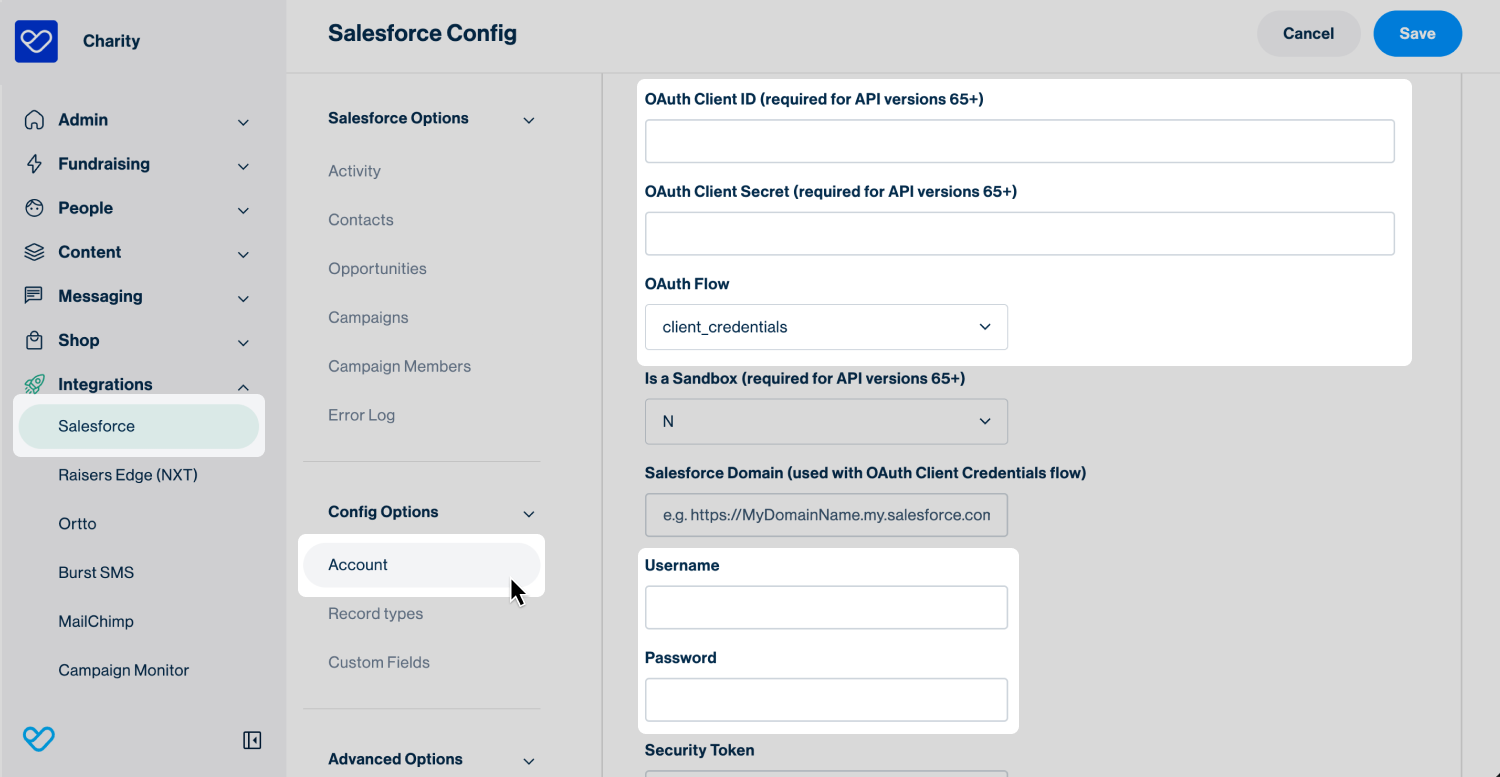
- Navigate to Integrations > Salesforce.
- 2
- Under Config Options, select Account.
- 3
- Check the configured credentials to identify which authentication method is being used:
- Update required: The integration uses Username, Password, and Security Token credentials, with OAuth Flow set to:
password. - No action required: The integration uses OAuth Client ID and OAuth Client Secret credentials, with OAuth Flow set to:
client_credentials.
- Update required: The integration uses Username, Password, and Security Token credentials, with OAuth Flow set to:
Important: If the authentication method is unclear, please reach out to the Funraisin support team by submitting a support ticket from your platform before making any changes.
Locating the existing Salesforce API user
When setting up OAuth credentials, an existing Salesforce API User will need to be assigned to the External Client App. This user should already exist if the Salesforce integration has previously been configured.
Before proceeding, note the username currently configured under Integrations > Salesforce > Account > Username in Funraisin. This will be needed when setting up the External Client App.
To locate the corresponding user in Salesforce:
- 1
- Log in to Salesforce and open Settings.
- 2
- Use the search bar to find and open Users.
- 3
- Locate the user with the same username recorded in Funraisin.
- 4
- Confirm that the user's profile is one of the following:
- API Only Integrations
- Salesforce API Only System Integrations
- System Admin
Creating a Salesforce External Client App
Before the Salesforce credentials can be updated in Funraisin, an External Client App needs to be created in Salesforce to connect the two platforms.
Access to Salesforce with the appropriate administrator permissions is required to complete this setup.
To create an External Client App:
- 1
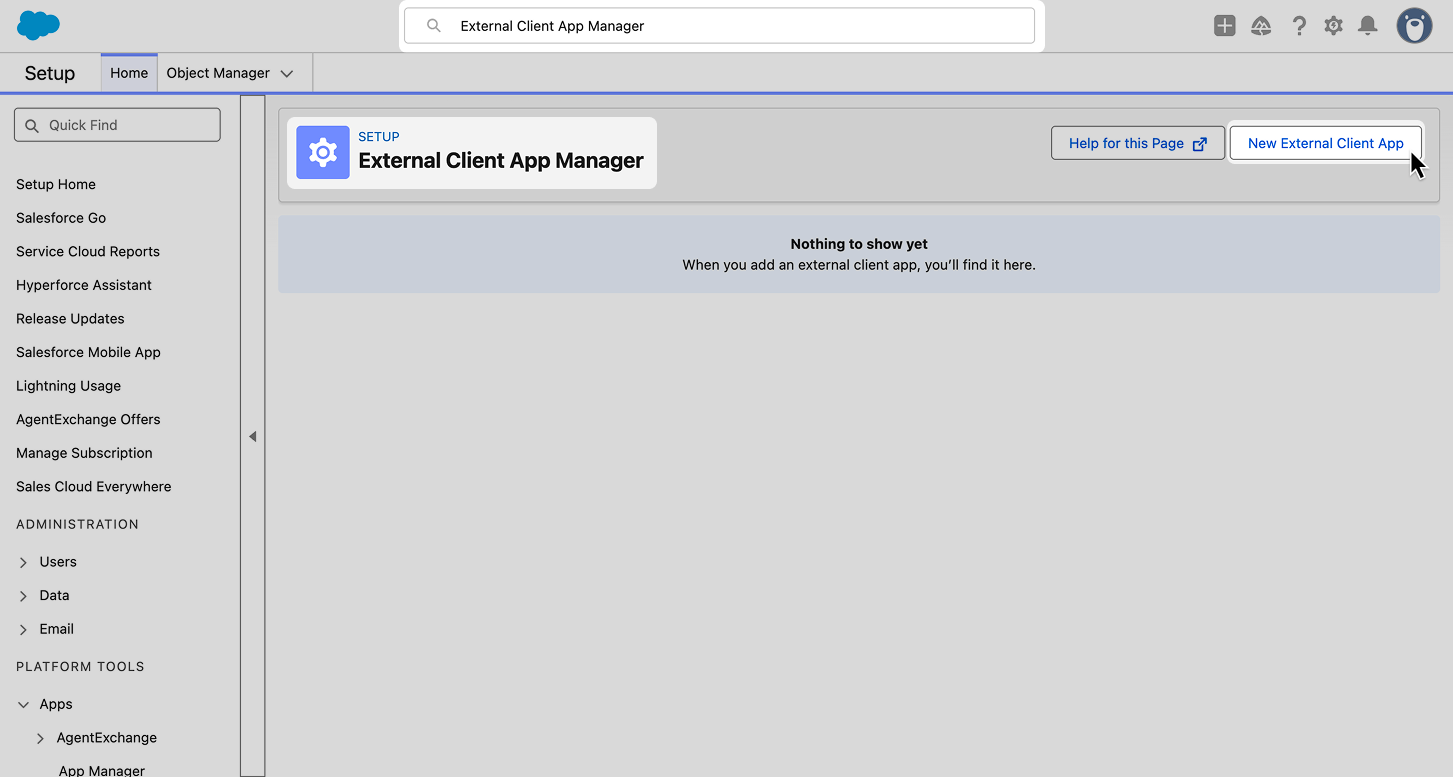
- Log in to Salesforce and open Settings.
- 2
- Use the search bar to find and open External Client App Manager.
- 3
- Click New External Client App.
- 4
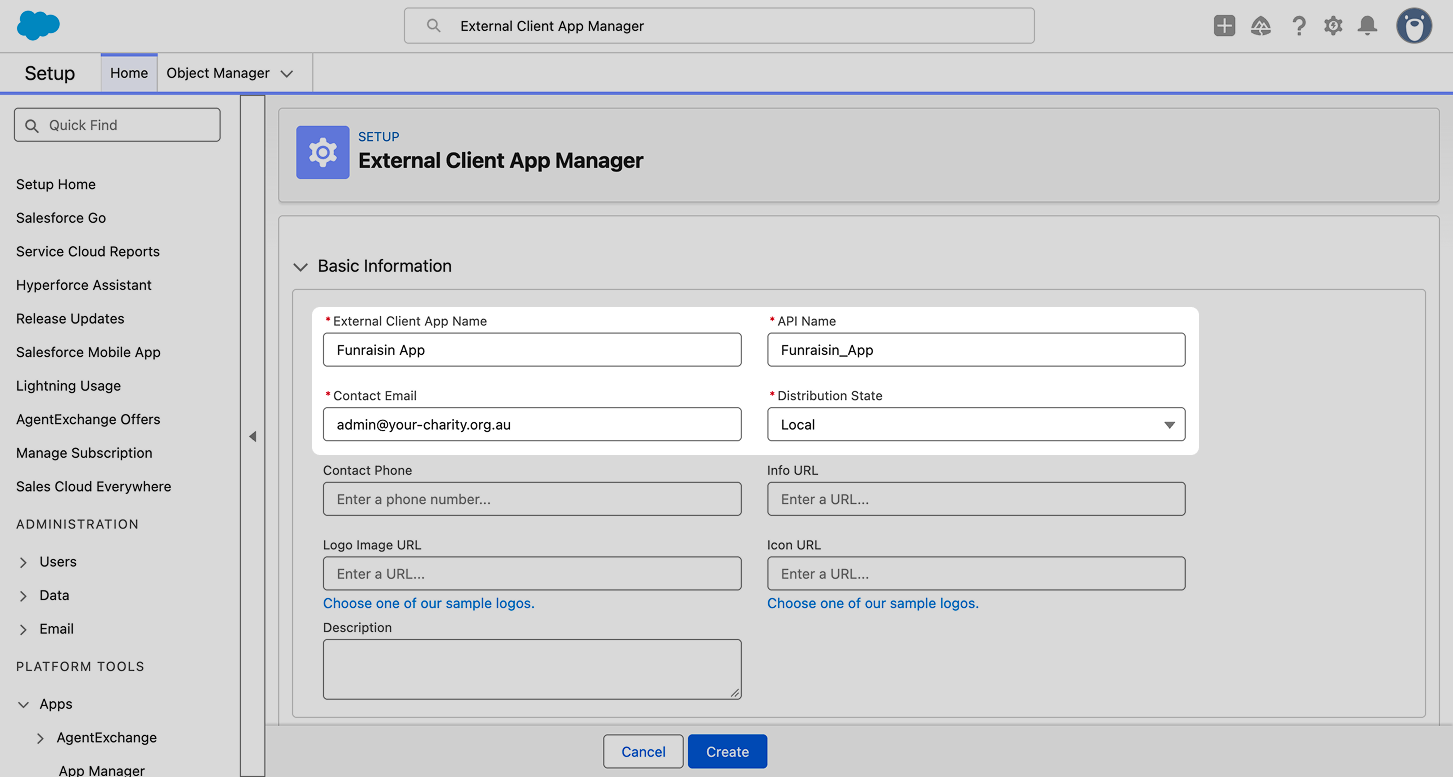
- Configure the following settings:
- Basic Information:
- External Client App Name: Enter a recognizable name, such as "Funraisin App".
- API Name: Leave the automatically populated value unchanged.
- Contact Email: Enter the organization's default email address.
- Distribution State: Select Local.
- Basic Information:
- All other fields can be left blank.
- 5
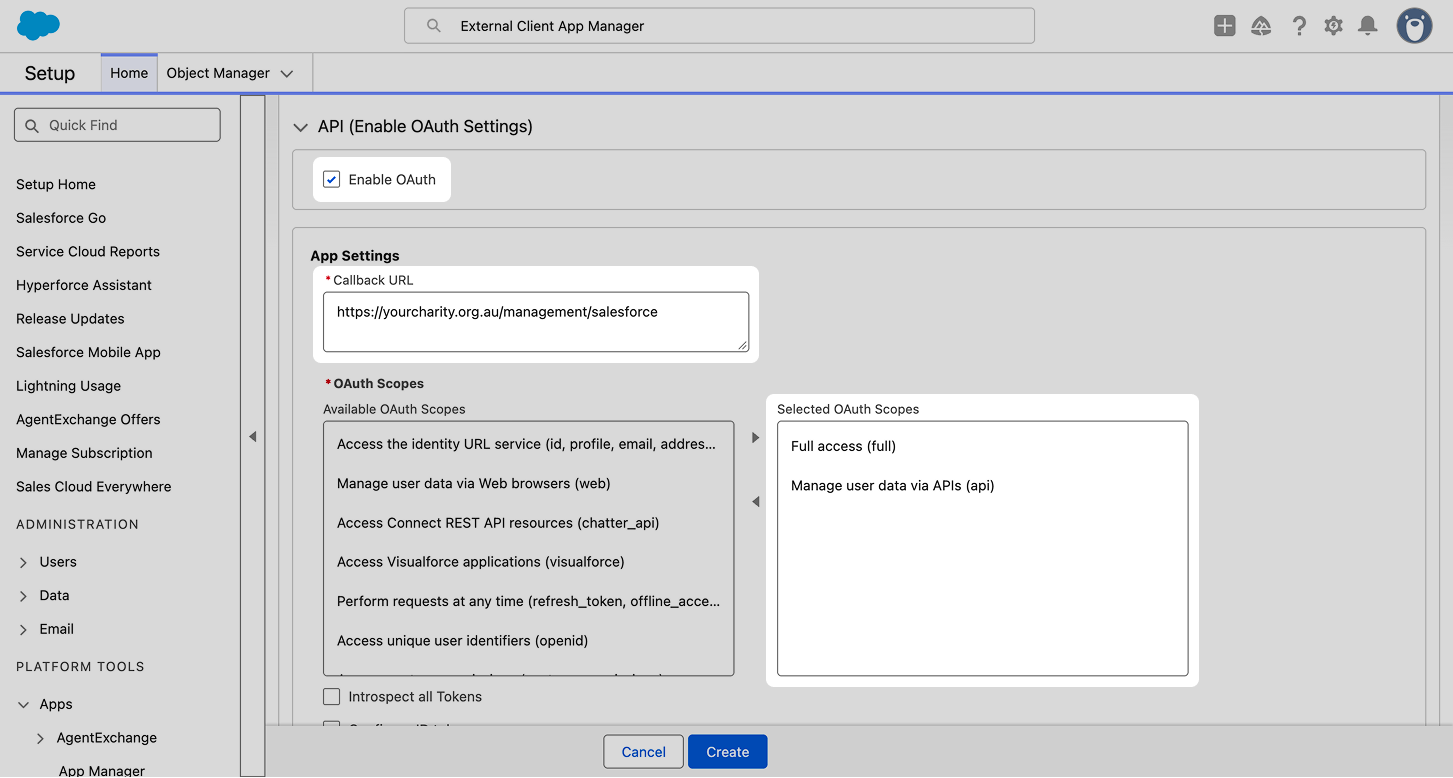
- Select Enable OAuth, then configure the following:
- App Settings:
- Callback URL: Enter your Funraisin platform's URL (without
www.), followed by/management/salesforce.For example:https://yourfunraisinplatform.org/management/salesforce
- Callback URL: Enter your Funraisin platform's URL (without
- OAuth Scopes: Under Available OAuth Scopes, select the following two scopes and use the arrows to move them to Selected OAuth Scopes:
- Full access (full)
- Manage user data via APIs (api)
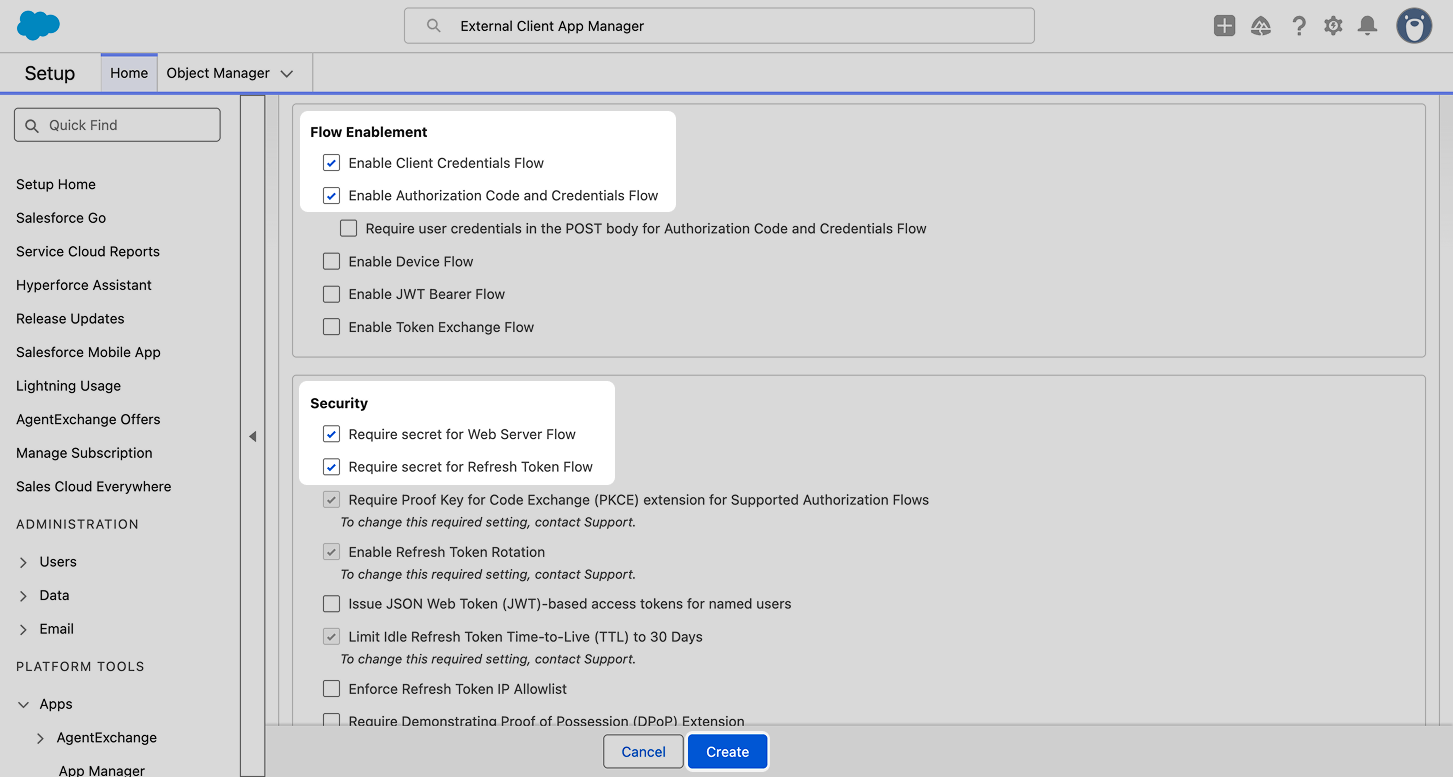
- Flow Enablement: Select the following checkboxes:
- Enable Client Credentials Flow
- Enable Authorization Code and Credentials Flow
- Security: Select the following checkboxes:
- Require secret for Web Server Flow
- Require secret for Refresh Token Flow
- App Settings:
- Leave all other settings unchanged.
- 6
- Click Create.
Configuring OAuth app policies
To finalize the External Client App setup, a Salesforce API user needs to be assigned and the required app policies configured.
To configure the app policies:
- 1
- After saving the app in the previous section, you'll be directed to its management page in Salesforce. To return to this page, open Settings, use the search bar to find External Client App Manager, and select the app you created.
- 2
- Select the Policies tab and click Edit.
- 3
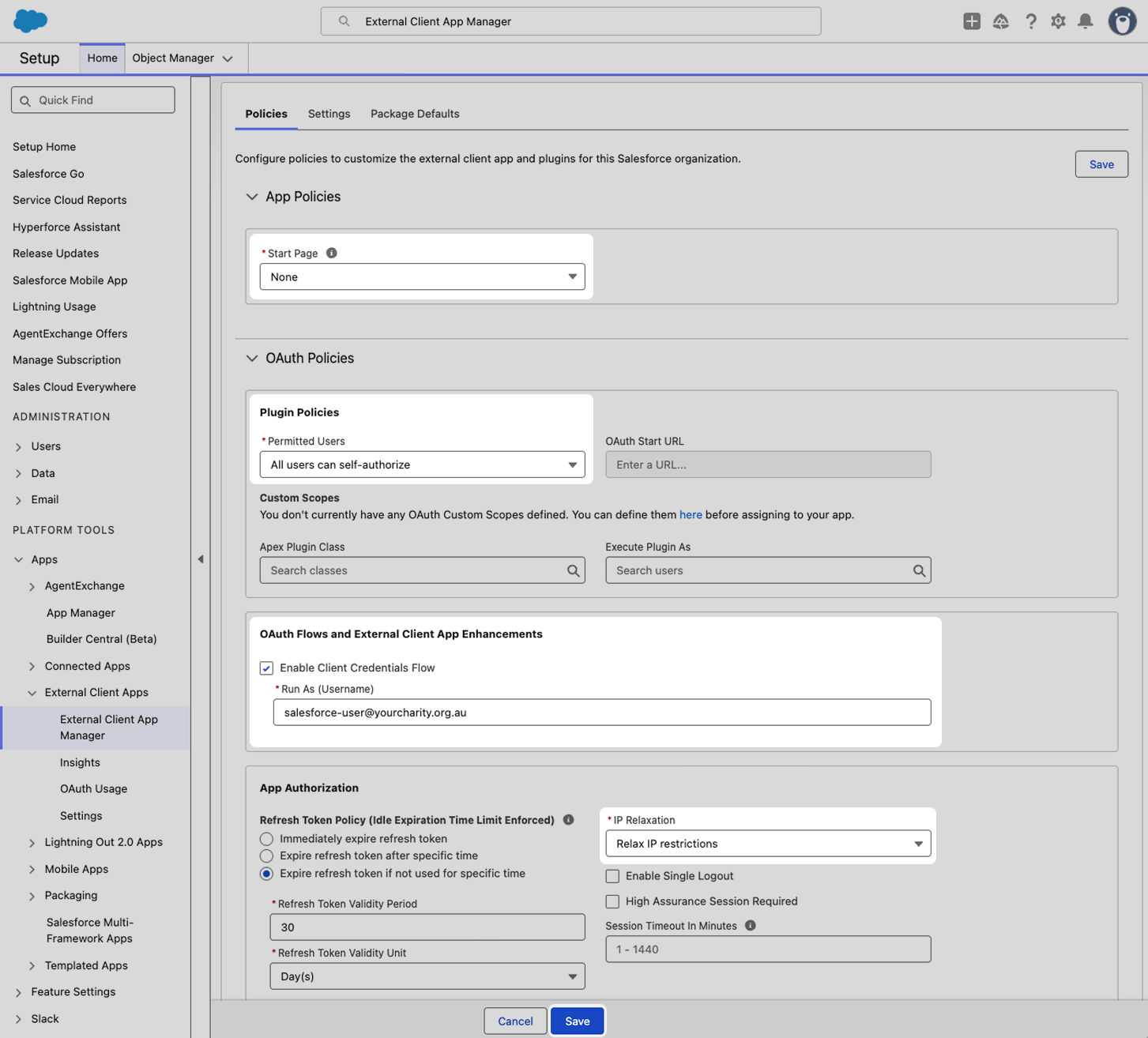
- Under App Policies, leave Start Page set to None.
- 4
- Expand OAuth Policies and configure the following settings:
- Plugin Policies: Under Permitted Users, select All users can self-authorize.
- OAuth Flows and External Client App Enhancements:
- Select Enable Client Credentials Flow.
- Enter the username of the dedicated API User identified in the Locating the existing Salesforce API User section.
- App Authorization: Under IP Relaxation, select Relax IP restrictions.
- 5
- Click Save to apply the changes.
Locating Salesforce OAuth credentials
The Salesforce Domain URL and new OAuth credentials, including the OAuth Client ID and OAuth Client Secret, are needed to update the integration in Funraisin.
To locate these details in Salesforce:
- 1
- In Salesforce, open Settings and use the search bar to find External Client App Manager.
- 2
- Locate and open the External Client App created for Funraisin.
- 3
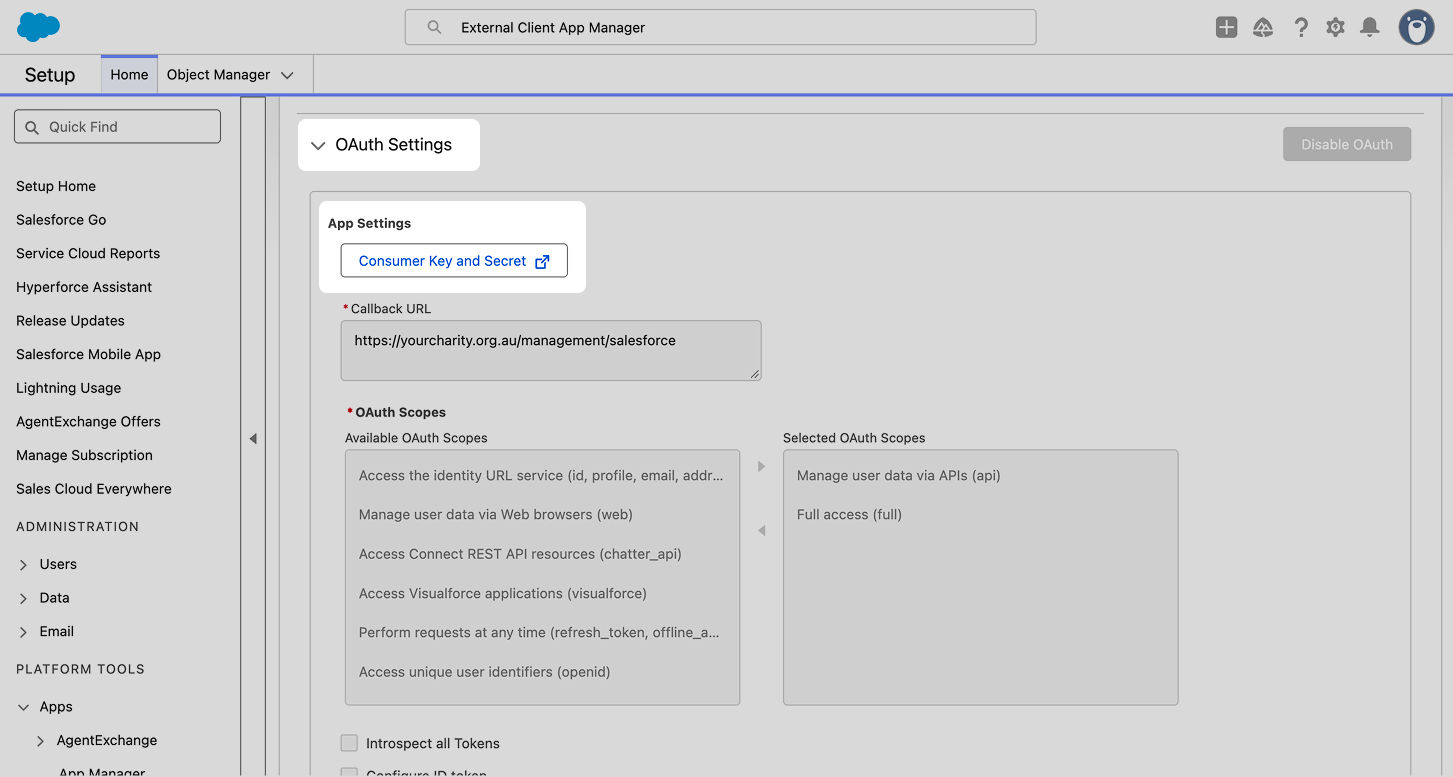
- Select the Settings tab and expand OAuth Settings.
- 4
- Click Consumer Key and Secret.
- 5
- Follow the Salesforce email verification process to confirm your identity.
- 6
- Locate the Consumer Key and Consumer Secret. These correspond to the OAuth Client ID and OAuth Client Secret fields in Funraisin.
- 7
- Open Salesforce in a new browser tab, leaving the Consumer Key and Secret page open in the original tab.
Important: Treat the Salesforce Consumer Secret as a password. Do not share it or other sensitive credentials with Funraisin Support via email or a support ticket.
- 8
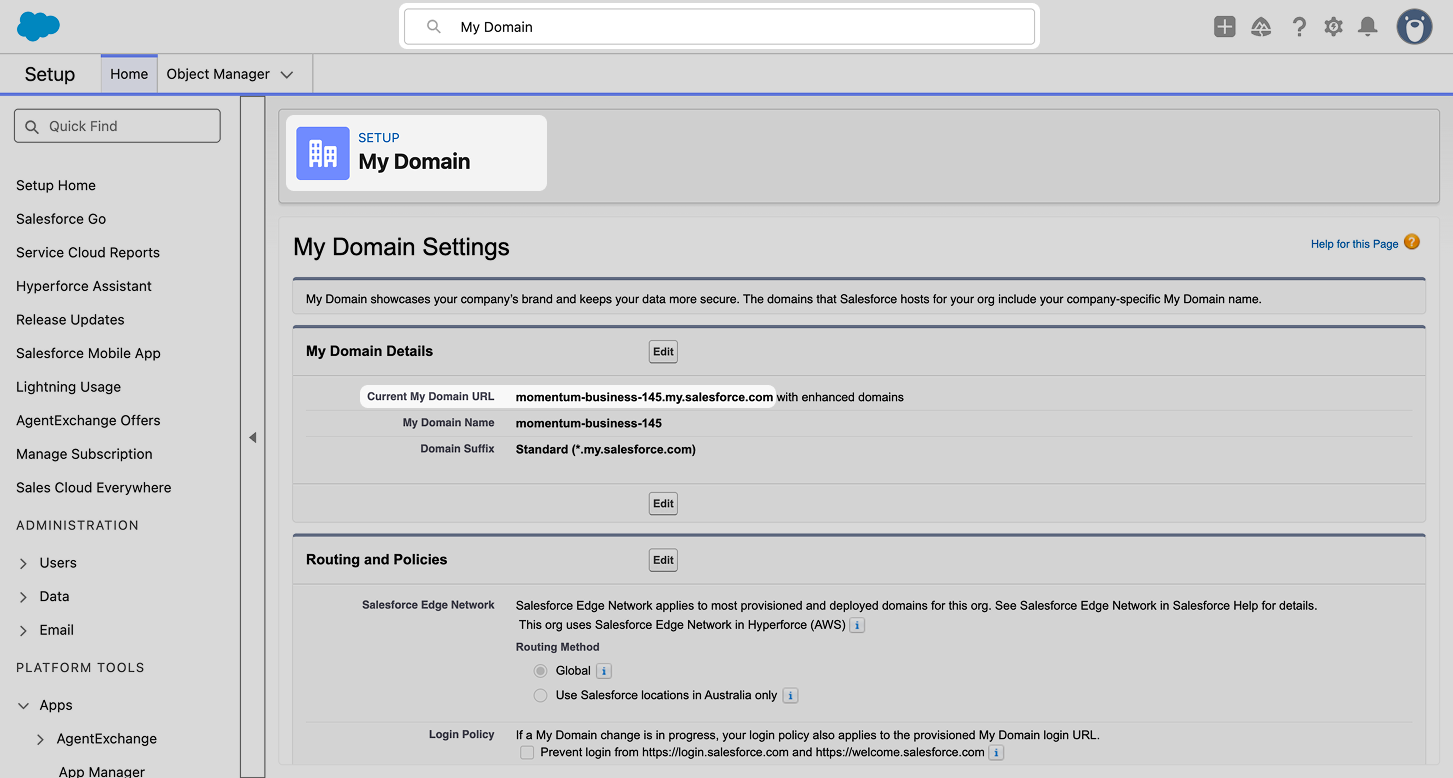
- Open Settings and use the search bar to find My Domain.
- 9
- Locate the Current My Domain URL. This should contain
my.salesforce.com. - For example:
yourcompany.my.salesforce.com
Updating Salesforce credentials in Funraisin
With the Salesforce OAuth credentials located, the integration can now be updated in Funraisin using the new authentication method.
To update the Salesforce credentials in Funraisin:
- 1
- Navigate to Integrations > Salesforce.
- 2
- Under Config Options, select Account.
- 3
- Copy and paste the following credentials from Salesforce into the corresponding fields in Funraisin:
- OAuth Client ID: Consumer Key
- OAuth Client Secret: Consumer Secret
- Salesforce Domain: Current My Domain URL
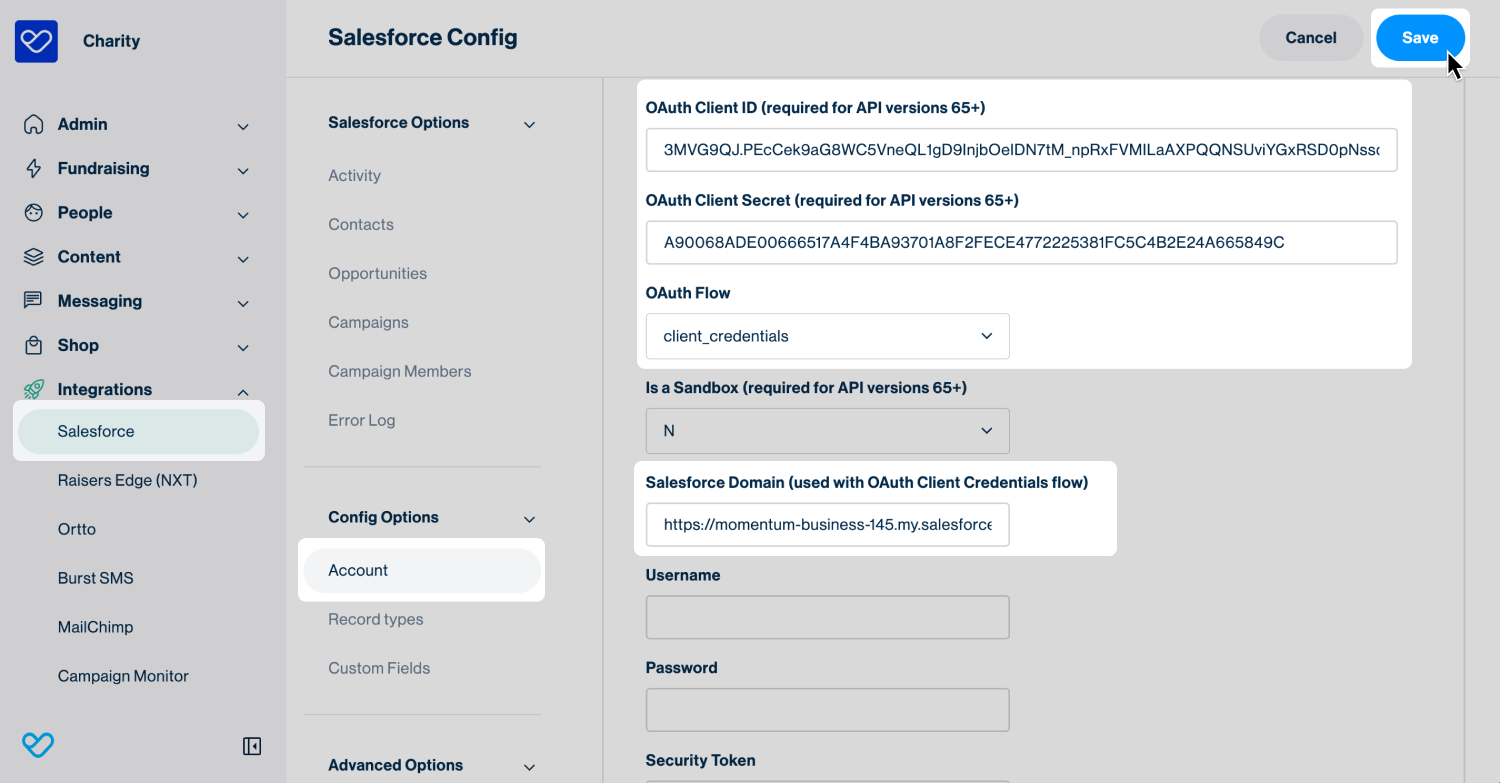
Important: When entering the Current My Domain URL in Funraisin, https:// must be added to the beginning of the URL. Without this, the connection will fail. For example:
Current My Domain URL in Salesforce: yourcompany.my.salesforce.com
Salesforce Domain in Funraisin: https://yourcompany.my.salesforce.com
- 4
- Under OAuth Flow, select client_credentials from the dropdown.
- 5
- Click Save.
Funraisin recommends reviewing the Salesforce integration to confirm that records are syncing successfully and that the existing field mappings are still correct.
Still need help? Check out our other Integrations support articles or reach out to the Funraisin Support team by logging a ticket through the Support Module in your platform.
Last updated: 12 Nov 2026
