

Messages: Conditional Content
Delivering relevant, personalized messages can make a meaningful difference to how supporters engage with a campaign. As audiences grow and diversify, tailoring communication to different supporter groups becomes more important, but also more complex to manage.
Conditional content helps address this by making it possible to tailor sections of a single message based on supporter data, activity, or role. This allows messages to stay consistent in structure and intent, while still adapting to different audiences.
This article explains how conditional content works in Messages, how conditions are structured, and how to apply and preview conditional content within an engagement message.
What is conditional content in Messages?
Conditional content allows different sections of a single engagement message to be shown to different supporters based on specific criteria.
Instead of creating multiple versions of the same email, a single message can include tailored content that adapts depending on the recipient. This helps maintain consistency across communications while improving relevance for each supporter.
Within a message, multiple content sections can be added, with visibility rules applied to each one. These rules determine which supporters see each section, based on available data such as activity, role, Event, DIY Theme, or other criteria.
Visibility rules are applied at the section level, meaning each conditional section can include a mix of content blocks—such as text, images, buttons, or video. All content within that section will be shown or hidden together based on the conditions that have been set.
For example, conditional content can be used to:
- Show different messaging to fundraisers based on how much they have raised.
- Display a specific section only to team captains.
- Highlight different calls to action depending on supporter engagement.
When the message is sent, each supporter only sees the sections that match their data and the conditions that have been set.
Real-world example
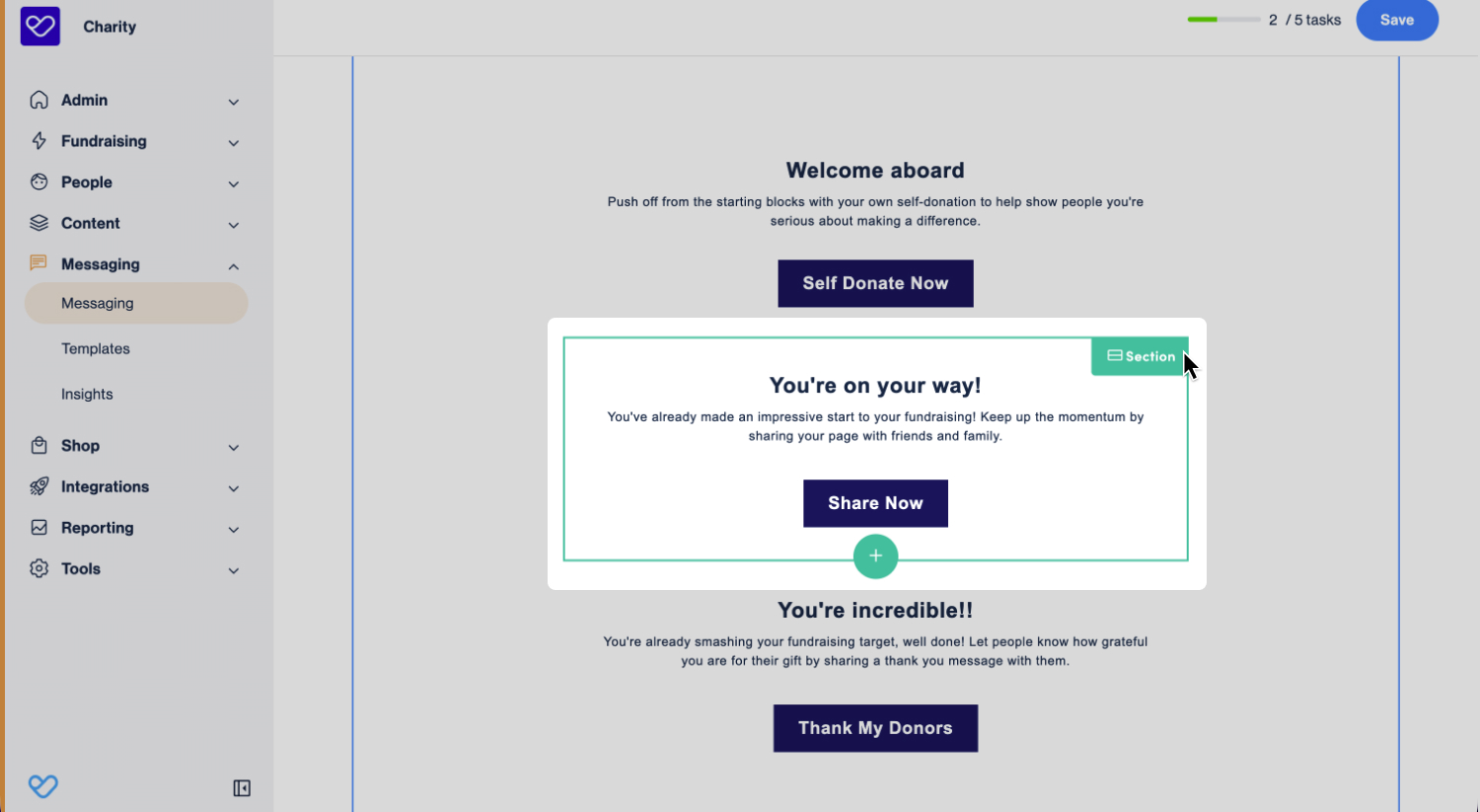
An engagement message sent to fundraisers in a specific event may include multiple content sections tailored to different fundraising milestones.
- Section A: is shown to fundraisers who have raised $0, with encouragement to get started.
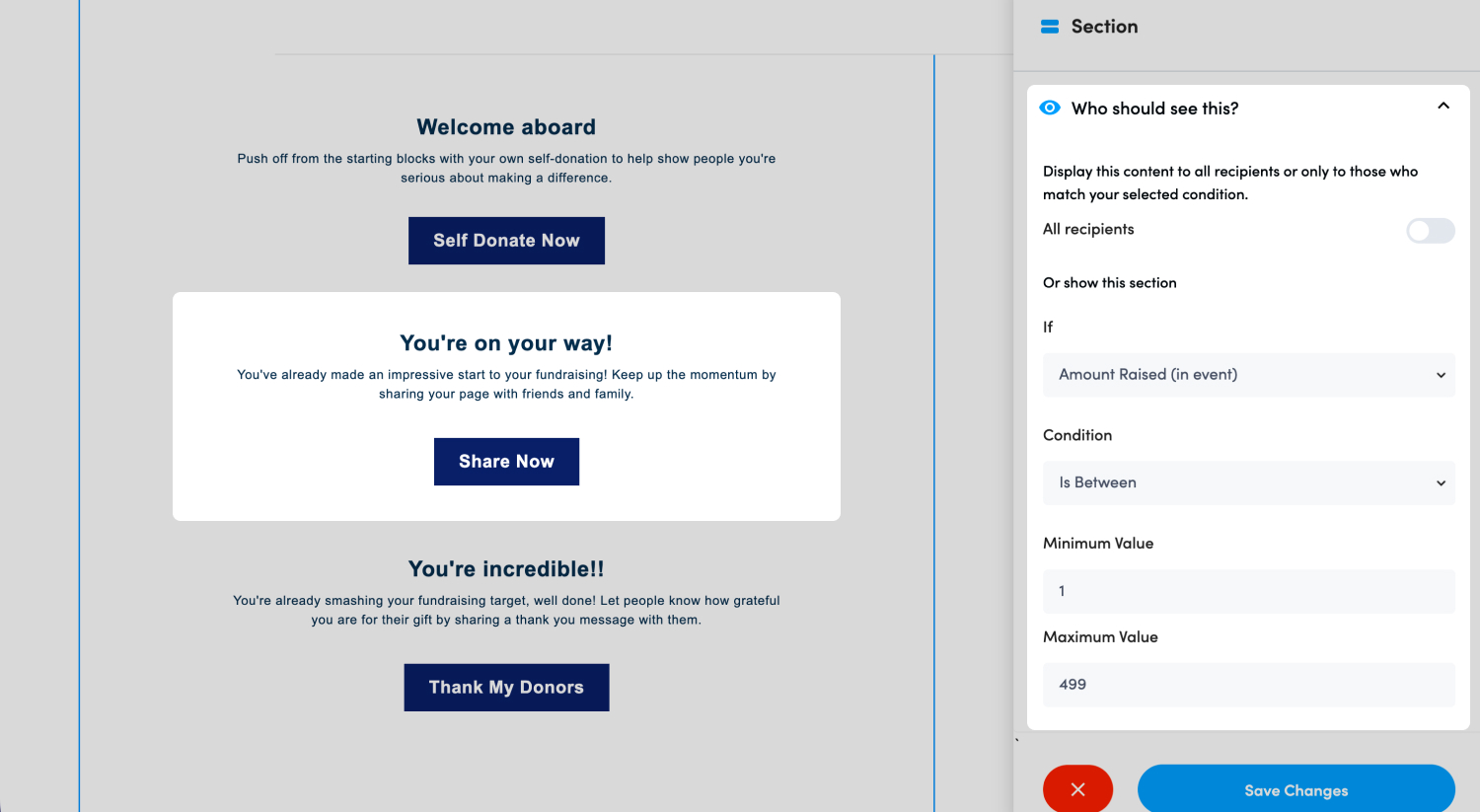
- Section B: is shown to those who have raised $1–$499, highlighting progress and suggesting next steps.
- Section C: is shown to fundraisers who have raised $500 or more, focusing on recognition and impact.
Each supporter receives the same message, but only sees the content that is relevant to their fundraising progress.
Tip! Conditional content is only available in Engagement messages.
Conditions overview
Conditions control which supporters see each section of a message.
When setting up conditional content, criteria are used to define which supporters will see each section. These criteria are based on available supporter data, such as actions, roles, and other attributes.
The available criteria depend on the audience type selected for the engagement message. Each audience type includes its own set of options, based on the data available for that group.
How conditions are structured
Each condition is made up of some or all of the following components:
- If: Defines the data field being used (for example, In Team, Personal Donation, or Number of Donations).
- Condition: Defines how the selected data is evaluated (for example, is equal to, greater than, is between, or less than). This field is only shown for condition types that support comparison (such as numeric values).
- Value: Defines the specific value used for the condition. Values may be entered manually or selected from a dropdown, depending on the condition type.
- Some fields use predefined options (for example, Yes or No).
- Values should be entered without symbols (for example, enter 500 instead of $500).
Condition Types
This section outlines the types of conditions available by audience type and how they can be used to tailor message content.
Donors
The following conditions can be used to control which donors see each section of a message.
|
If |
Description |
Condition |
Value |
Example Value |
|
Charity |
Defines the charity the donation is assigned to (for multi-charity platforms). |
N/A |
Dropdown select |
Charity A |
|
Donation amount |
Defines the value of an individual donation, including all fees. |
• Equals |
Dollar amount |
50 |
|
Donation Frequency |
Defines how often a recurring donation is made. |
N/A |
• Four Weekly |
Monthly |
|
Is Fundraiser Email |
Defines whether the donor is also a fundraiser/participant. |
N/A |
• Yes |
No |
|
Organisation |
Defines the company/organization associated with the donor. |
N/A |
Dropdown select |
Jims Towing |
|
In Memory |
Defines whether the donation was made in memory of someone. |
N/A |
• Yes |
Yes |
|
Total Donations |
Defines how many times a donation has been processed. For example, a recurring donation may have three successful transactions, while a one-off donation has only one. |
• Equals |
Number of transactions |
1 |
|
Event Donation Page Name |
Defines the name of the donation page at event level used to make the donation. |
N/A |
Dropdown select |
Big Swim general donations |
|
Donor becomes a regular giver |
Defines whether the donor has started a recurring donation. |
N/A |
• Yes |
Yes |
|
Payment Date |
Defines the date the donation payment was made. |
• Equals |
Date select |
2026-12-01 |
|
Donation Type |
Defines how the donation was categorized. |
N/A |
• Contribution |
Online |
|
Donation Page Name |
Defines the name of the platform-level donation page used to make the donation. |
N/A |
Dropdown select |
Tax Appeal 26 |
Fundraisers
The following conditions can be used to control which fundraisers see each section of a message.
|
If |
Description |
Condition |
Value |
Example Value |
|
In Team |
Defines whether the fundraiser is part of a team. |
N/A |
• Yes |
Yes |
|
Personal Donation |
Defines the value of a personal donation made by the fundraiser. |
• Equals |
Dollar amount |
25 |
|
Number of Donations |
Defines the number of donations the fundraiser has received in a specific event. |
• Equals |
Number |
7 |
|
Has Been Invited |
Defines whether the fundraiser was invited to join the event by another participant. |
N/A |
• Yes |
No |
|
Has Self Donated |
Defines whether the fundraiser has made a personal donation to their own fundraising page. |
N/A |
• Yes |
Yes |
|
Has Thanked Donor |
Defines whether the fundraiser has thanked one or more donors. |
N/A |
• Yes |
No |
|
Has Fitness App |
Defines whether the fundraiser has connected a fitness app or device. |
N/A |
• Yes |
Yes |
|
Has Increased Fundraising Target |
Defines whether the fundraiser has increased their original fundraising target. |
N/A |
• Yes |
Yes |
|
Distance Target |
Defines the total amount raised by the fundraiser within a specific event. |
• Equals |
Km or Miles |
55 |
|
Fundraising Target |
Defines the fundraiser’s fundraising target for the event. |
• Equals |
Dollar amount |
250 |
|
Total Distance Achieved |
Defines the total distance recorded by the fundraiser across all events. |
• Equals |
Km or Miles |
26 |
|
Total Steps Achieved |
Defines the total number of steps recorded by the fundraiser across all events. |
• Equals |
Steps |
10000 |
|
Total Hours Achieved |
Defines the total number of hours recorded by the fundraiser across all events. |
• Equals |
Hours |
4 |
|
Charity |
Defines the charity assigned to with the event (for multi-charity platforms). |
N/A |
Dropdown select |
Charity B |
|
Amount Raised (in event) |
Defines the total amount raised by the fundraiser within a specific event. |
• Equals |
Dollar amount |
240 |
|
Reached Goal |
Defines whether the fundraiser has reached or exceeded their fundraising target. |
N/A |
• Yes |
Yes |
|
Upload Profile Pic |
Defines whether the fundraiser has added a profile picture. |
N/A |
• Yes |
No |
|
Shared Page |
Defines whether the fundraiser has shared their fundraising page. |
N/A |
• Yes |
No |
|
Created Team |
Defines whether the fundraiser has created a team. |
N/A |
• Yes |
Yes |
|
Added Blog |
Defines whether the fundraiser has added a blog to their fundraising page. |
N/A |
• Yes |
No |
|
Is Active |
Defines whether the fundraiser is marked as active in the event. |
N/A |
• Yes |
No |
|
Registration Complete |
Defines whether the fundraiser has completed their event registration. |
N/A |
• Yes |
Yes |
|
Distance Travelled |
Defines the distance recorded by the fundraiser within a specific event. |
• Equals |
KM or Miles |
15 |
|
Steps Achieved |
Defines the number of steps recorded by the fundraiser within a specific event. |
• Equals |
Steps |
5000 |
|
Duration Travelled |
Defines the number of hours recorded by the fundraiser within a specific event. |
• Equals |
Hours |
2 |
|
Event |
Defines the Event the fundraiser is associated with. |
N/A |
Event Name |
Big Walk 2027 |
|
DIY Theme |
Defines the DIY Theme the fundraiser is associated with. |
N/A |
DIY Theme Name |
Host an Event |
|
Custom Field: {Field Name} |
Defines whether a fundraiser's custom field matches a specific value. Only available when custom fields have been configured. |
Equals |
Custom field value |
Y |
Teams
The following conditions can be used to control which team members see each section of a message.
|
If |
Description |
Condition |
Value |
Example Value |
|
Team Event Date |
Defines the date of the team’s event. |
• Equals |
Date Picker |
20/05/2026 |
|
Active Team Members |
Defines the number of team members who are marked as active. |
• Equals |
Number |
3 |
|
Is Team Captain |
Defines whether the supporter is the captain of the team. |
N/A |
• Yes |
Yes |
|
Team Target |
Defines the team’s fundraising target. |
• Equals |
Dollar amount |
5000 |
|
Team Amount Raised |
Defines the total amount the team has raised for the event. |
• Equals |
Dollar amount |
2500 |
|
Date Created |
Defines the date the team was created. |
• Equals |
Date Picker |
2026-05-03 |
Organization
The following conditions can be used to control which organization members see each section of a message.
|
If |
Description |
Condition |
Value |
Example Value |
|
Is Organisation Captain |
Defines whether the supporter is the captain of the organization. |
N/A |
• Yes |
Yes |
|
Active Organisation Members |
Defines the number of organization members who are marked as active. |
• Equals |
Number |
6 |
|
Organisation Target |
Defines the organization’s fundraising target. |
• Equals |
Dollar amount |
2000 |
|
Organisation Amount Raised |
Defines the total amount the organization has raised for the event. |
• Equals |
Dollar amount |
1540 |
|
Date Created |
Defines the date the organization was created. |
• Equals |
Date picker |
14/05/2026 |
Ticket Holders
The following conditions can be used to control which ticket holders see each section of a message.
|
If |
Description |
Condition |
Value |
Example Value |
|
Wave Name |
Defines the name of the wave the entrant is assigned to. |
N/A |
Dropdown select |
Half Marathon |
|
Wave Time |
Defines the time of the entrant’s assigned wave. |
• Equals |
Dropdown select |
10.00 am |
|
Wave Date |
Defines the date of the entrant’s assigned wave. |
• Equals |
Dropdown select |
13/02/2026 |
|
Promo Code |
Defines the promo code used for the entry or registration. |
N/A |
Dropdown select |
Free26 |
|
Has Medical Condition |
Defines whether the entrant has indicated they have a medical condition. |
N/A |
• Yes |
No |
|
Total Tickets |
Defines the number of tickets purchased by the entrant. |
• Equals |
Number |
5 |
|
Is Active |
Defines whether the entrant is marked as active in the event. |
N/A |
• Yes |
No |
|
Registration Complete |
Defines whether the entrant has completed registration. |
N/A |
• Yes |
Yes |
Shop
The following conditions can be used to control which purchasers see each section of a message.
|
If |
Description |
Condition |
Value |
Example Value |
|
Sub Total |
Defines the total amount paid, excluding fees. |
• Equals |
Dollar amount |
25 |
|
Total Paid |
Defines the total amount paid, including taxes and fees. |
• Equals |
Dollar amount |
29.45 |
|
Date Of Sale |
Defines the date the sale was made. |
• Equals |
Date picker |
23/09/2026 |
|
Is Shipped |
Defines whether the purchased items have been marked as shipped. |
N/A |
• Yes |
Yes |
|
Date Shipped |
Defines the date the items in the sale were marked as shipped. |
• Equals |
Date picker |
19/11/2026 |
|
Product Name |
Defines the name of the product purchased. |
N/A |
Dropdown select |
Hat - Green |
|
Product Type |
Defines the type of product purchased (for example, product or eCard). |
N/A |
• Product |
Product |
|
Product Cost |
Defines the cost to manufacture the product. |
• Equals |
Dollar amount |
12.55 |
|
Treat As Donation |
Defines whether the product is treated as a donation and creates a donation record. |
N/A |
• Yes |
Yes |
|
Product Option |
Defines the selected product option (for example, size or color). |
N/A |
Dropdown select |
Kids S |
|
Optional Donation |
Defines whether an additional donation was made in the same transaction. |
N/A |
• Yes |
No |
|
Quantity |
Defines the number of products purchased in the transaction. |
• Equals |
Number |
4 |
Adding conditional content
Conditional content is added within Messages when creating or editing an Engagement Message.
To add conditional content:
- 1
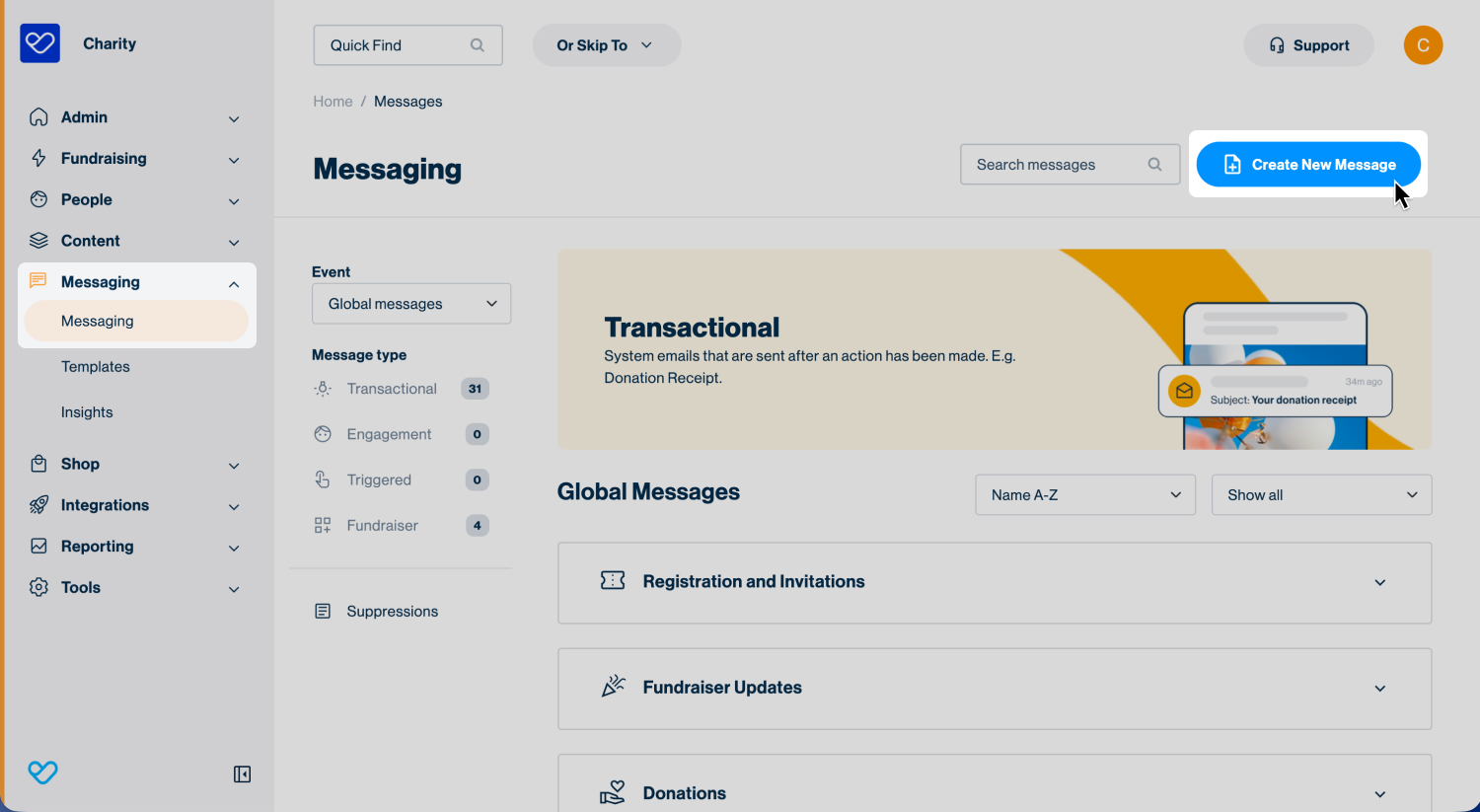
- From the side navigation, go to Messaging
- 2
- Create a new Engagement Message or open an existing one
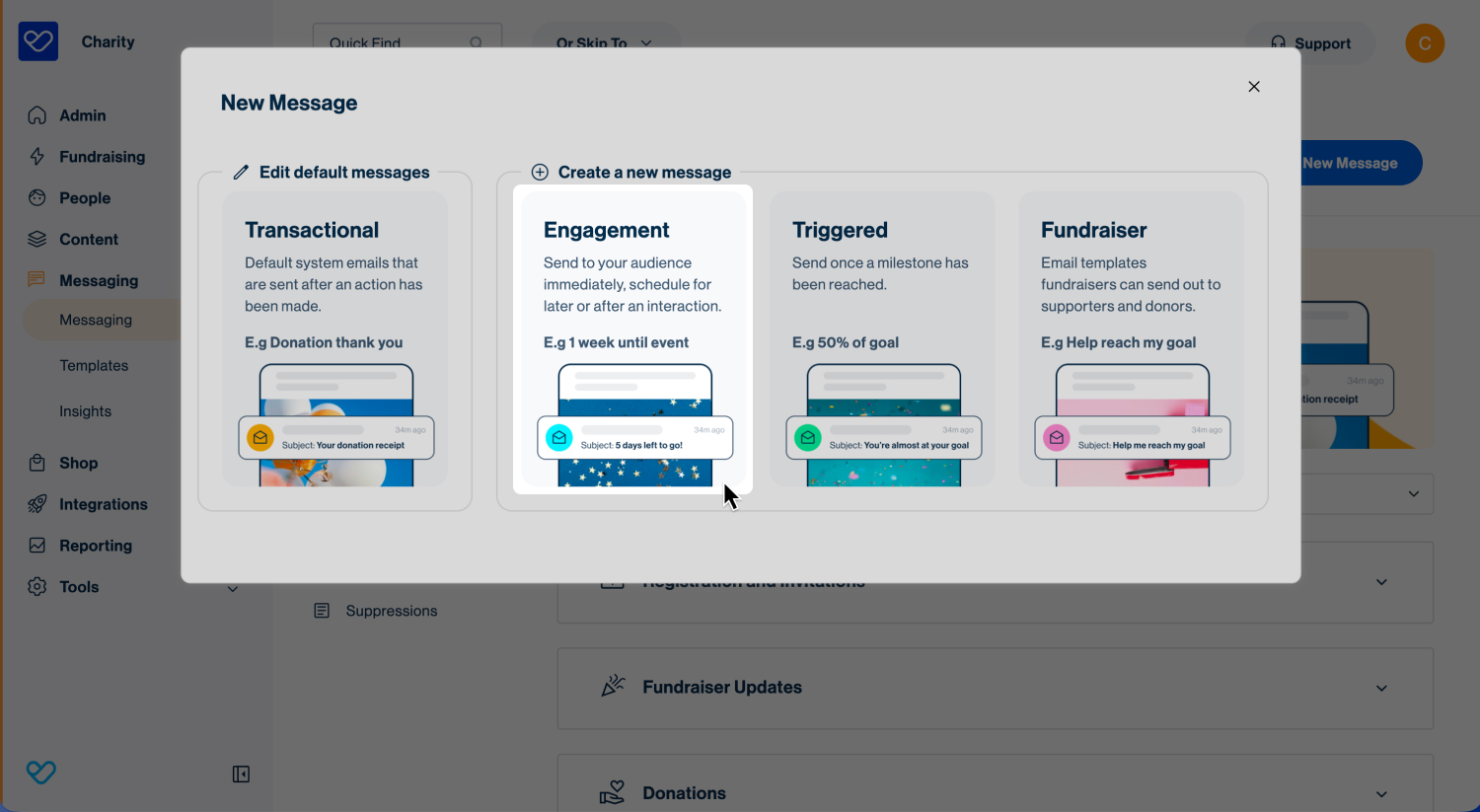
Tip! For more information about creating an Engagement Message, see our support articles:
- 3
- In the Email Builder’s Content step, add your email content using sections. Conditions are applied at the section level, so a new section is required for each content variation.
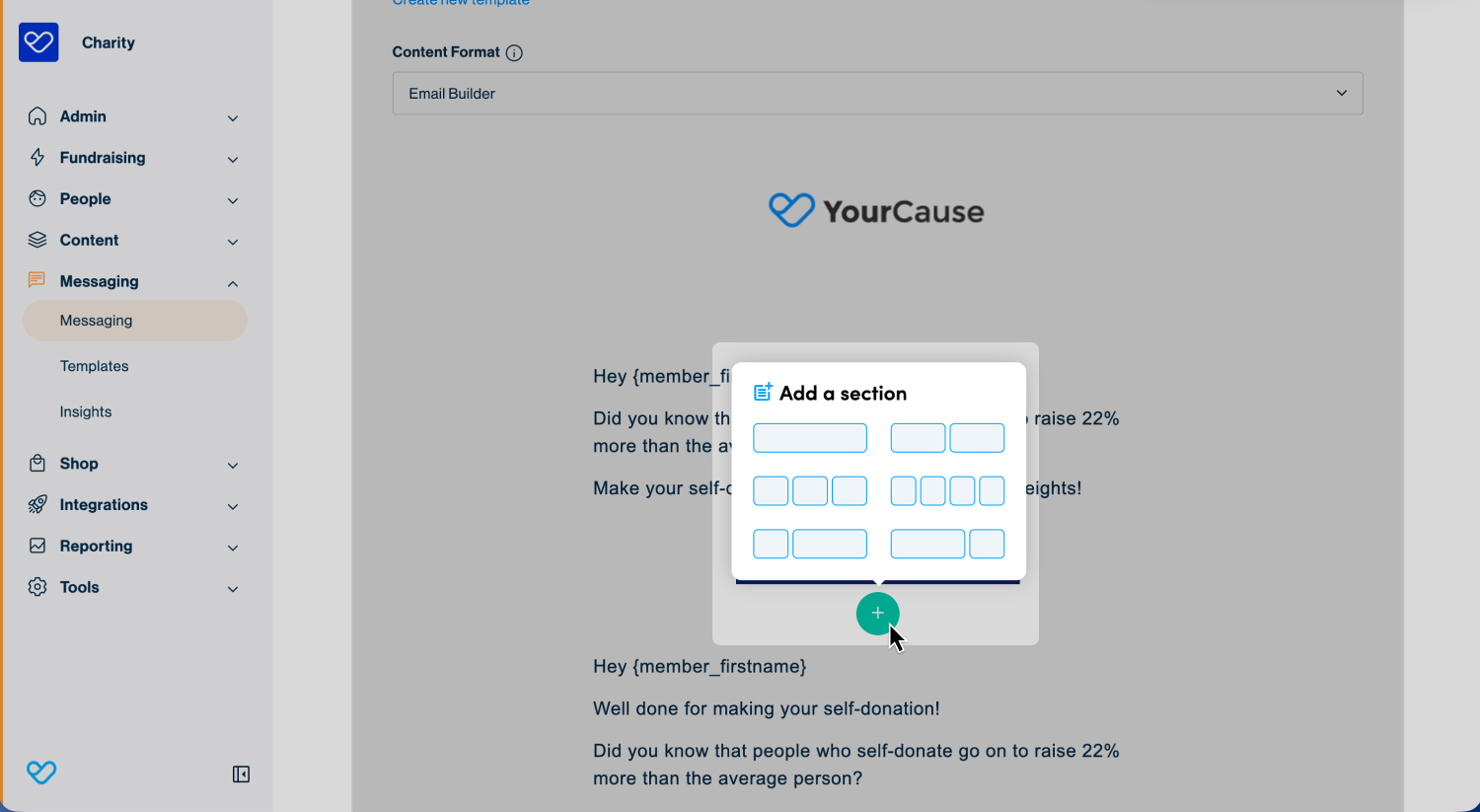
Tip! Sections can be cloned by hovering over the section and clicking the copy icon in the green Section settings.
- 4
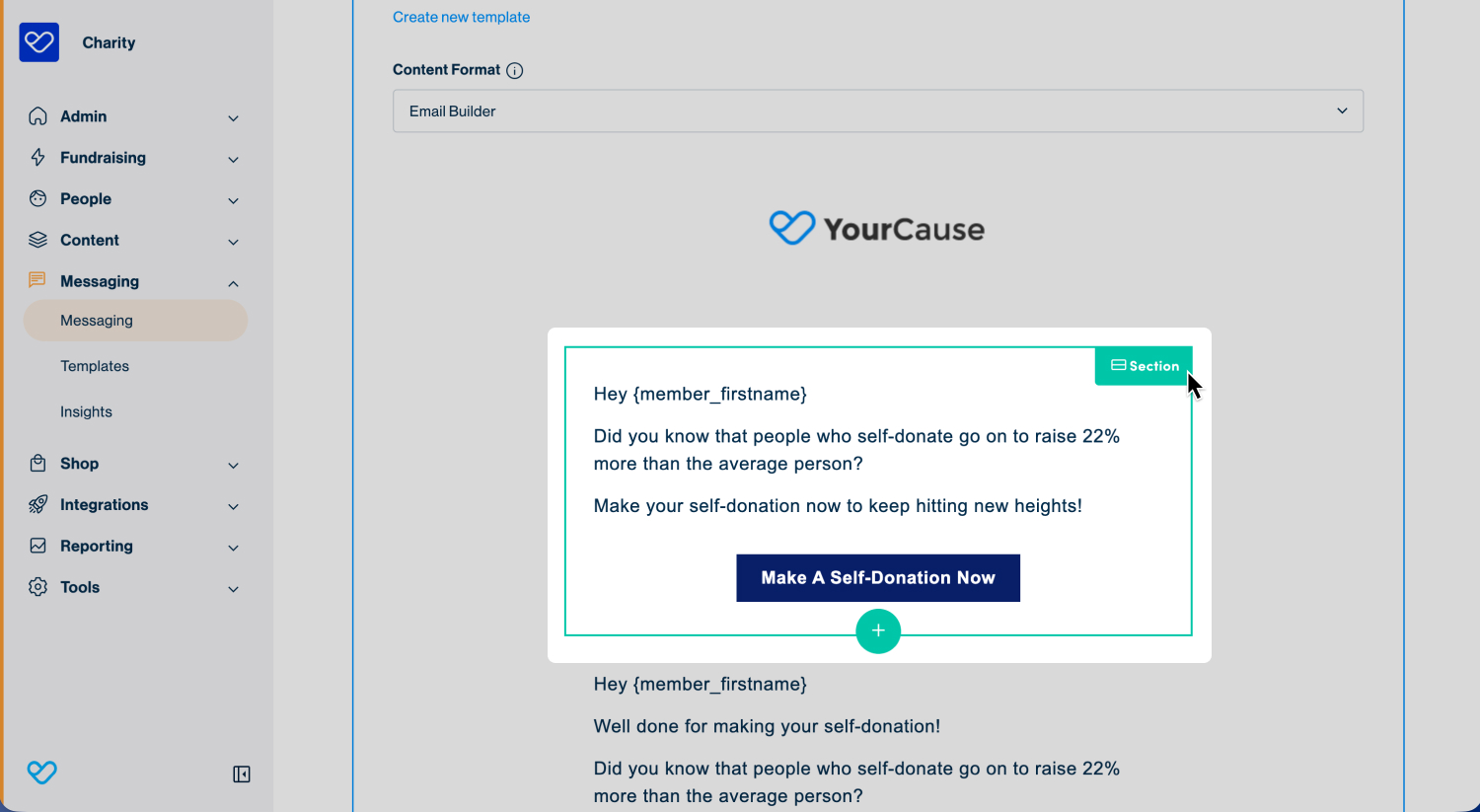
- Hover over the section and click the edit icon in the green Section settings in the top right corner to open the settings sidebar.
- 5
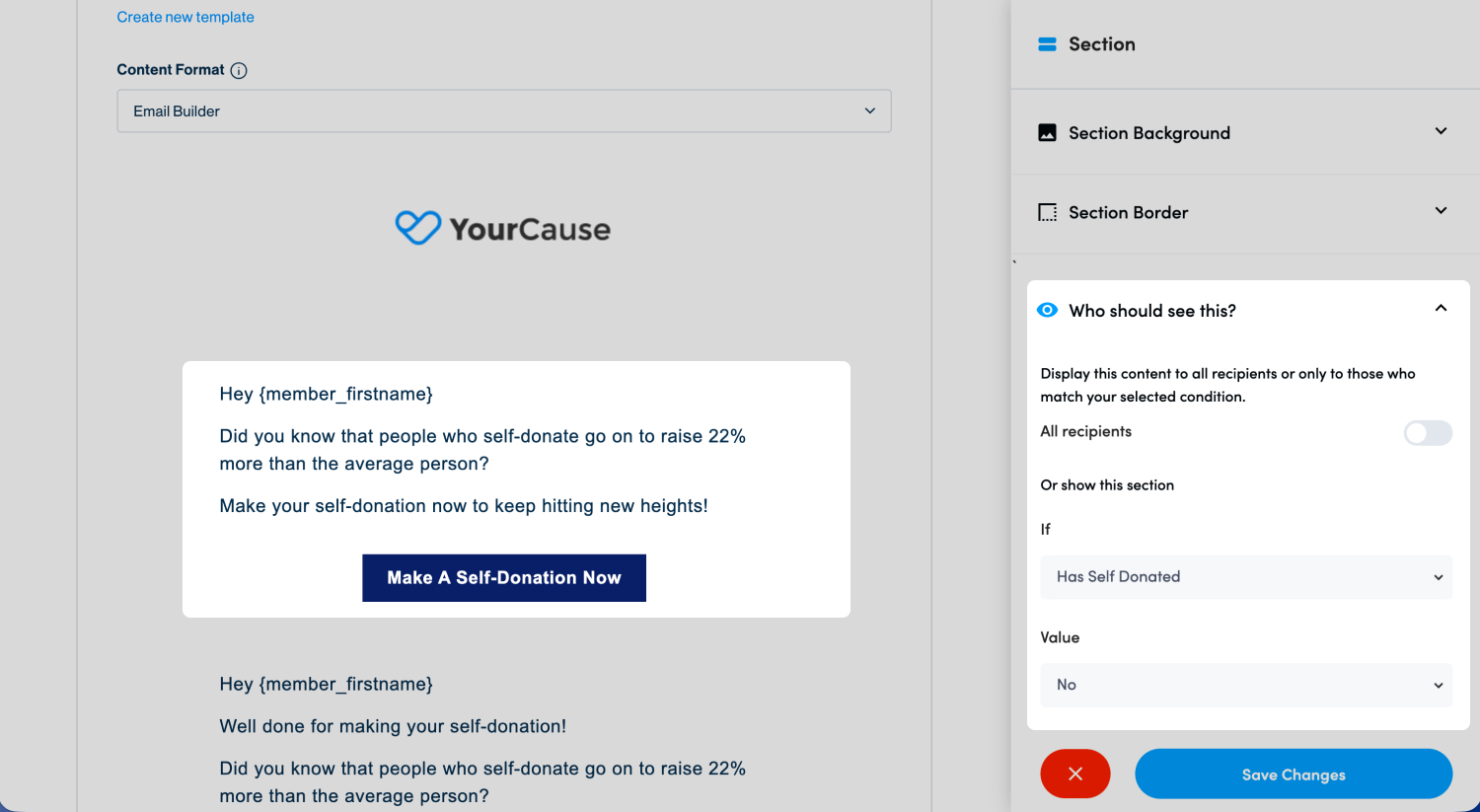
- Expand the Who should see this? section. By default, All Recipients is enabled, meaning the section is visible to all supporters.
- 6
- To add a condition, toggle off All Recipients.
- 7
- Use the If dropdown to select the relevant criteria. Select a Condition (if applicable) and enter or choose the required Value.
- 8
- Click Save Changes.
Previewing conditional content variations
The preview option makes it possible to review different versions of a message before sending.
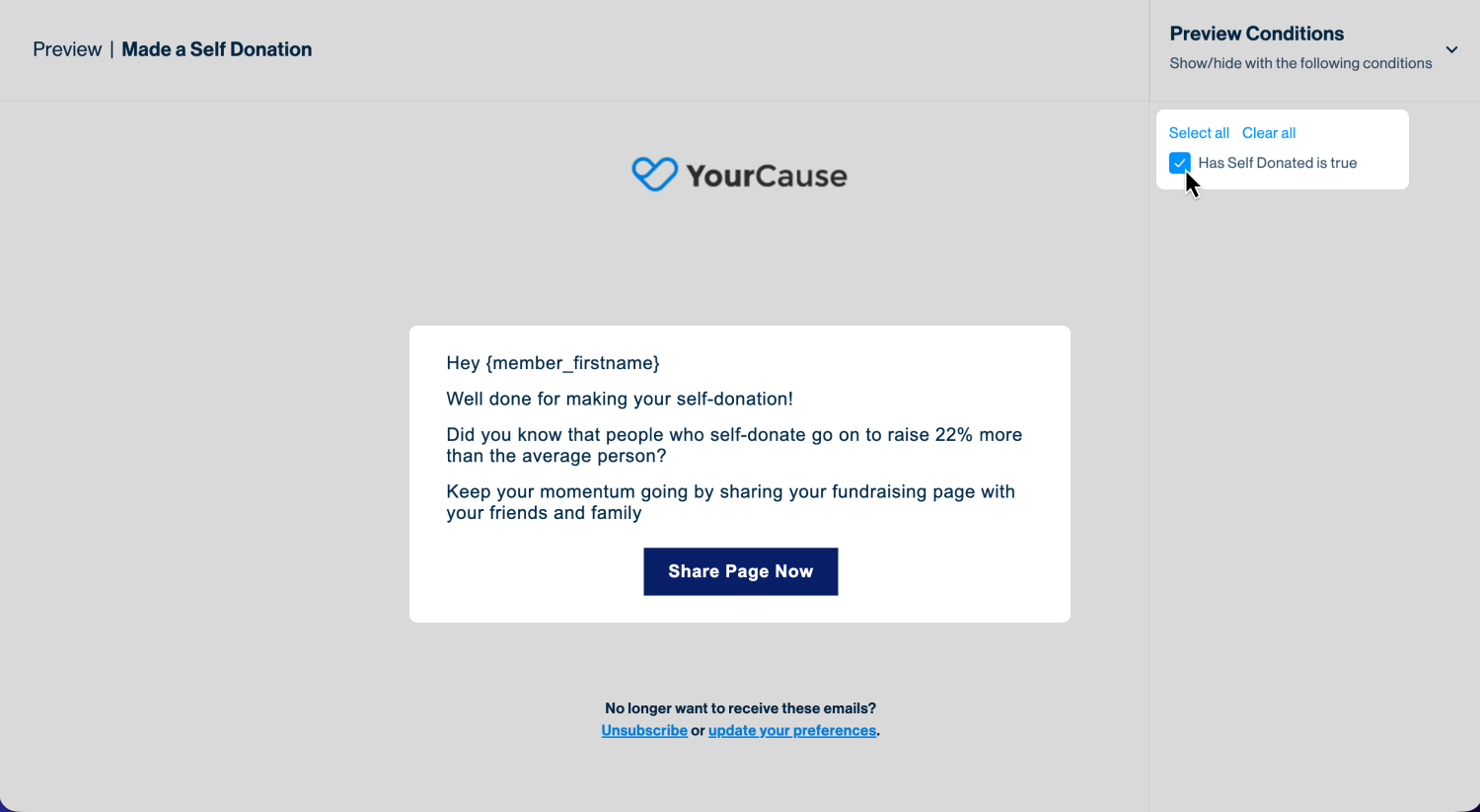
When conditional content is applied, all visibility rules are displayed in the Preview Conditions panel on the right side. This allows different supporter scenarios to be simulated and reviewed.
To preview conditional content:
- 1
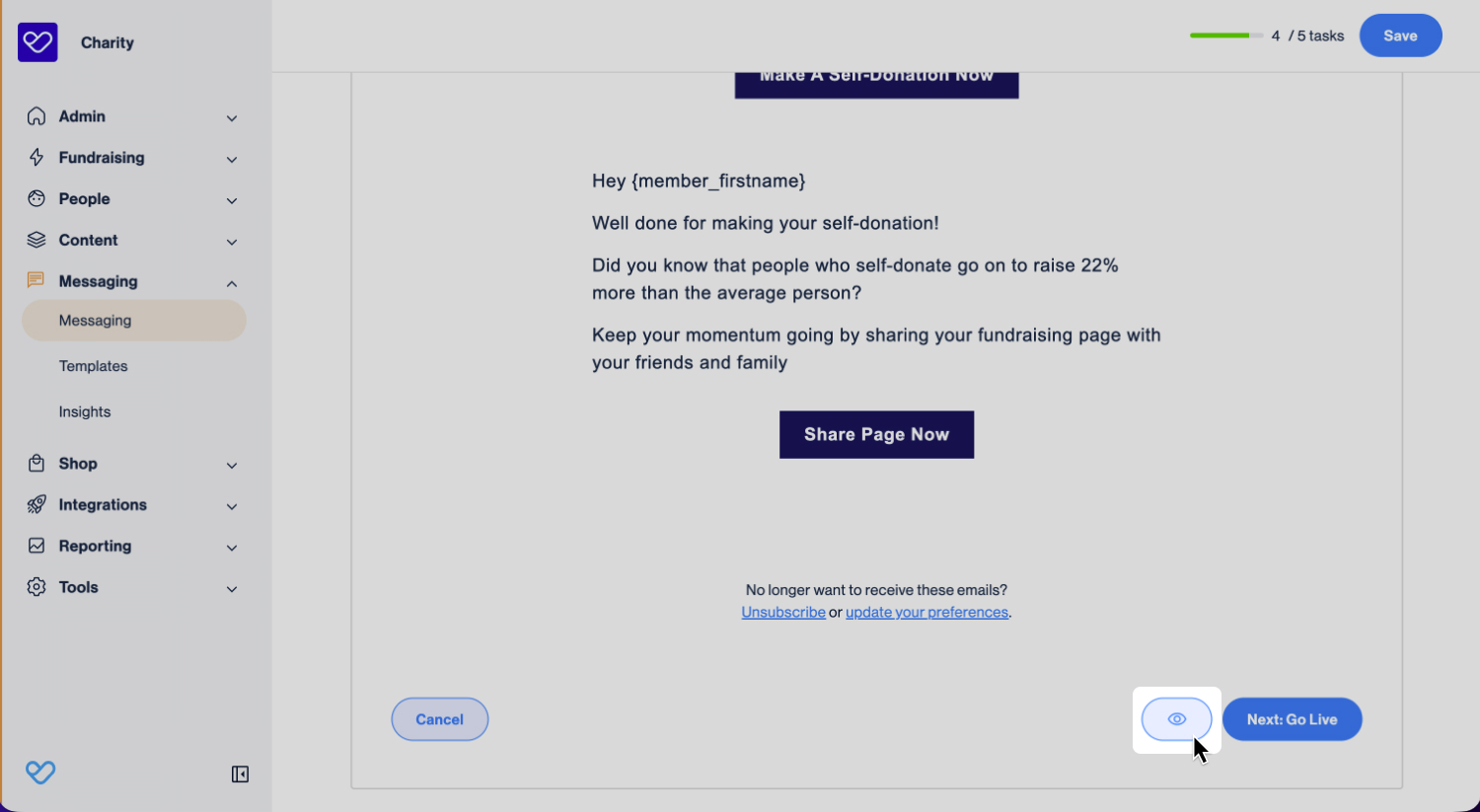
- Below the email content in the Email Builder, click the eye icon to preview the message.
- 2
- In the Preview Conditions panel, select individual conditions or use Select all or Clear all to quickly adjust selections to simulate different supporter scenarios.
- 3
- Review the message content to confirm that the correct sections are shown for each variation.
Still need help? Check out our other Messages support articles or reach out to the Funraisin Support team by logging a ticket through the Support Module in your platform.
Last updated: 7 Aug 2026
