

Messages: Charity and Event Level Permissions
For organizations managing multiple charities or fundraising programs, giving each team control over its own supporter communications can improve both efficiency and relevance. When the right people can create and send messages directly, it reduces reliance on central teams and helps ensure communications stay aligned with each charity’s audience and goals.
Charity-level permissions in Messages make this possible by allowing admins to manage communications within their own scope, while still maintaining appropriate controls across the platform.
This article explains how charity-level message permissions work, how to set up access, and what to expect when creating or managing messages.
How charity-level Message permissions work
An admin is someone who has access to your Funraisin platform admin. Depending on their access rights, they can manage your entrants, events and donations.
You can control who from your team has access to your Funraisin platform by adding new team members or archiving those who have left. Adding new team members is quick to do and there is no limit on how many can be added.
For example, if a charity runs multiple events:
- An admin with access to one event can view and edit messages for that event
- Messages linked to other events may appear as preview-only if the admin does not have permission to manage them
When creating or editing a message, the available options reflect this access:
- The event dropdown only shows events that the admin has permission to manage
- Message types or settings may appear read-only if access is restricted
This permission structure helps ensure that each charity and event team can manage their own communications while maintaining control over who can view or edit messages across the platform.
Add a charity admin and assign a charity
To allow a user to manage Messages at the charity level, they must be set up with the correct role and assignments.
This requires:
- Being added as an admin user
- Being assigned a user type with access to the Messaging and Events module
- Being associated with the relevant charity
Tip! If the admin user should only have access to specific Events within the Charity, you can apply additional Event-level restrictions within the user settings.
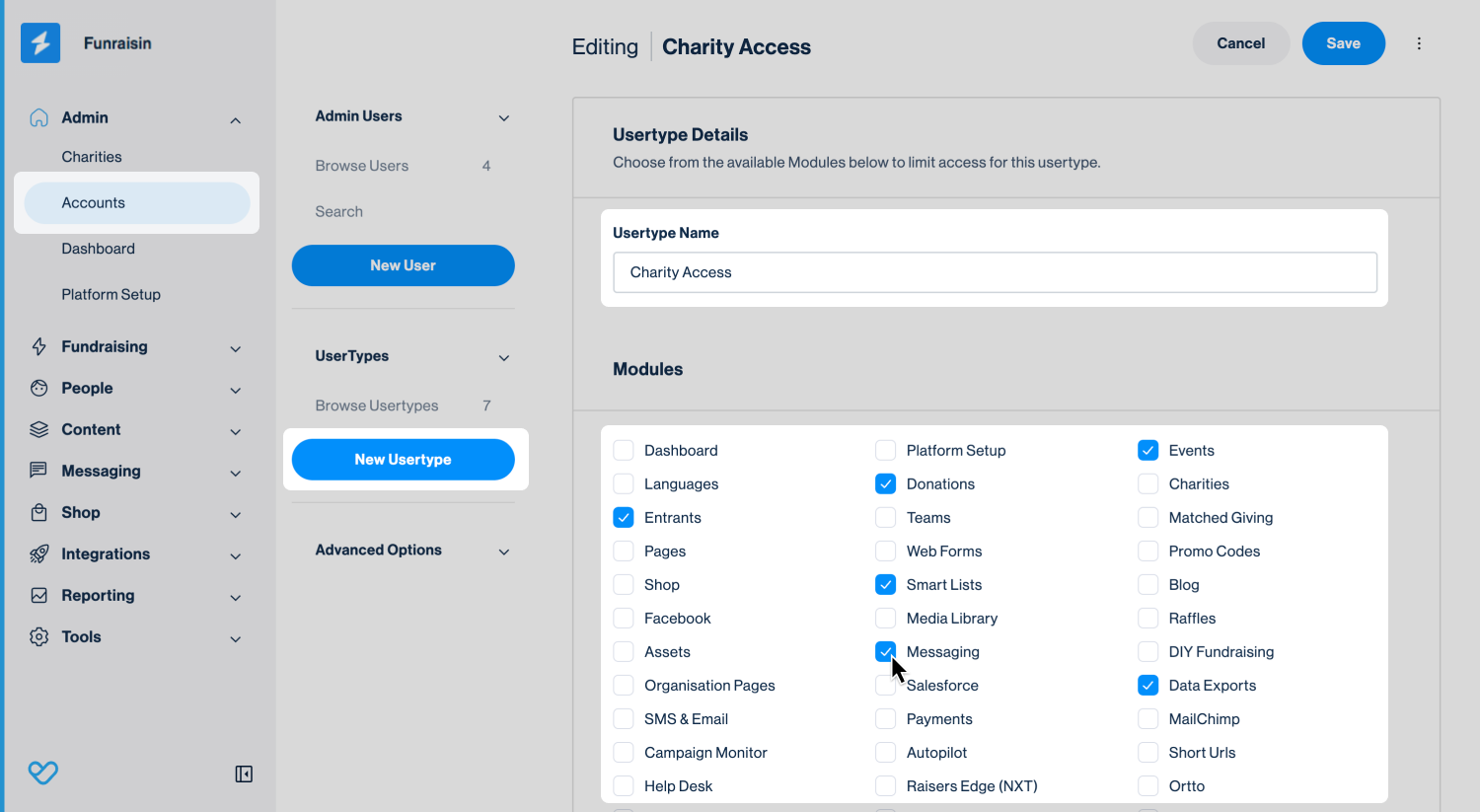
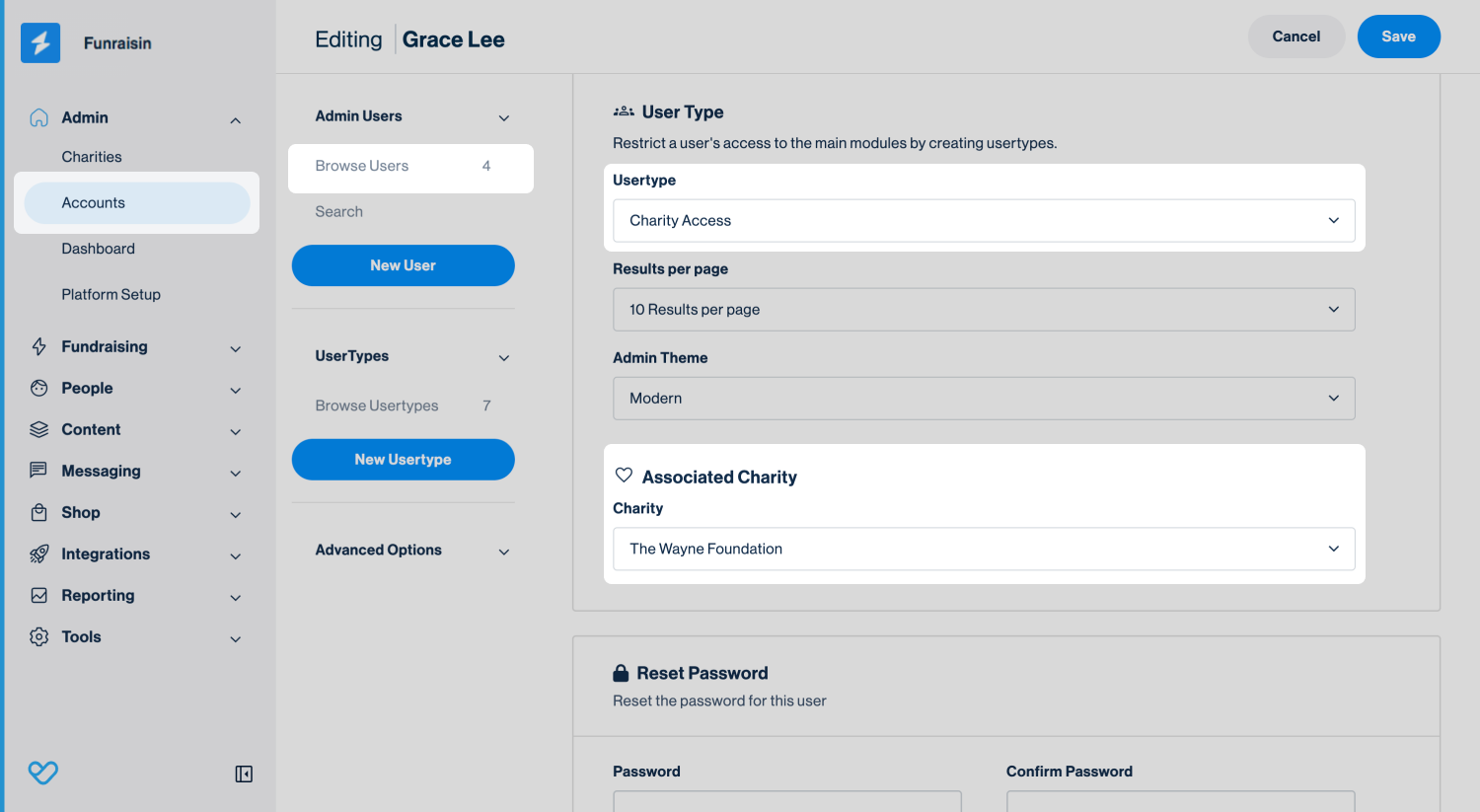
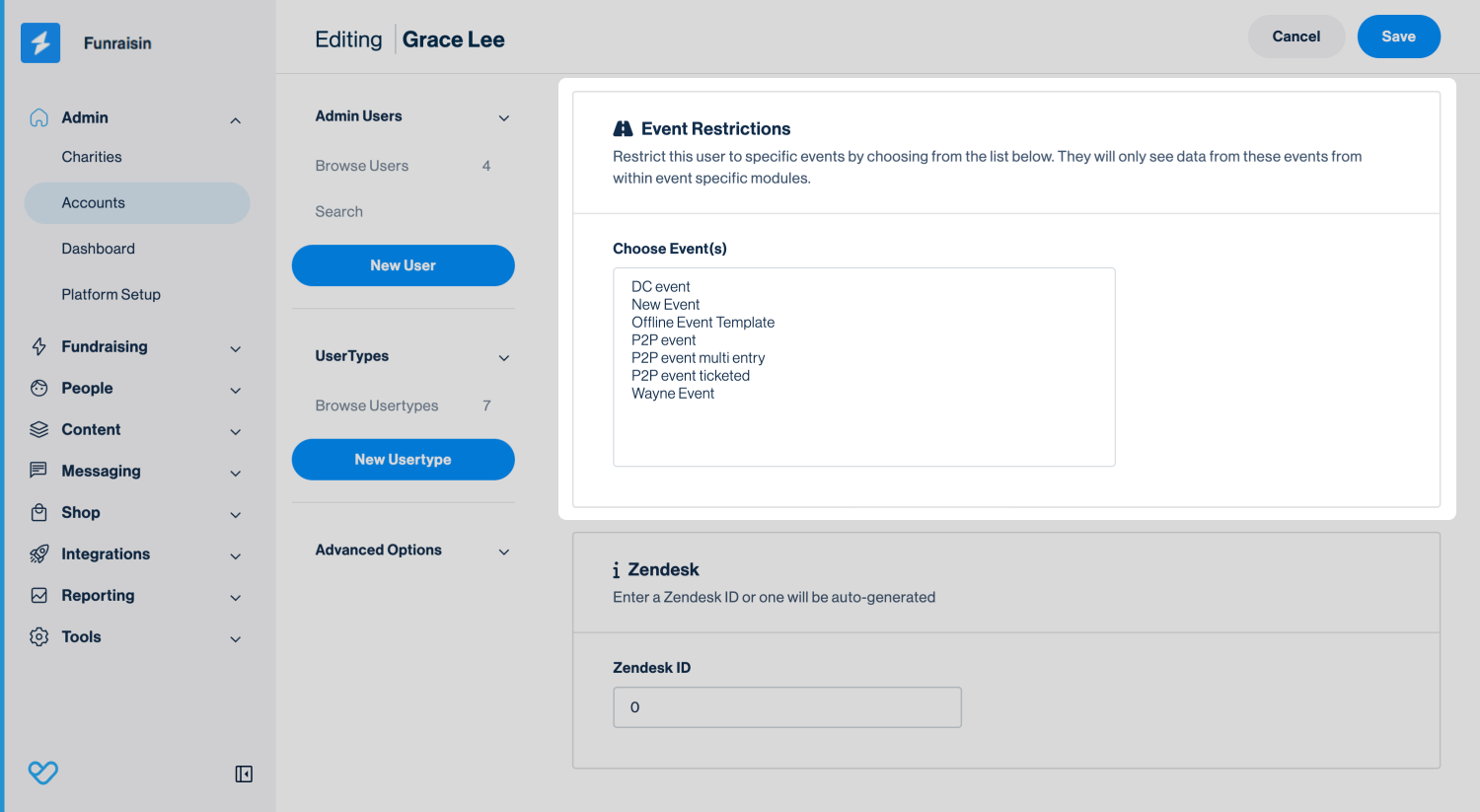
Adding a New Admin
These steps ensure the user can create and manage messages for their charity, based on their event permissions.
For step-by-step instructions, see the support articles:
- Admins: Adding and Managing Admin Users
- Admins: Admin Usertypes
- Settings: Multi-Charity (Coming Soon)
If these steps are not completed, the user may not see the correct events in Messages, or may have preview-only access to certain messages.
Create messages as a charity admin
Once a user has been assigned to the relevant charity, they can create messages in the Messaging module.
When creating a message:
- The event dropdown only shows events the admin has permission to manage within their charity
- Some message types may appear read-only if the admin does not have access to any eligible events
- Engagement messages can be created at the charity level, including for assigned events
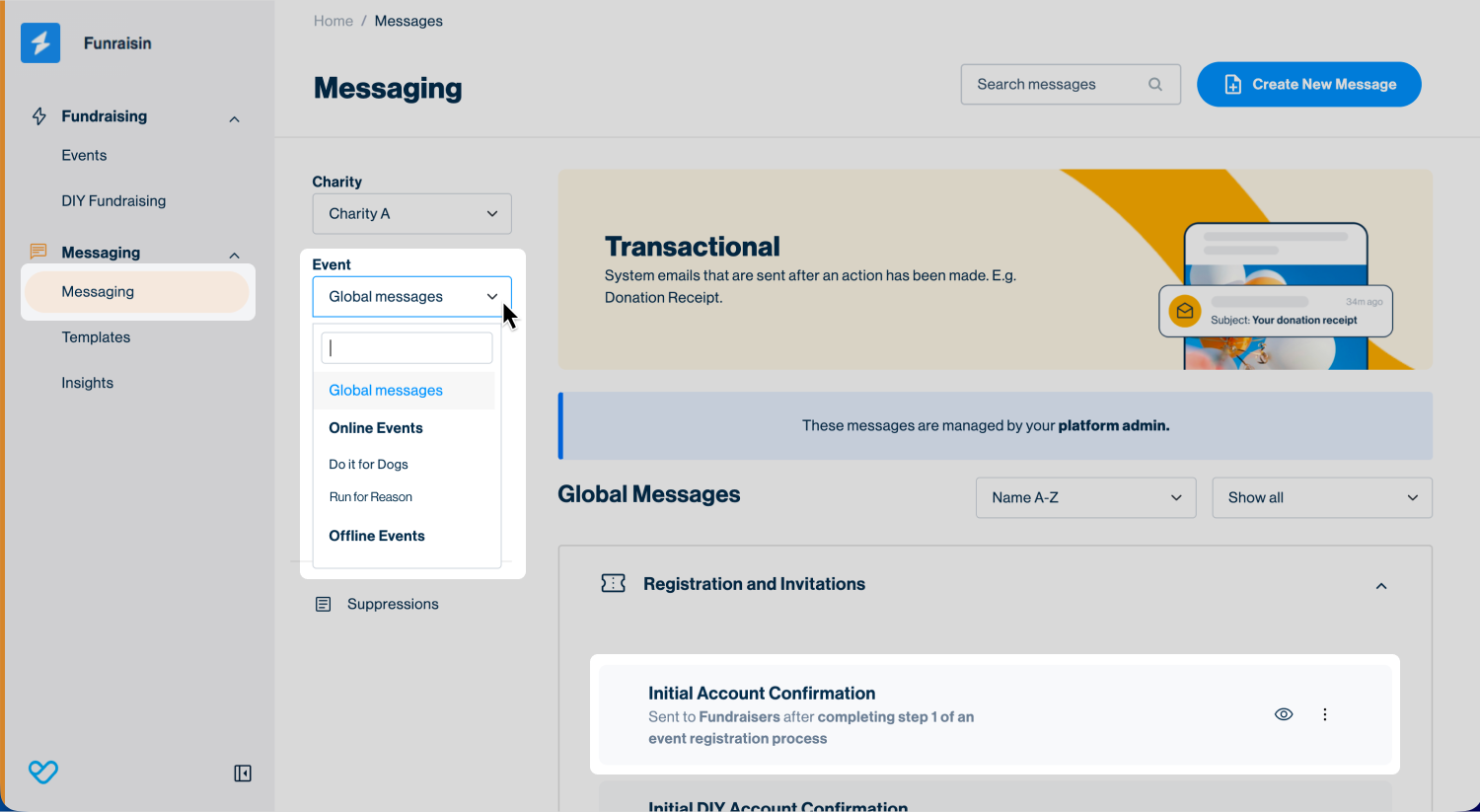
For the full step-by-step process for creating each message type, see the support article: Messages: Create a Message.
Message access and preview behavior
In Messages, some messages may appear as preview-only depending on the admin’s access.
This can happen when:
- The message is assigned to an event the admin does not have access to
- The message is a global message that is not assigned to the admin’s charity
Charity Admins can only edit:
- Messages assigned to their charity
- Messages linked to events they have permission to manage
If expected messages are appearing as preview-only, check that:
- The user is assigned to the correct charity
- The charity has access to the relevant event
- The user has permission to manage that event
This helps ensure that messages are only edited by the appropriate teams, while still allowing visibility across the platform.
Important notes about Message permissions
- Module access: At a minimum, charity admins must have access to the Messaging and Events modules within their assigned User Type.
- Event-level restrictions still apply within a charity: An admin may only be able to edit messages for the events they have permission to manage, even if those events belong to the same charity.
- Global admins have full access: Users with the Global Admin role can view and edit all message types across all charities and events.
- Preview-only access is expected in some cases: Messages outside an admin’s permissions will appear as preview-only and cannot be edited.
- Email templates: Charity admins can view and preview existing email templates but cannot create or edit them. Only global and event-restricted admins can create and edit email templates.
Still need help? Check out our other Messages support articles or reach out to the Funraisin Support team by logging a ticket through the Support Module in your platform.
Last updated: 25 Jun 2026
