

Payments: PayPal API Changes
PayPal is updating the APIs used to process payments, and some Funraisin platforms will need to update their PayPal credentials.
This change helps ensure PayPal payments continue processing reliably as PayPal phases out its legacy APIs. This article explains how to determine whether your platform is affected and, if required, how to update your PayPal credentials.
If you're setting up PayPal for the first time, please see our support article for complete setup instructions: Payments: Connecting to PayPal.
What is PayPal changing, and who does it impact?
PayPal is retiring its legacy NVP/SOAP API and transitioning integrations to its modern REST API. While PayPal has not announced a final retirement date, support for the NVP/SOAP API is expected to be phased out. Platforms using these legacy credentials will need to update their PayPal integration to continue processing PayPal payments.
Funraisin already supports the PayPal REST API, so no platform changes are required. Platforms using legacy API Username, API Password, and Signature credentials simply need to replace them with Client ID and Secret credentials generated from their PayPal Business account.
This update applies to platforms that:
- Were connected to PayPal using the legacy NVP/SOAP API.
- Are currently using API Username, API Password, and Signature credentials.
- Have not previously been updated to REST API credentials.
No action is required for platforms already using Client ID and Secret credentials, as these indicate the PayPal integration is already connected using the REST API.
Checking current PayPal credentials
Before updating your PayPal integration, check which credentials are currently configured in your Funraisin platform. Platforms already using Client ID and Secret credentials are connected using the REST API and require no further action.
To check the configured credentials:
- 1
- Navigate to Admin > Platform Setup > Payment Settings > PayPal.
- 2
- Review the credentials displayed.
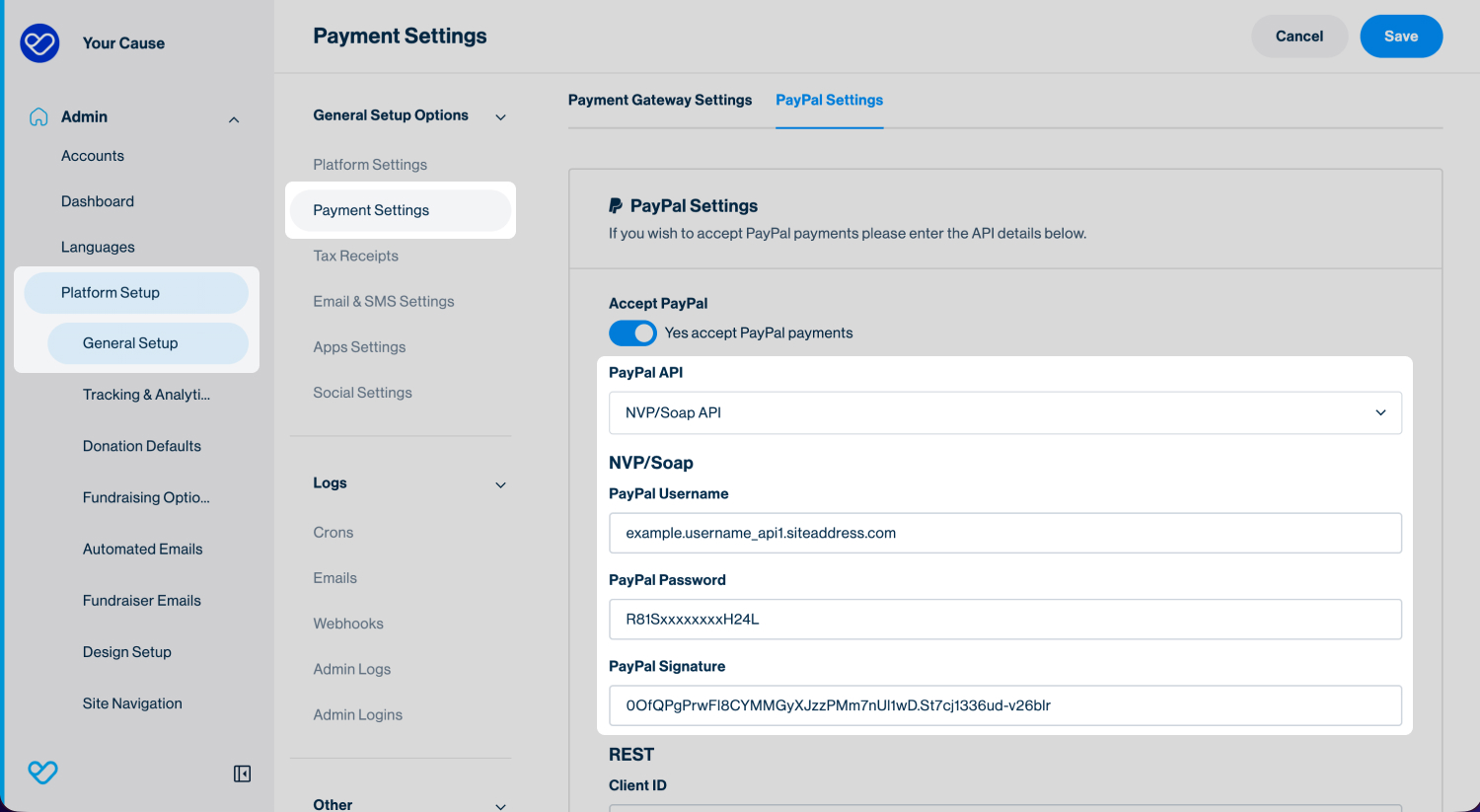
If the following fields are configured, the platform is using the legacy NVP/SOAP API and should be updated:
- PayPal Username
- PayPal Password
- PayPal Signature
If the following fields are configured, the platform is already using the REST API and no further action is required:
- Client ID
- Secret
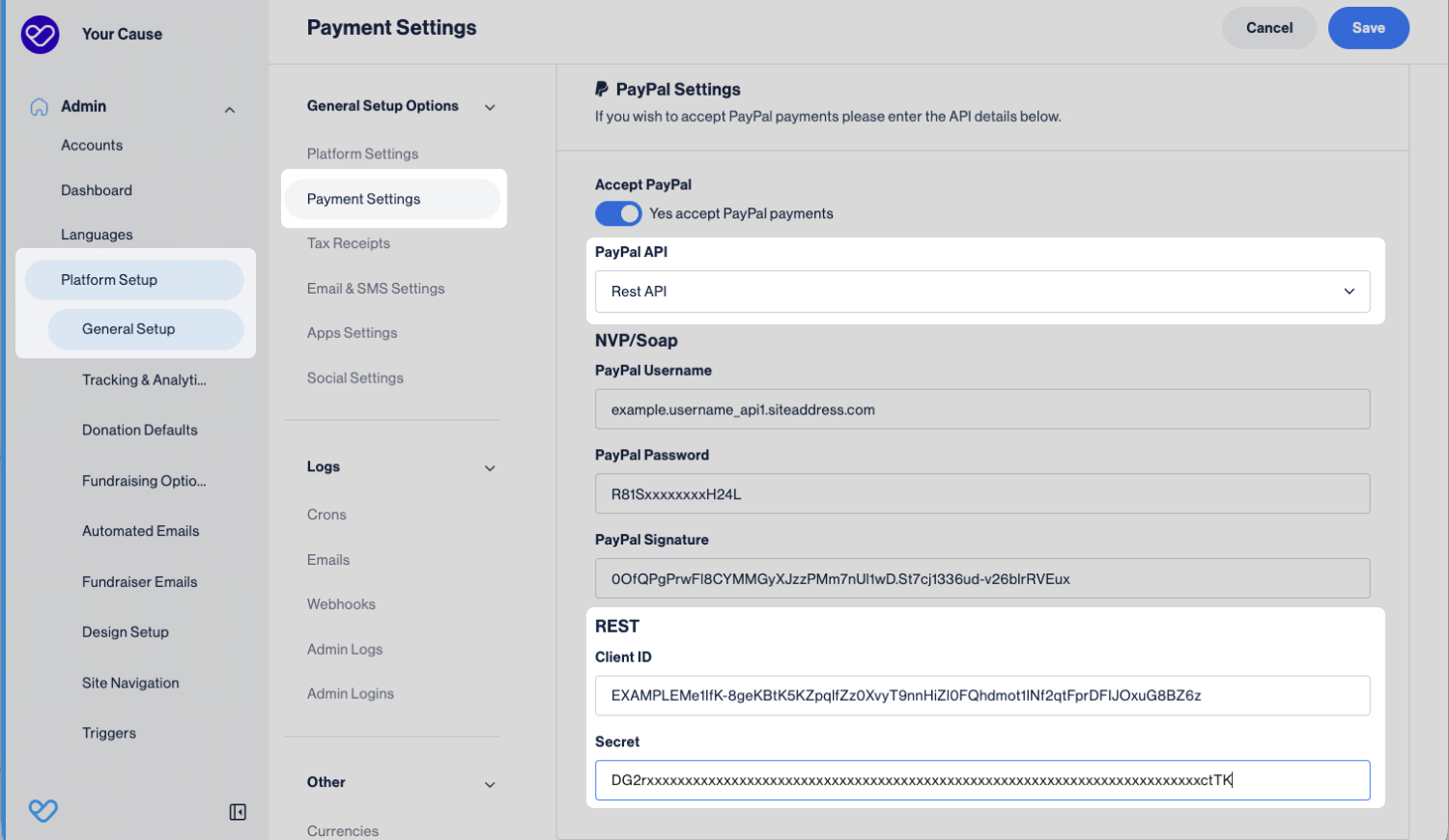
Important: Only platforms using API Username, API Password, and Signature credentials need to complete the remaining steps in this article.
Generating REST API credentials
If the platform is using legacy NVP/SOAP credentials, new REST API credentials must be generated in the PayPal Business account before updating the PayPal integration in Funraisin.
To generate REST API credentials:
- 1
- Log in to the PayPal Business account associated with the platform.
- 2
- Open the PayPal Developer Dashboard.
- 3
- Navigate to My Apps & Credentials.
- 4
- Create a new REST application, or select an existing application.
- 5
- Copy the following credentials:
- Client ID
- Secret
Tip! PayPal may update the layout or navigation of the PayPal Developer Dashboard from time to time. If these steps no longer match what you see, refer to PayPal's guide to creating REST API credentials for the latest instructions.
Updating PayPal Settings in Funraisin
Once the REST API credentials have been generated, update the PayPal settings in Funraisin to complete the migration.
To update the PayPal settings:
- 1
- Navigate to Admin > Platform Setup > Payment Settings > PayPal.
- 2
- Replace the existing API Username, API Password, and Signature credentials with the new:
- Client ID
- Secret
- 3
- Click Save.
Once the settings have been saved, the platform will begin using the PayPal REST API for future PayPal transactions.
Important: Existing PayPal settings on donation forms, appeal pages, and events do not need to be updated. Updating the platform credentials automatically updates the PayPal connection across the platform.
Testing updated PayPal integration
After updating the PayPal settings, test the integration to confirm PayPal payments are processing correctly.
To test the updated integration:
- 1
- Make a small test donation using PayPal on a donation or fundraising page.
- 2
- Confirm the payment has been processed successfully.
- 3
- Verify the donation appears in Donations or Transactions in Funraisin.
- 4
- Confirm the transaction appears in the associated PayPal Business account.
Important: If the payment is unsuccessful, review the Client ID and Secret configured in Admin > Platform Setup > Payment Settings > PayPal, then repeat the test.
Still need help? Check out our other Payment and Transaction articles or reach out to the Funraisin Support team by logging a ticket through the Support Module in your platform.
Last updated: 23 Jul 2026
