

Donations: Designated Giving
Giving supporters greater choice over where their donation goes can help create a more meaningful giving experience, while making it easier for organizations to track funds accurately.
Designated Giving provides a simple way to offer this choice and capture each donation's designation for reporting. This article explains how to set up, manage, and report on Designated Giving in Funraisin.
What is designated giving?
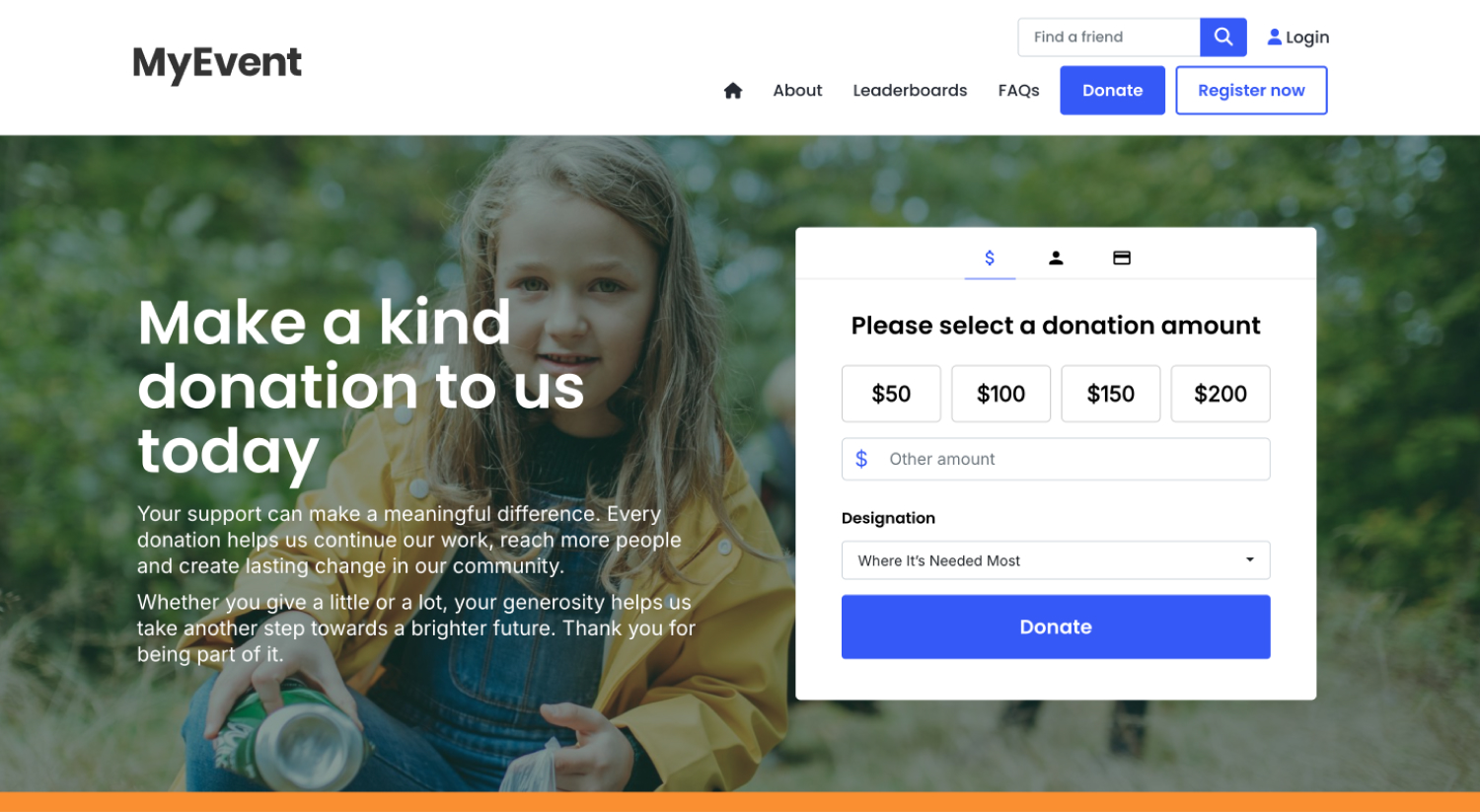
Organizations can create a picklist of designation options and choose which options are available on each eligible donation form. When designations are added to a form, supporters can select their preferred option from a drop-down when making a donation.
When a designation is selected, it is recorded against the donation in Funraisin, allowing designated gifts to be tracked and reported on.
Designations determine how a donation is categorized for tracking and reporting purposes. A donation can only be assigned to one designation, and designations do not split or change how the payment is processed through the payment gateway.
Designations can be added to platform-level and event-level general donation and appeal forms. They are not available on sponsored donation forms.
Creating designation options
Designation options are created within the Platform Setup and become available to assign to eligible donation forms. There is no limit to the number of designation options that can be created.
To create a designation option:
- 1
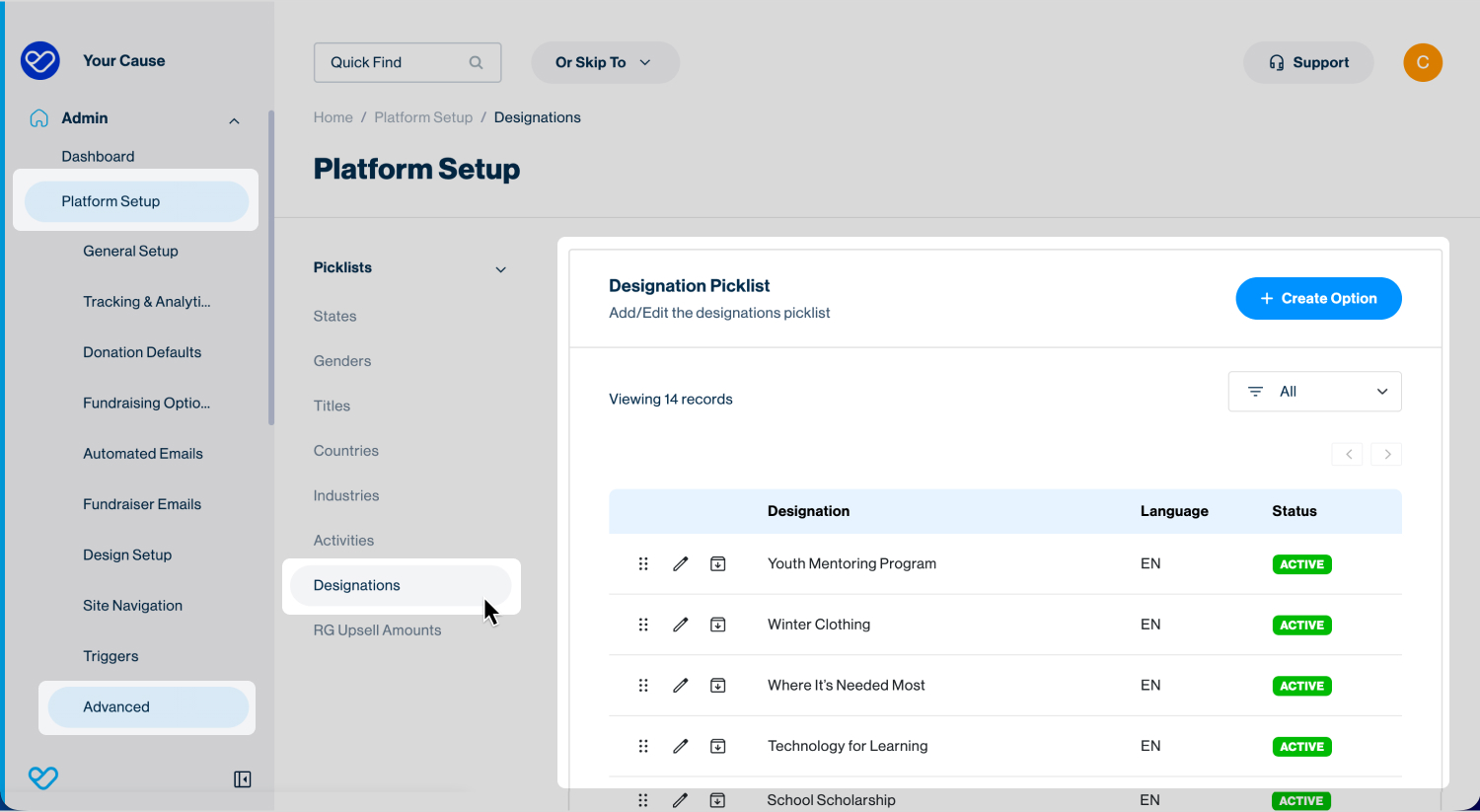
- Go to Admin > Platform Setup > Advanced.
- 2
- Under Picklists in the middle navigation, select Designations.
- 3
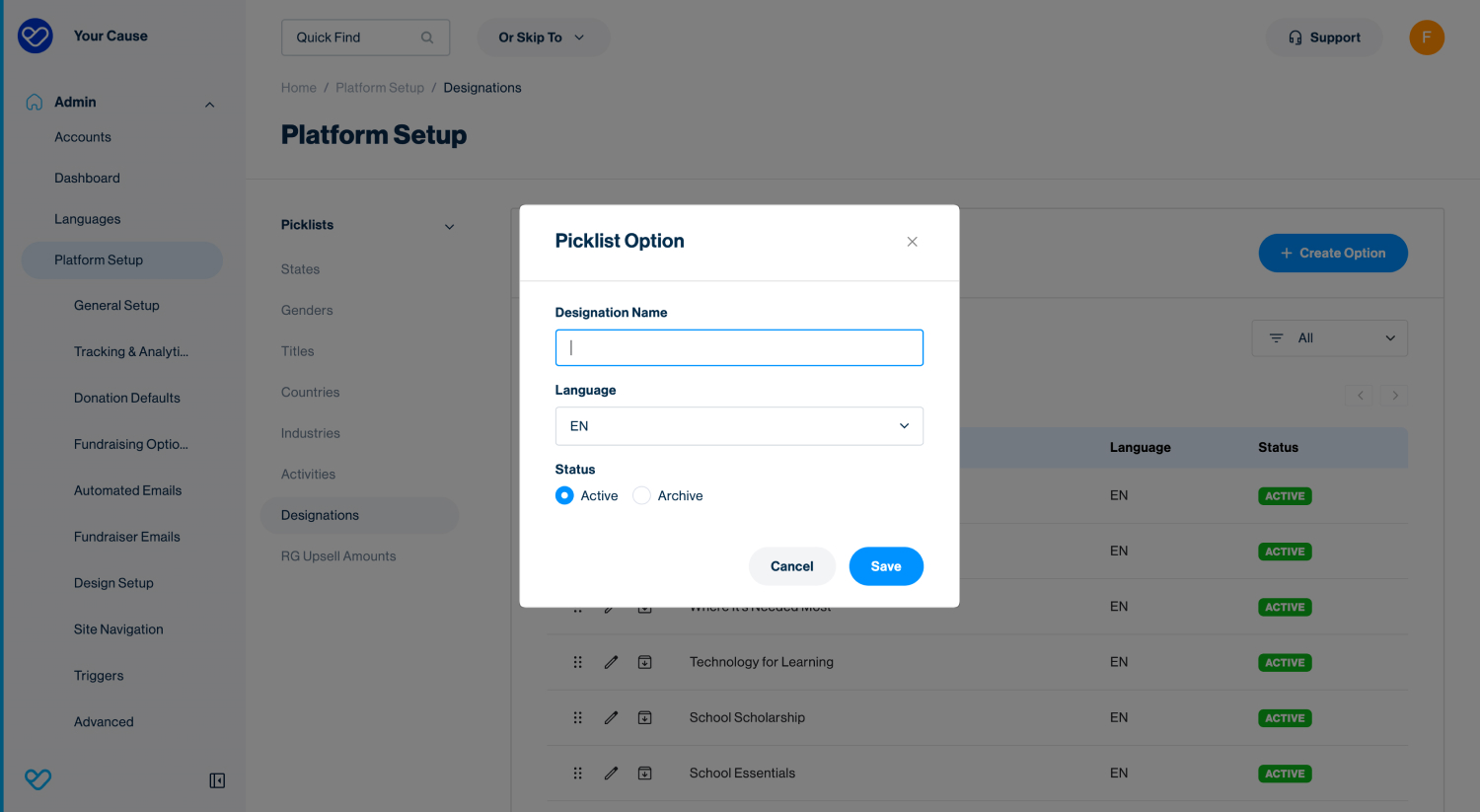
- Click + Create Option.
- 4
- Enter the designation details:
- Designation Name: Enter the name of the designation. This is the name displayed to supporters in the designation drop-down on the donation form.
- Language: Select a language, if applicable.
- Status: Choose the status of the designation:
- Active: The designation is available to be added to eligible donation forms.
- Archive: The designation is not available to be added to donation forms.
- 5
- Click Save.
Adding designations to a donation form
The designation options displayed on a donation form are configured at the form level, allowing you to define which available designations supporters can select when making a donation.
To add designations to a donation form:
- 1
- Locate the platform-level or event-level donation page you want to update and open the page in Visual Builder.
- 2
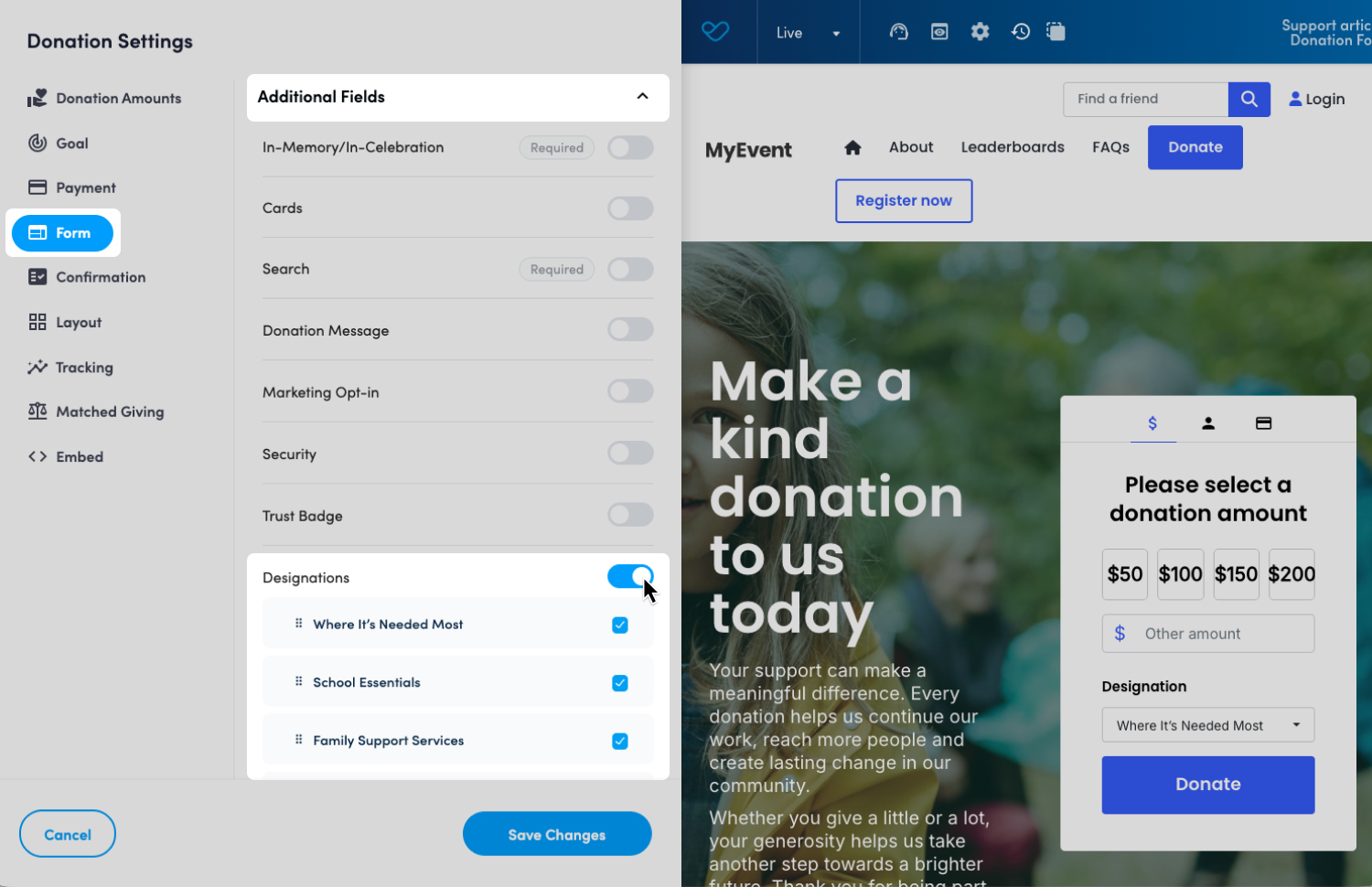
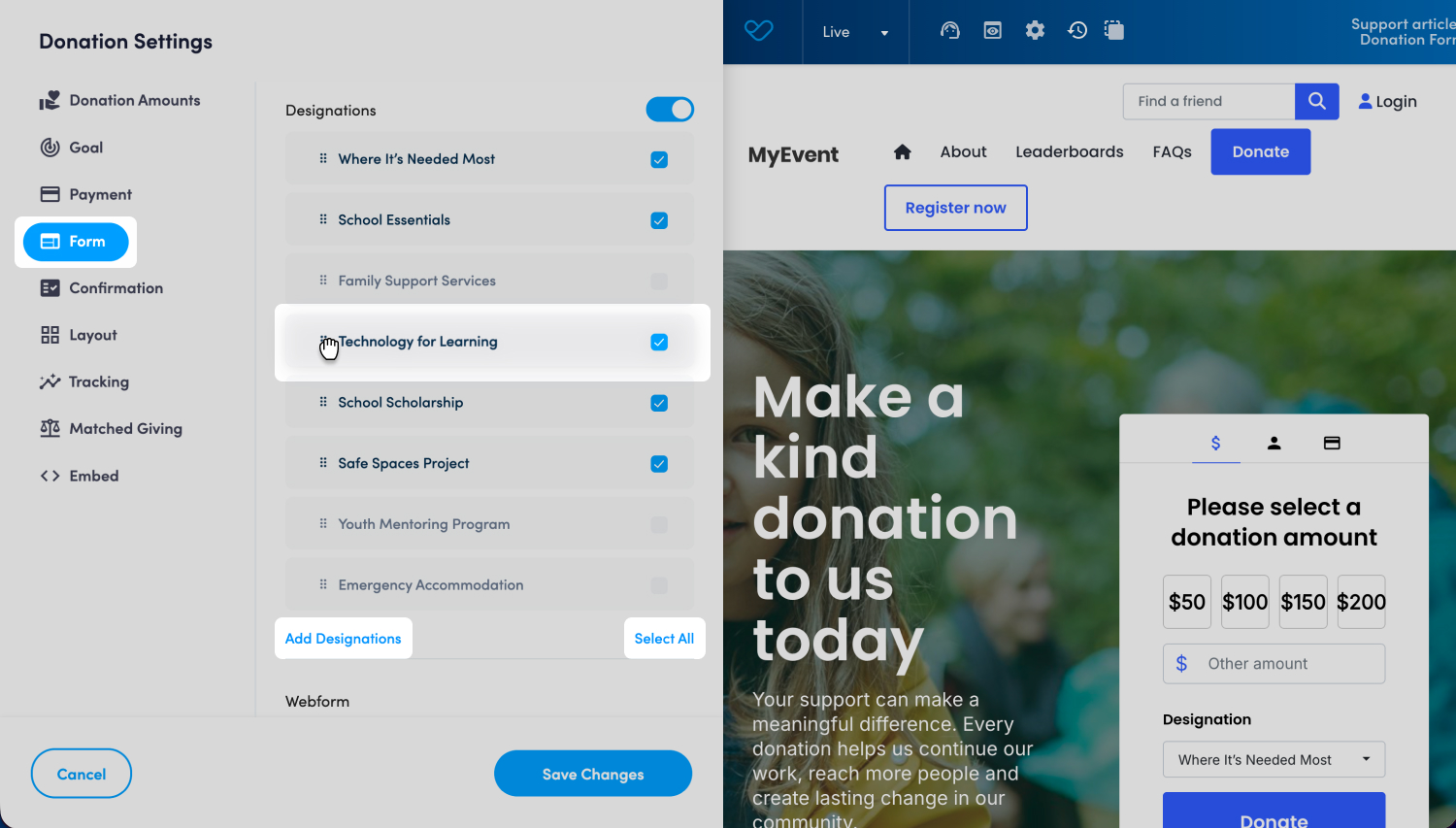
- Hover over the donation form and click the heart icon to open Donation Settings.
- 3
- Select the Form tab and expand Additional Fields.
- 4
- Toggle on Designations.
- 5
- Select the designation options to include on the donation form.
- Use Select All to select all available designation options.
- Drag and drop selected options using the grip icon to change the order in which they appear.
- To create a new designation option, click Add Designations. This will take you to Admin > Platform Setup > Advanced > Designations. See Creating Designation Options for instructions.
- 6
- Click Save Changes.
Important: If only one designation option is selected, the designation drop-down will not be displayed on the donation form. All donations made through the form will instead be automatically assigned to that designation. If two or more options are selected, supporters can choose their preferred designation from the drop-down.
Updating a designation on a donation record
A designation can be added or changed on an existing donation record if needed.
To update a designation on a donation record:
- 1
- Locate the donation record you want to update.
- 2
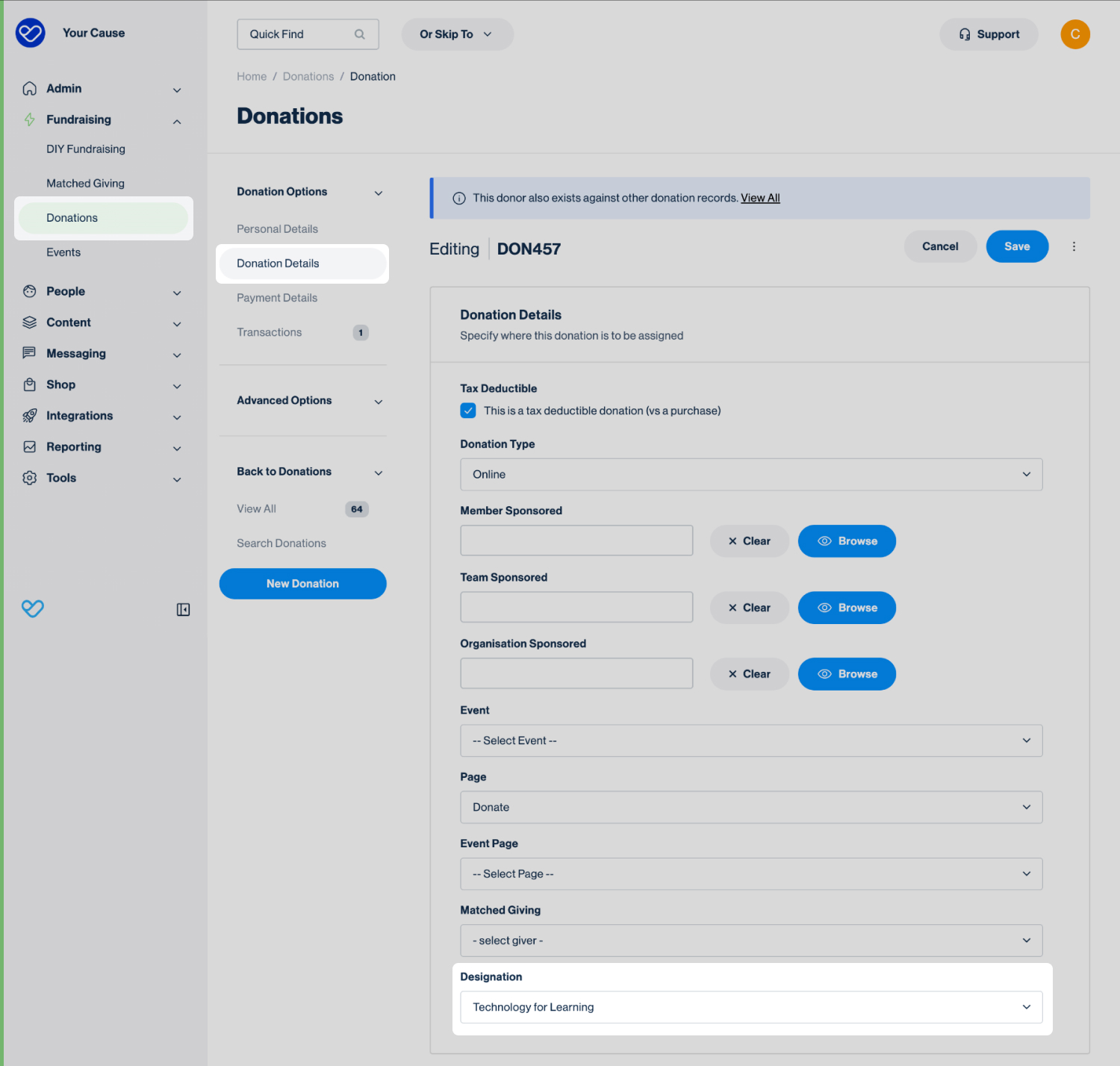
- Click the edit icon to open the donation record.
- 3
- Under Donation Options in the middle navigation, select Donation Details.
- 4
- From the Designation drop-down, select the designation to assign to the donation.
- 5
- Click Save.
Managing existing designation options
Existing designation options can't be deleted; however, they can be reordered, edited, or archived.
To manage existing designation options:
- 1
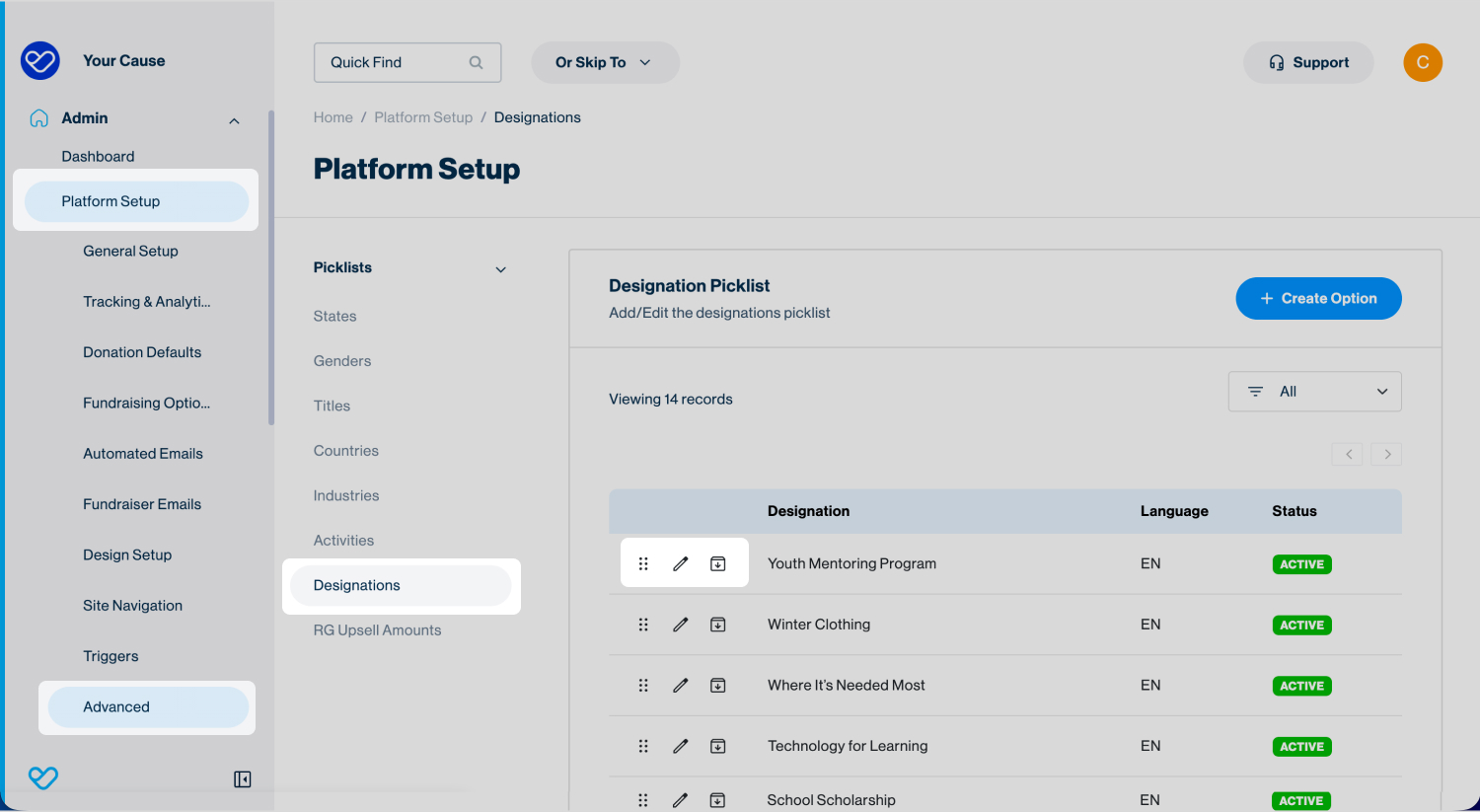
- Go to Admin > Platform Setup > Advanced.
- 2
- Under Picklists in the middle navigation, select Designations.
- 3
- From here, you can:
- Reorder: Use the grip icon to drag and drop designation options into a different order.
- Edit: Click the edit icon to update the Designation Name, Language, or Status.
- Archive: Click the Archive icon to archive a designation option.
Reporting on designations
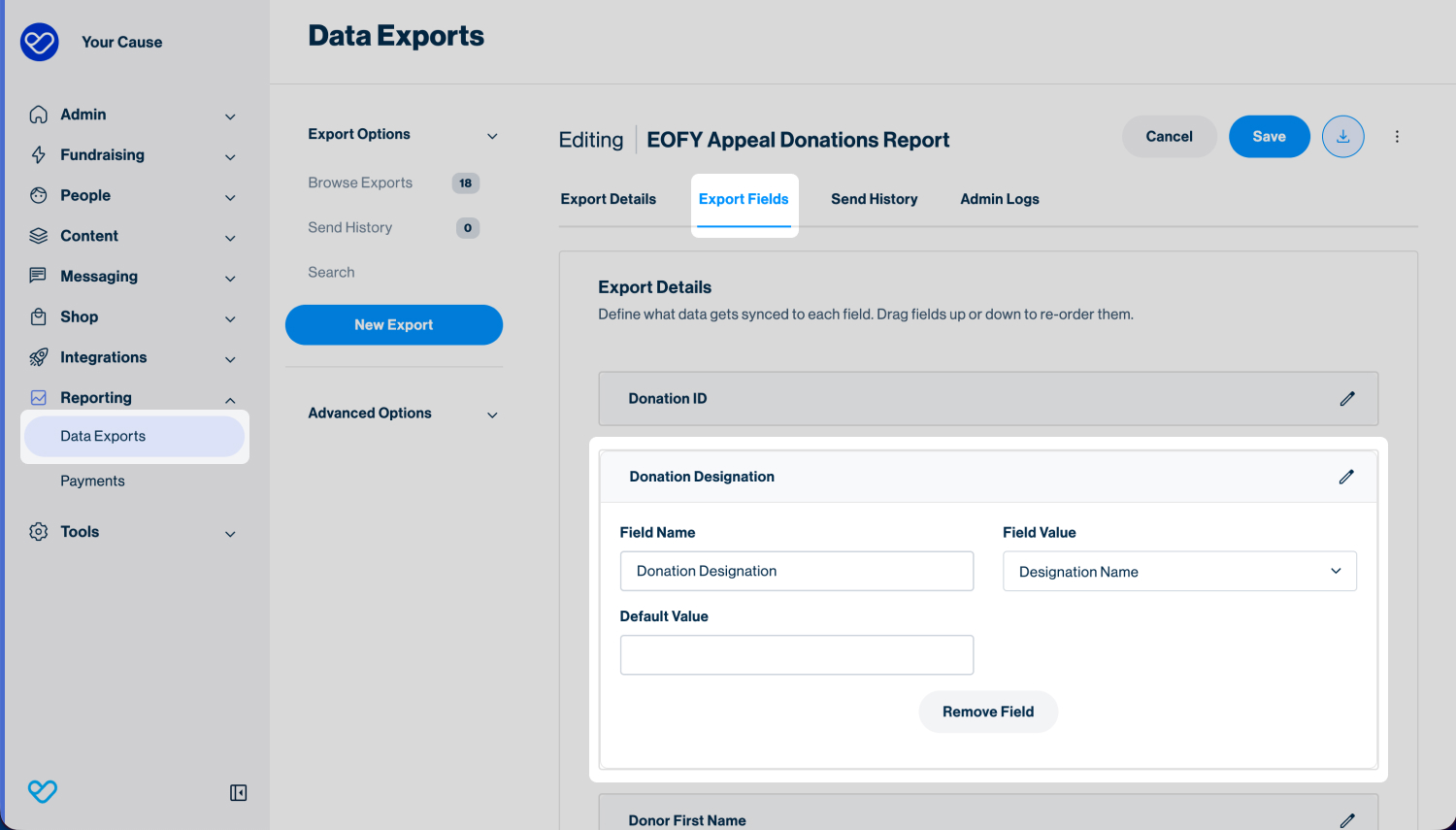
Donation designations can be included in data exports to help track and report on how donations have been designated.
To include the designation in an export, add Designation Name as a Field Value under Export Fields.
The Designation Name field is available for exports using the following Data Sources:
- Donations
- Transactions
- Scheduled Donations
- Scheduled Donations Errors
Still need help? Check out our other Donations support articles or reach out to the Funraisin Support team by logging a ticket through the Support Module in your platform.
Last updated: 18 Sep 2026
