

Donations: Message Step for Mobile Sponsored Donation Forms
A smoother mobile experience can make the difference between a started donation and a completed one. The message step helps lift conversion by breaking a long personal details screen into shorter, more digestible moments—reducing friction at a point where many donors drop off.
This article shows you how to enable the message step at the platform or event level, so your Online Event forms deliver a cleaner, faster mobile journey for supporters.
What is the message step for Mobile Sponsored Donation Forms?
The message step is an optional enhancement for mobile sponsored donation forms on Online Events that moves the supporter message and display name fields into their own dedicated step. By giving these fields their own space, the experience feels lighter and easier to complete, helping reduce friction and improve mobile conversion.
The message field is optional for donors and gives them the chance to leave a personal note that will appear on the fundraiser’s page alongside their donation.
Tip! This feature is available only on mobile for Online Events and is not supported for DIY events. It can only be enabled for Individual donation forms.
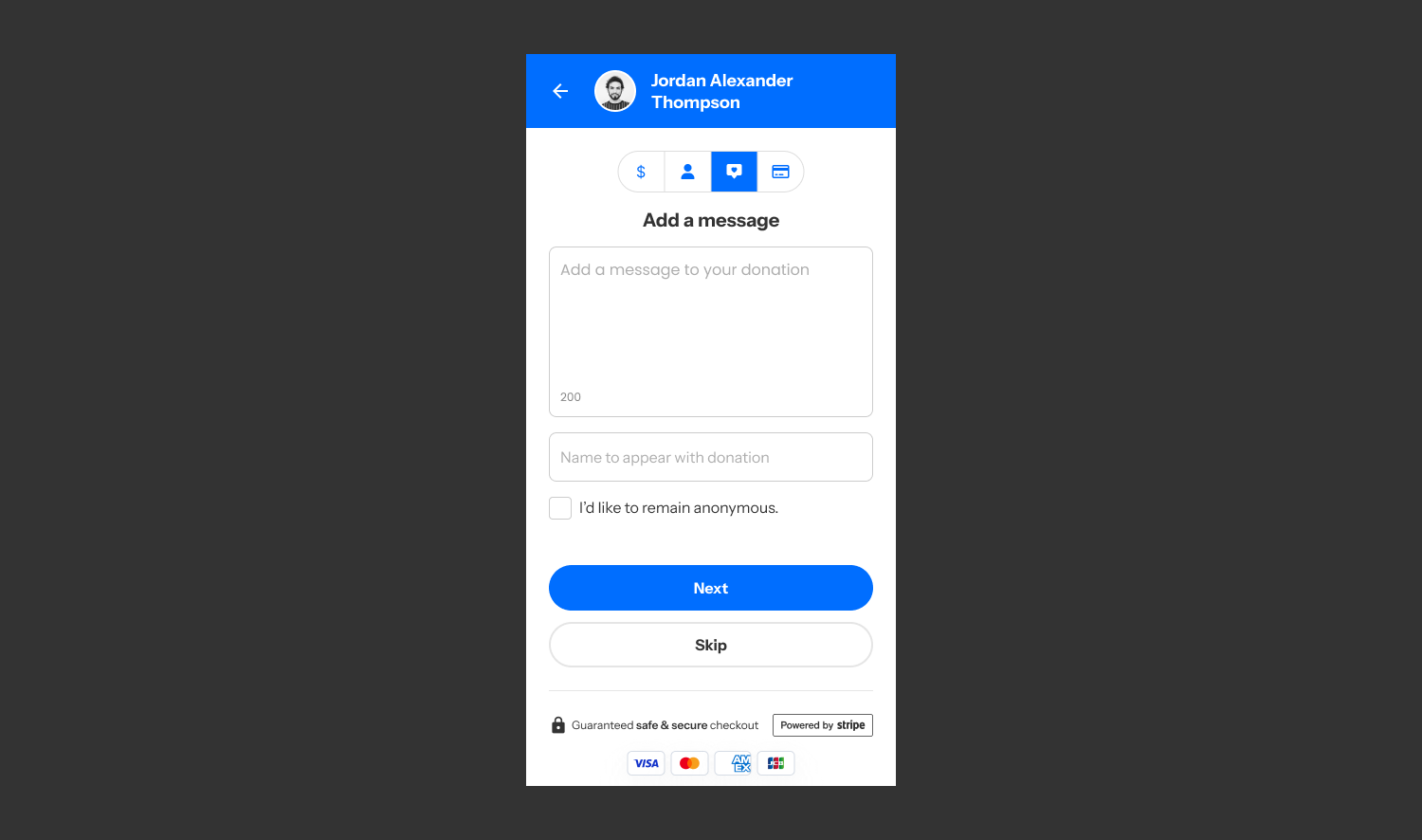
Enabling the message step globally at Platform Level
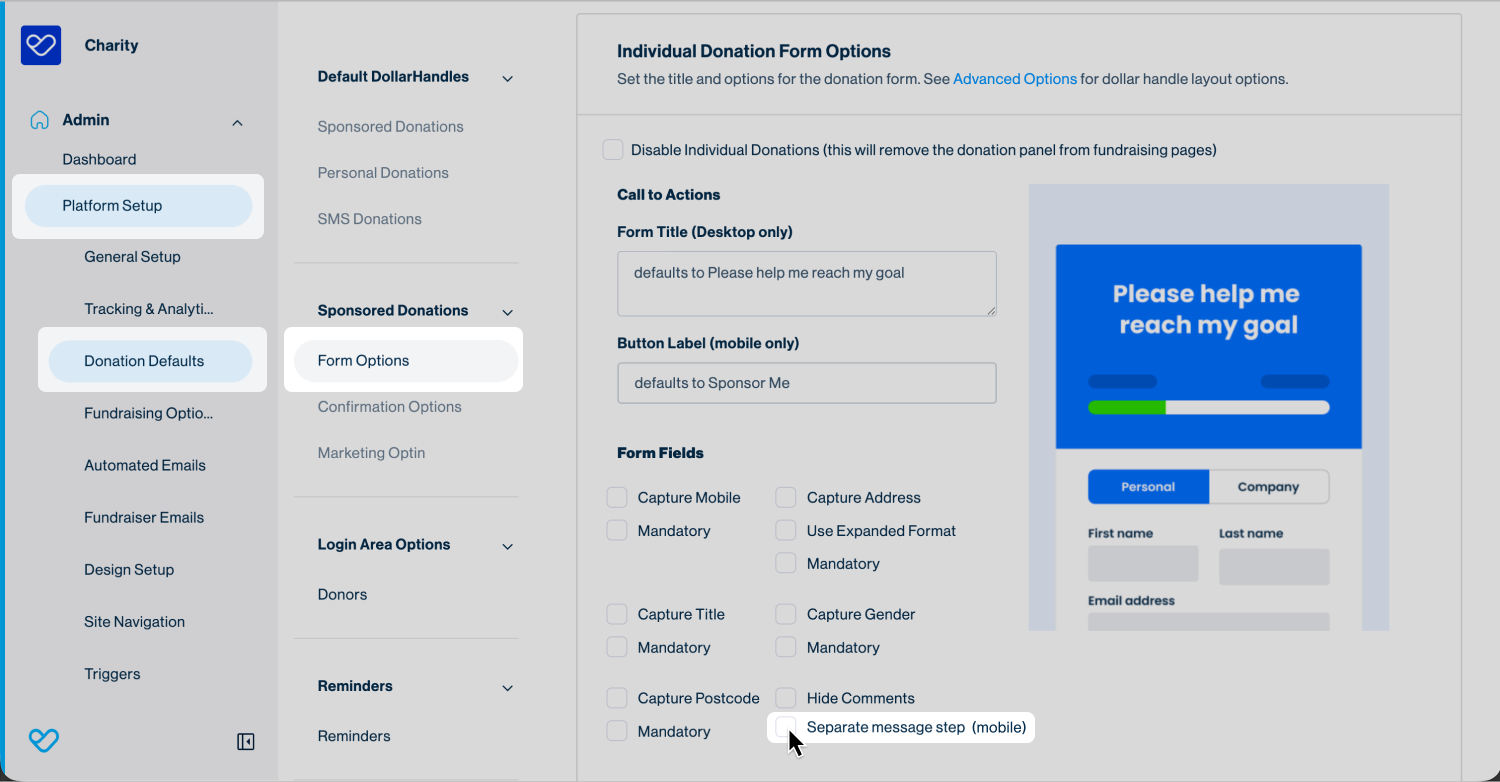
To enable the separate message step across your platform, go to:
- 1
- Admin > Platform Setup > Donation Defaults
- 2
- Within the Donation Defaults screen, scroll down to Sponsored Donations and select Form Options
- 3
- In the Individual Donation Form Options section, tick the Separate message step (mobile) checkbox
- 4
- Save your changes at the top of the screen
Tip! Once enabled at the platform level, the message step will appear for all online events and cannot be disabled at the event level.
Enabling the message step for Online Events
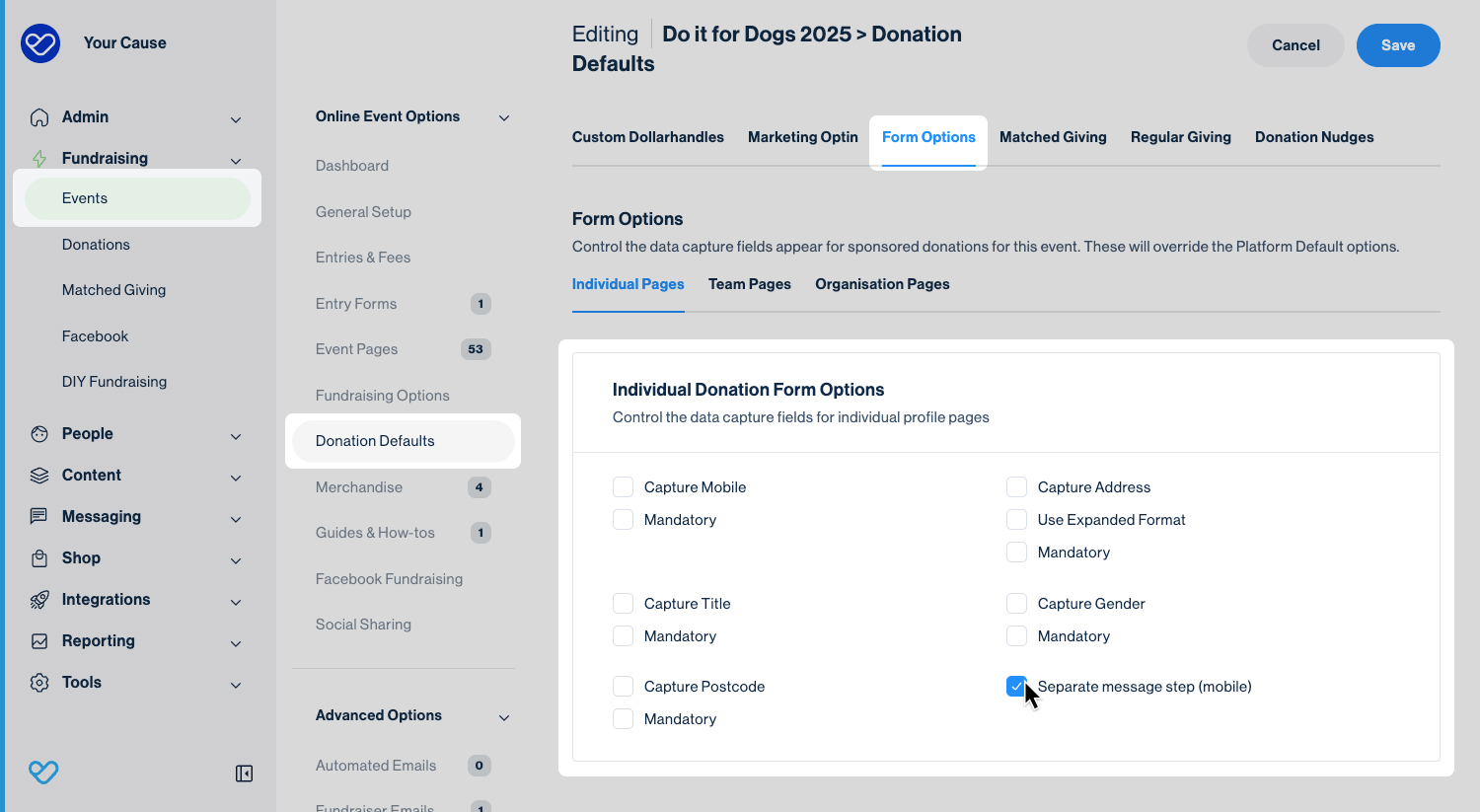
You can enable the separate message step at the online event level. To do this, select the event you want to update and navigate to:
- 1
- Fundraising > Events > Select your event to edit
- 2
- Within the Event, navigate to Donation Defaults and select the Form Options tab
- 3
- Tick the Separate message step (mobile) checkbox
- 4
- Save your changes at the top of the screen
This activates the dedicated message step for mobile donors on that online event’s sponsored donation forms.
Still need help? Check out other Donations articles or reach out to the Funraisin Support team by logging a ticket through the Support Module in your platform.
Last updated: 22 Jan 2026
