

Payments: Converting a registration fee to a donation
From time to time, you may need to convert an entrant’s registration fee—the amount paid to enter an event—into a donation. This most often happens when an entrant can no longer take part but still wants their payment to support the cause.
Converting a registration fee into a donation updates how the payment is recorded and ensures the amount appears on the entrant’s fundraising page, contributing to their total raised.
This article walks through when and how to make this change, what happens in reporting, and how the new donation record is displayed.
Converting a registration fee to a donation
In this section, we’ll walk you through how to change a registration fee into a donation. It’s important to note that only the full entry fee can be converted. For example, if an entrant paid a $100 entry fee, the entire $100 can be converted to a donation—it’s not possible to convert just part of the amount (e.g., $50 of the $100).
Start by locating their member record. The quickest way is to use the Quick Find search bar at the top of your platform: search by their email address (most reliable) ; or, if needed, search by first or last name.
Once you’ve found the correct record, click the edit icon to open it.
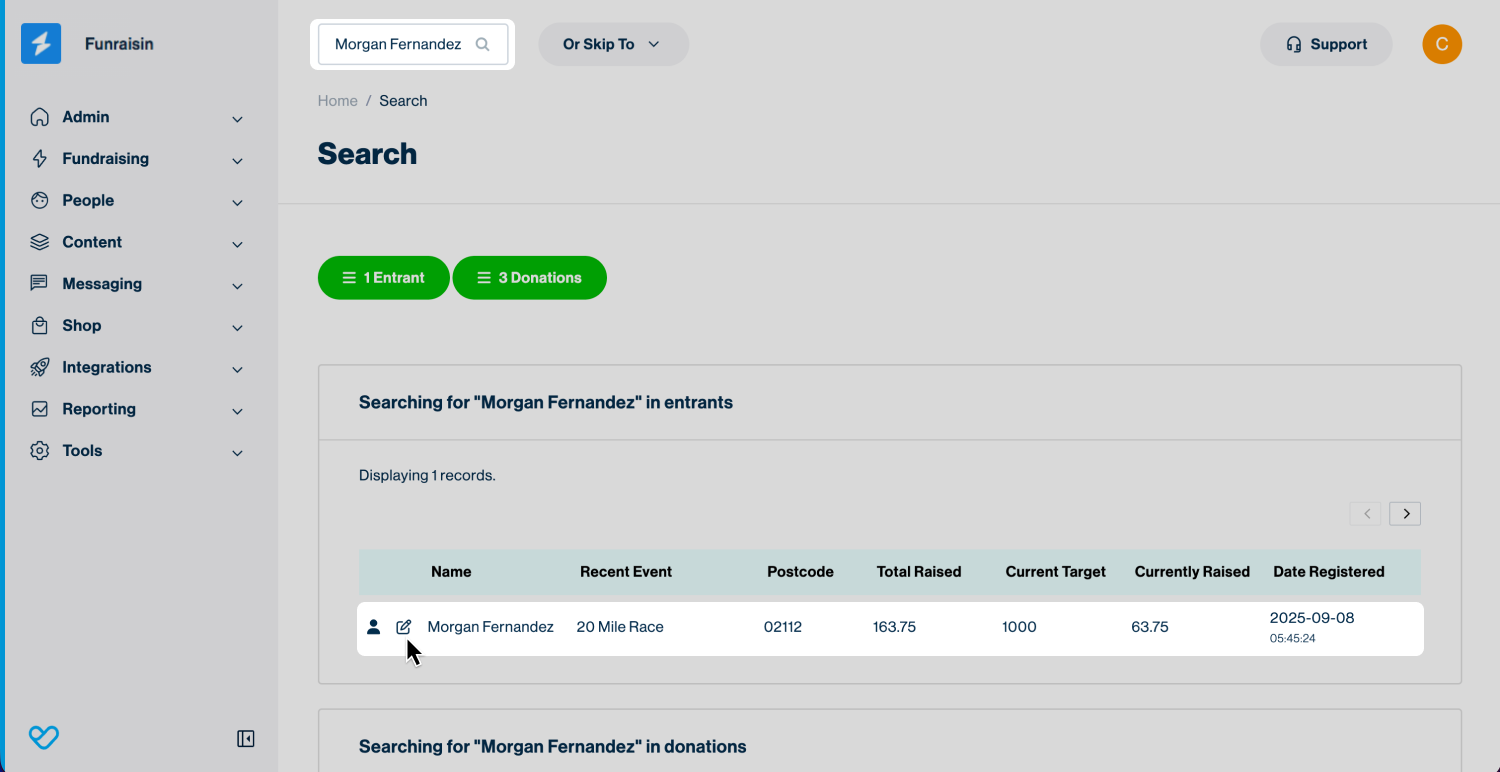
- 1
- Within the entrant record, click Events
- 2
- Find and edit the event you’d like to update.
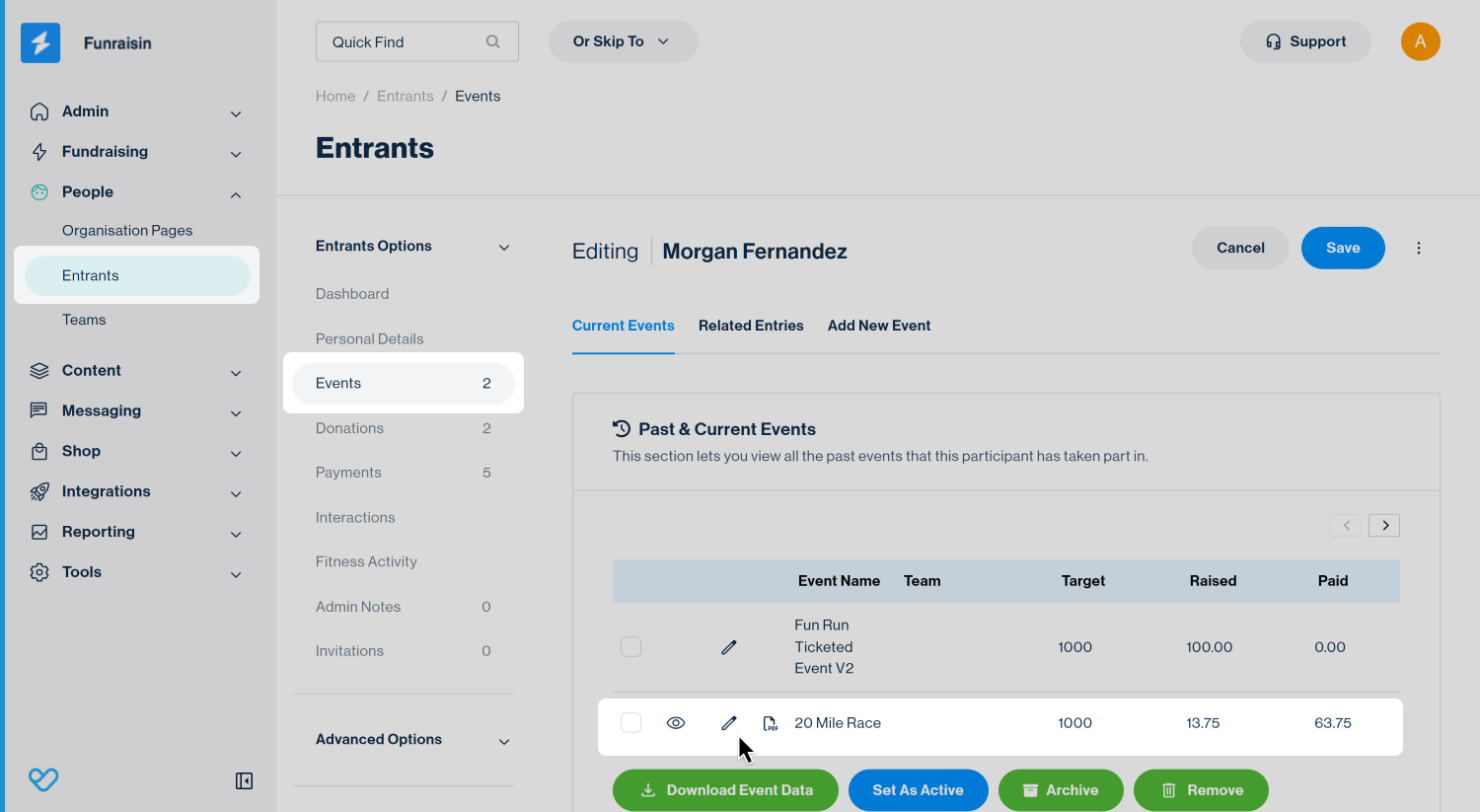
- 1
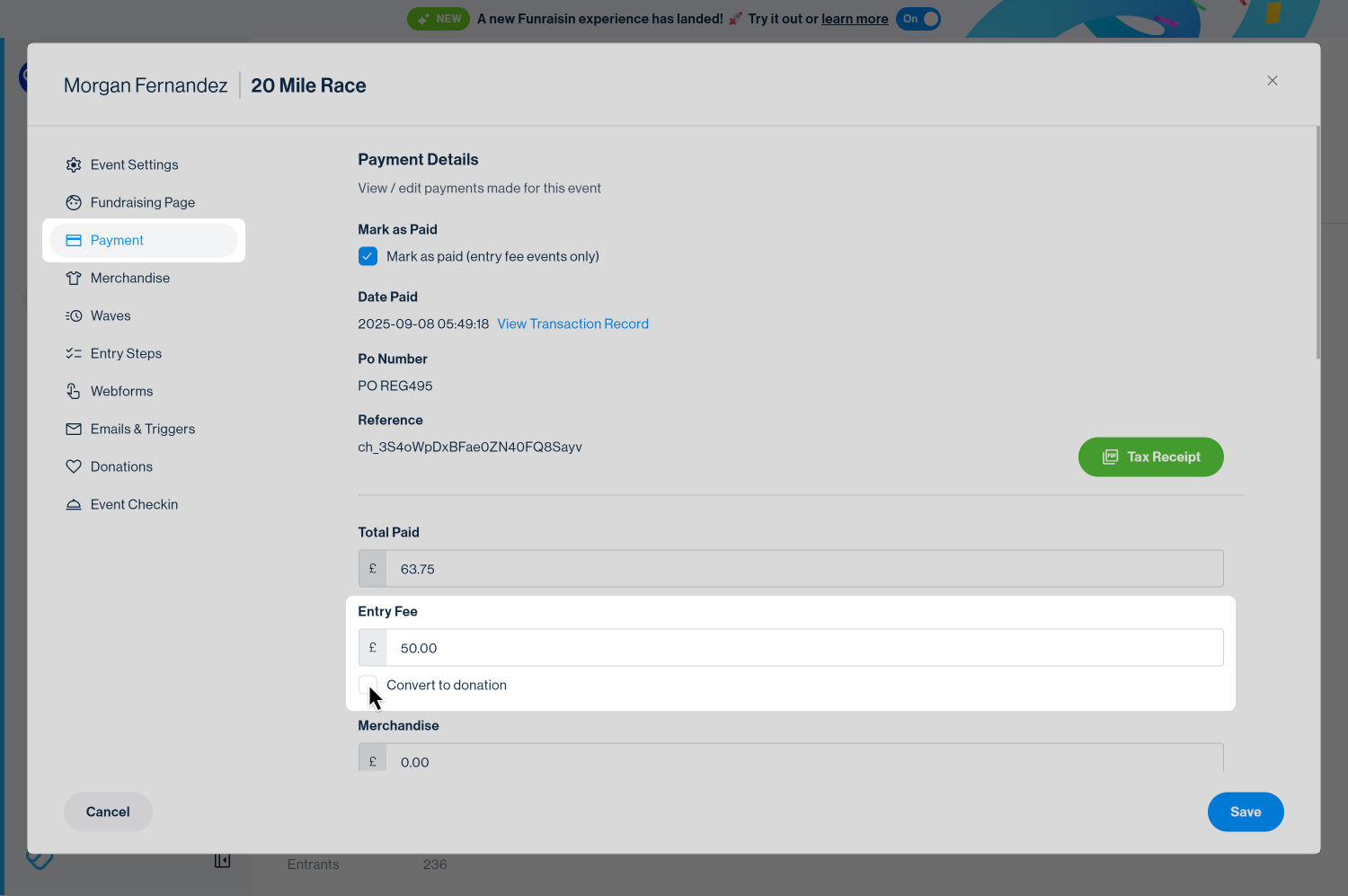
- In the pop-up window, select Payment from the left-hand menu. This screen shows a breakdown of the entrant’s payments—registration fees, merchandise, delivery, and donations
- 2
- Find and edit the event you’d like to update
- 3
- Under Entry fee, tick Convert to a donation
- 4
- A warning message will appear—click OK to confirm
- 1
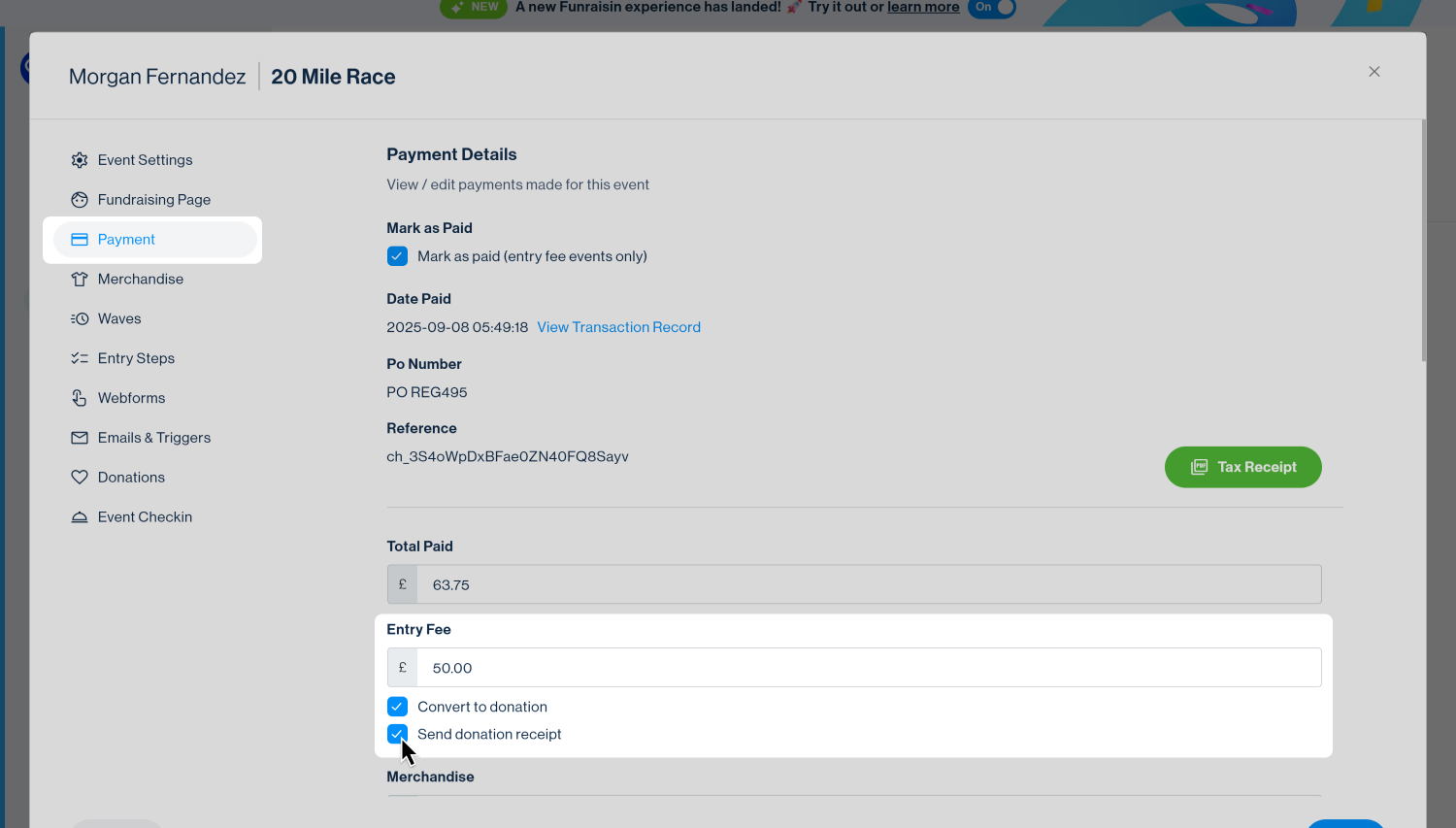
- After confirming, a new checkbox will appear next to the registration payment amount: Send donation receipt.
- 2
- Tick this box if you’d like to automatically send the entrant a donation receipt when saving.
- 3
- Click Save. You’ll return to the entrant’s list of events.
Tip! You cannot partially convert a registration fee to a donation. If you need to, we recommend creating an offline donation record for the amount you’d like to convert and assigning it to the entrant.
Need more information on adding an offline donation? See our support article: Adding Offline Donations.
Managing the donation record
When viewing the Donations within a member record, you’ll now see a new donation linked to the entrant. The donor name and email will match the entrant’s details, and the donation record type will be listed as Registration.
This donation will appear on the entrant’s fundraising page and contribute to their total raised.
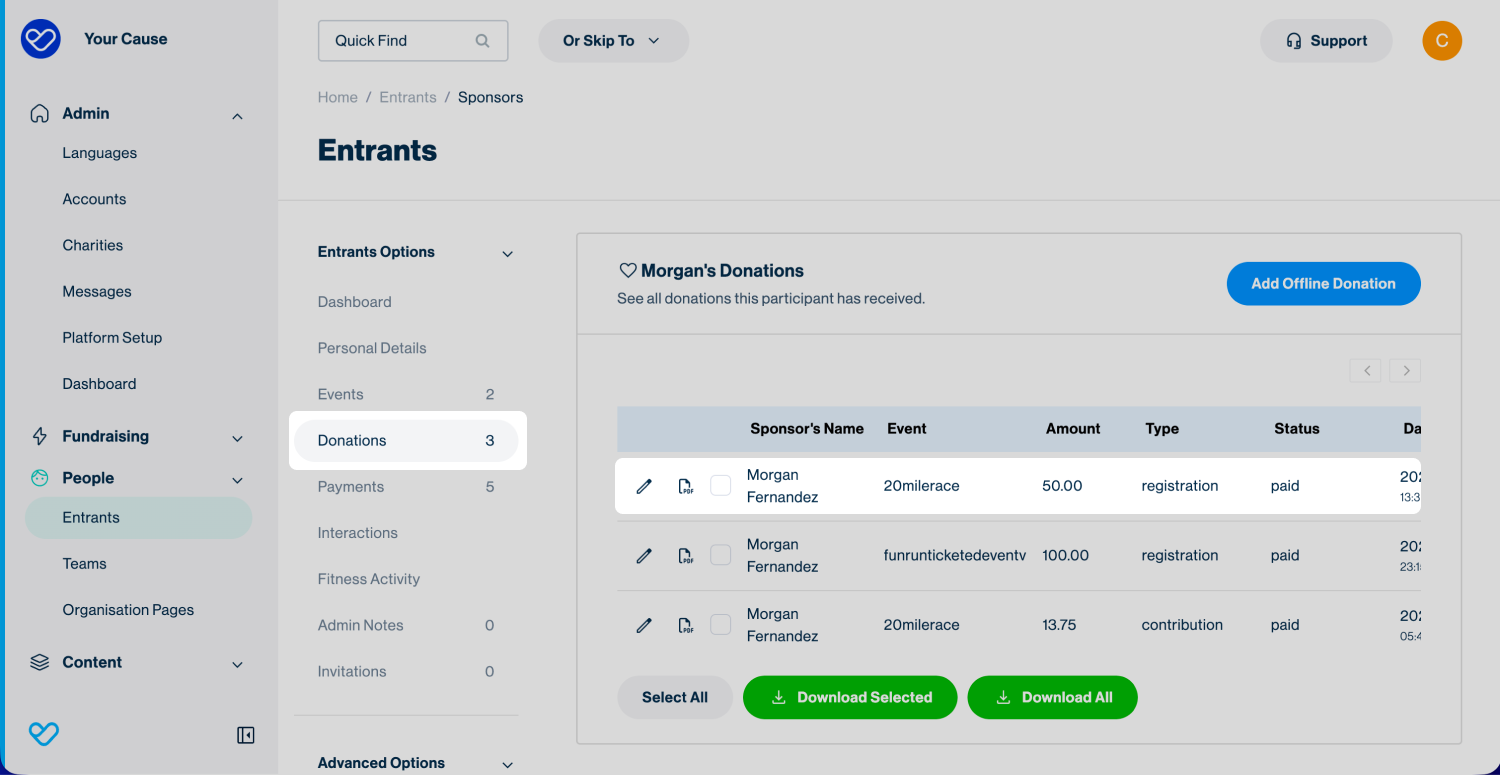
By default, the donation will be assigned to the entrant who made the payment for this event. If needed, you can edit the donation record and reassign it to a different entrant.
To do this, simply follow the steps in our support article: Reassigning a donation.
Reporting
The original transaction record for the registration payment will not change—it will continue to appear in your transactions report as a registration payment.
The newly created donation record will appear in your donations report. Similar to an offline donation that’s been manually added, there is no linked transaction record. This entry acts as a dummy record for reporting purposes.
Still need help? Check out our other Payments support articles or reach out to the Funraisin Support team by logging a ticket through the Support Module in your platform.
Last updated: 4 Feb 2026
