

PURLs: Incomplete Registration PURLs
Reducing drop-off during event registration often comes down to one thing—helping supporters pick up right where they left off. Registration PURLs make that possible. They let you bring people back into your event journey with their details already prefilled, removing friction and making it far easier for entrants to complete their sign-up.
Whether you’re chasing incomplete registrations, sending reminders through Messages, or importing large groups like corporate teams, Registration PURLs give you a reliable way to personalise the experience without requiring supporters to log in. This guide walks you through how they work, where they can be used, and how to create them—manually, via export, or using automated messaging.
What are Registration PURLs?
PURLs (Personalised URLs) are unique, supporter-specific links designed to help you bring people back into an event registration flow with their details already prefilled. Each link contains a secure hash that tells Funraisin which supporter is visiting and which pieces of information should be applied to the form—such as name, email, phone number, address, team selection, or any other fields the supporter has already completed.
When a supporter clicks their Registration PURL, the platform reads the hash, loads the registration flow, and automatically applies their saved information to the appropriate form fields. This reduces friction, removes the need for the supporter to log in, and allows them to pick up exactly where they left off.
Registration PURLs work seamlessly across devices. A supporter might begin registering on their laptop, receive a reminder email later on their phone, tap their personalised link, and drop straight back into the form with all their details already in place—no login required.
Tip! Registration PURLs can only be used for Online Event registration flows. They aren’t supported for DIY fundraising, so supporters won’t be able to use a PURL to prefill details or complete setup on a DIY fundraising page.
How do Registration PURLs work?
A Registration PURL is created by combining your event’s registration flow URL with the supporter’s unique Funraisin hash. This hash acts as a secure lookup key that Funraisin uses to identify the correct supporter record and prefill the form with their saved data.
Here’s what happens behind the scenes:
- 1
- Supporter data is stored as individual fields in the database.
- 2
- Those data fields are collected either through the registration form (when someone starts signing up) or uploaded manually via an import.
- 3
- When a registration record is created—even if it’s incomplete—Funraisin assigns the entrant a unique hash (for example: a580fe022c9388a8c966f162eed31e65a580fe022c9388a8c966f16 2eed31e65)
- 4
- You can view this unique hash on the entrant’s record.
- 5
- A Registration PURL is simply your registration flow URL with the supporter’s hash appended to it.
- 6
- When the supporter clicks their personalised link, Funraisin reads the hash, retrieves the matching record, and pre-populates the registration form with the data you’ve already collected.
This workflow keeps supporter data secure, removes unnecessary re-entry of information, and gives you a powerful way to rescue incomplete registrations through targeted email or SMS reminders.
Where can PURLs be used?
This article focuses on incomplete registration PURLs, which are used to personalise a supporter’s experience when you’re re-targeting them to finish signing up. These PURLs drop supporters back into the registration flow already recognised and prefilled, using the details they previously entered—without requiring them to log in.
PURLs can also be used across other areas of the Funraisin platform, including Donation PURLs and Fundraising Page (Summary/Celebration) PURLs, each with its own setup process, use case, and behaviour.
Tip! For guidance on creating Donation PURLs you can see the dedicated support article here. For Fundraising Page PURLs, feel free to send an enquiry through to our support team.
Registration PURL Format
A Registration PURL is created by taking your event’s registration flow URL and adding the entrant’s unique hash to the end of it. This hash tells Funraisin exactly which supporter record to reference when pre-filling the form.
Each entrant has their own member hash, which you can find on their member (entrant) record in your admin. This hash is the key that connects the supporter to their saved registration data.
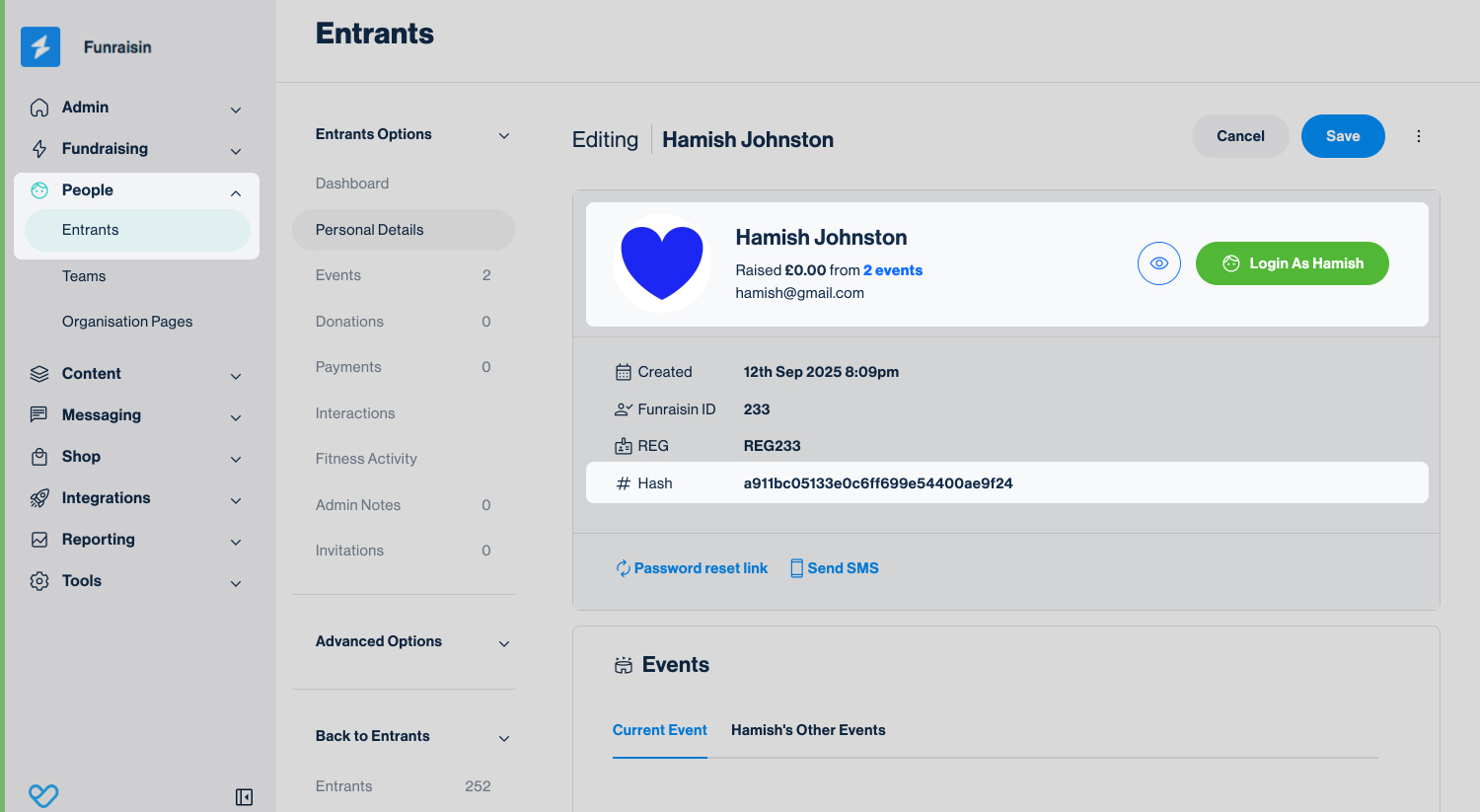
A Registration PURL follows this structure: [registration flow URL]/?incid={member_hash}
For example, if your registration URL is: https://yourorg.com/register/fun-run/reg-form
And the supporter's member hash is: a911bc05133e0c6ff699e54400ae9f24
Then their registration PURL will be:https://yourorg.com/register/fun-run/reg-form/?incid=a911bc05133e0c6ff699e54400ae9f24
When the supporter clicks this link, the platform reads the 'incid' value, finds the matching entrant record, and pre-fills the registration flow with their saved personal details.
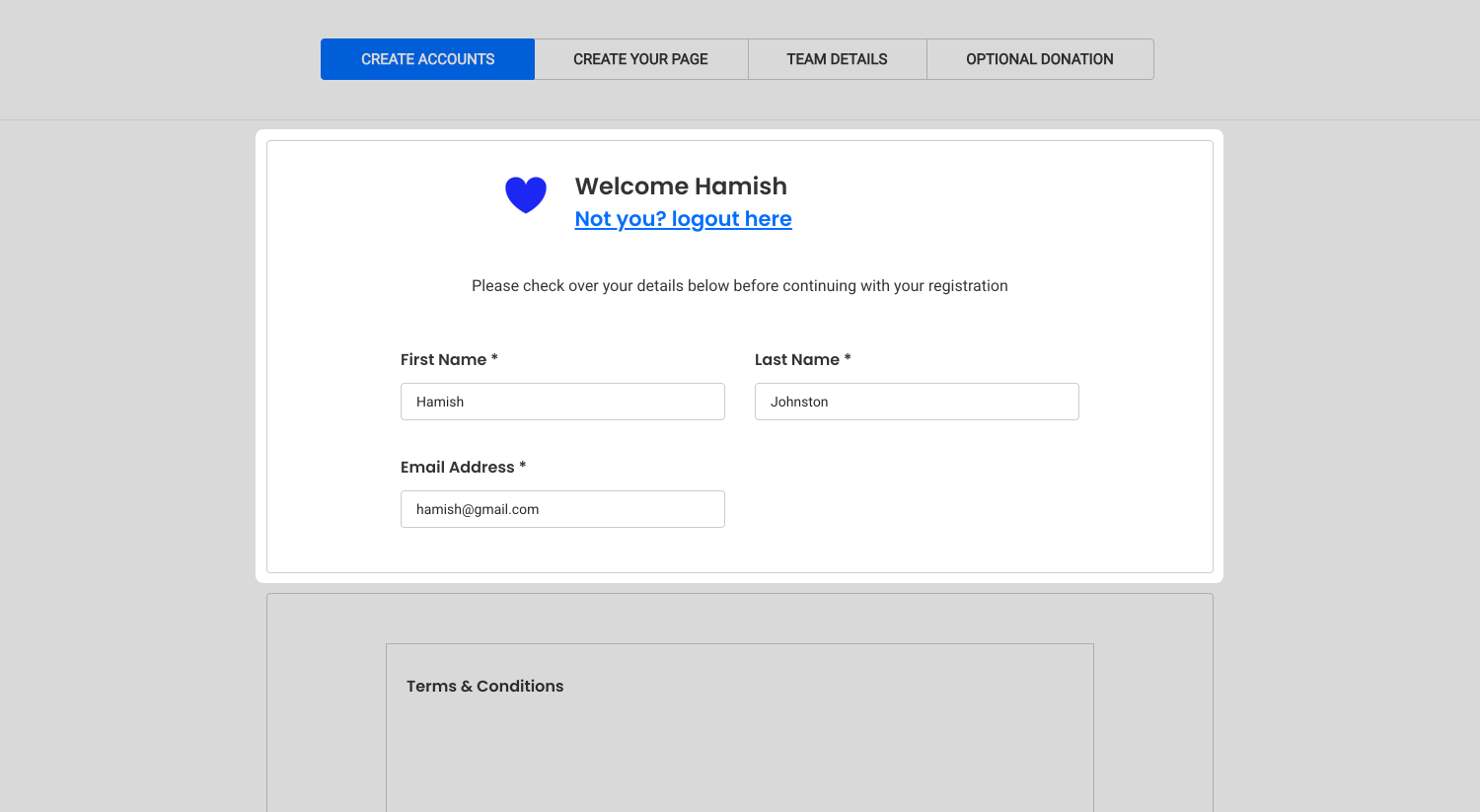
Tip! Always include ?incid= between your registration URL and the supporter’s hash. This parameter is what tells Funraisin to look up the correct entrant record and prefill their details.
If you leave out ?incid= or mistype it, the PURL will still load the registration page, but no supporter data will pre-populate, and the platform won’t recognise who the entrant is.
Creating Registration PURLs using a Data Export
The easiest way to generate Registration PURLs at scale is by building a Fundraisers report for your event. This lets you build personalized links for every incomplete entrant in just a few clicks.
If you’re new to the building reports, see our support article on Creating Reports for a quick refresher.
To create Registration PURLs:
- 1
- Create a new report using the Fundraisers data source for your event.
- 2
- Add the supporter fields you want to include in your export—typically First name, Last name, and Email.
- 3
- Add the field Is Complete so you can identify who has (and hasn’t) finished registering.
- 4
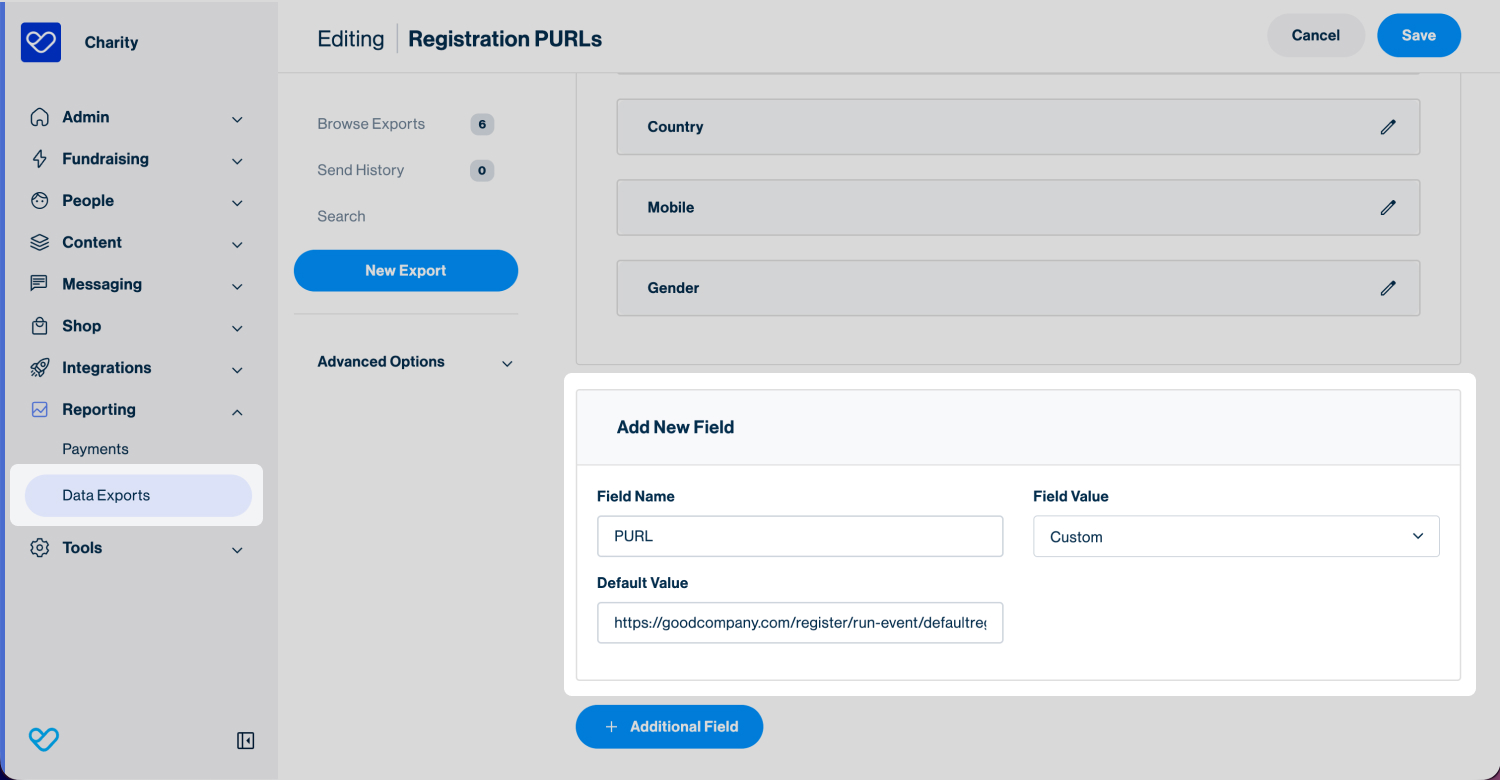
- Create a Custom field that will hold the PURL.
- 5
- In the Default value field, build your personalised link using your registration URL + ?incid= + the member hash. For example:
https://goodcompany.com/register/run-event/defaultregistrationform/?incid={member_hash} -
The tag will auto-populate with the unique hash for each entrant when you download the report.
- 6
- Download the report and filter to entrants with “N” under ‘Is Complete’. These supporters have begun registering but haven’t finished.
Before sending anything out, always test a handful of PURLs. Click several links from the export and confirm that:
- you’re dropped into the correct registration flow
- the form pre-fills with the entrant’s saved details
- no login is required
Tip! If your event includes multiple registration flows (such as Corporate, Family, VIP, or distance-based flows), you may need to generate separate PURLs for each flow so supporters are returned to the correct journey. If you’re unsure which URL to use or how to structure multiple PURLs, the Funraisin Support team can assist.
Re-targeting incomplete entrants using Messages
Your Messages module is one of the most effective ways to automatically re-engage supporters who started registering but didn’t finish. By combining messaging rules with a personalised Registration PURL, you can nudge incomplete entrants back into the registration flow with their details already prefilled—no login required.
To set up an incomplete-registration message:
- 1
- Go to Messaging > New Message.
- 2
- Choose Engagement, then assign the message to your event.
- 3
- Give your message a clear name—for example, Incomplete Entrants or Finish Your Registration.
- 4
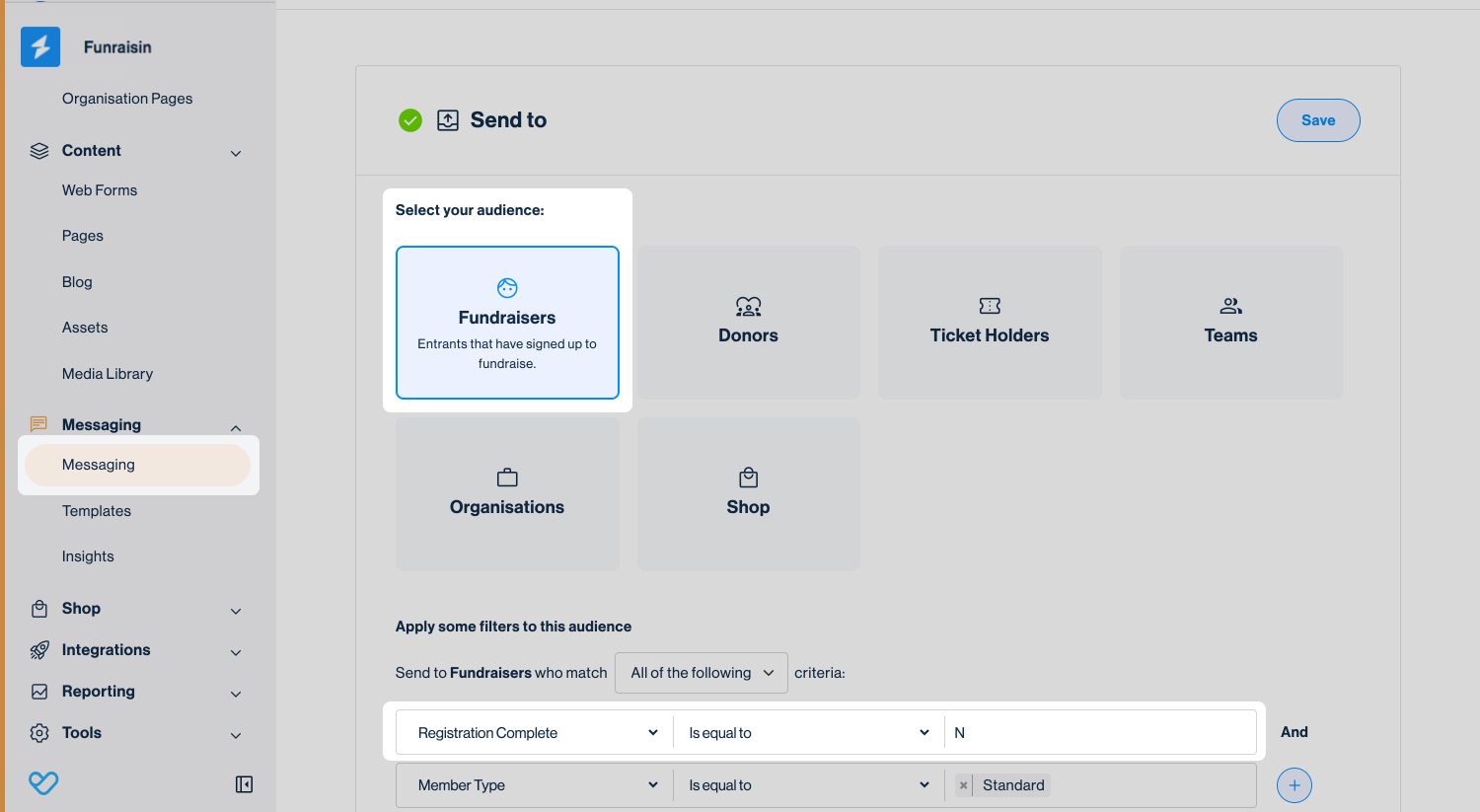
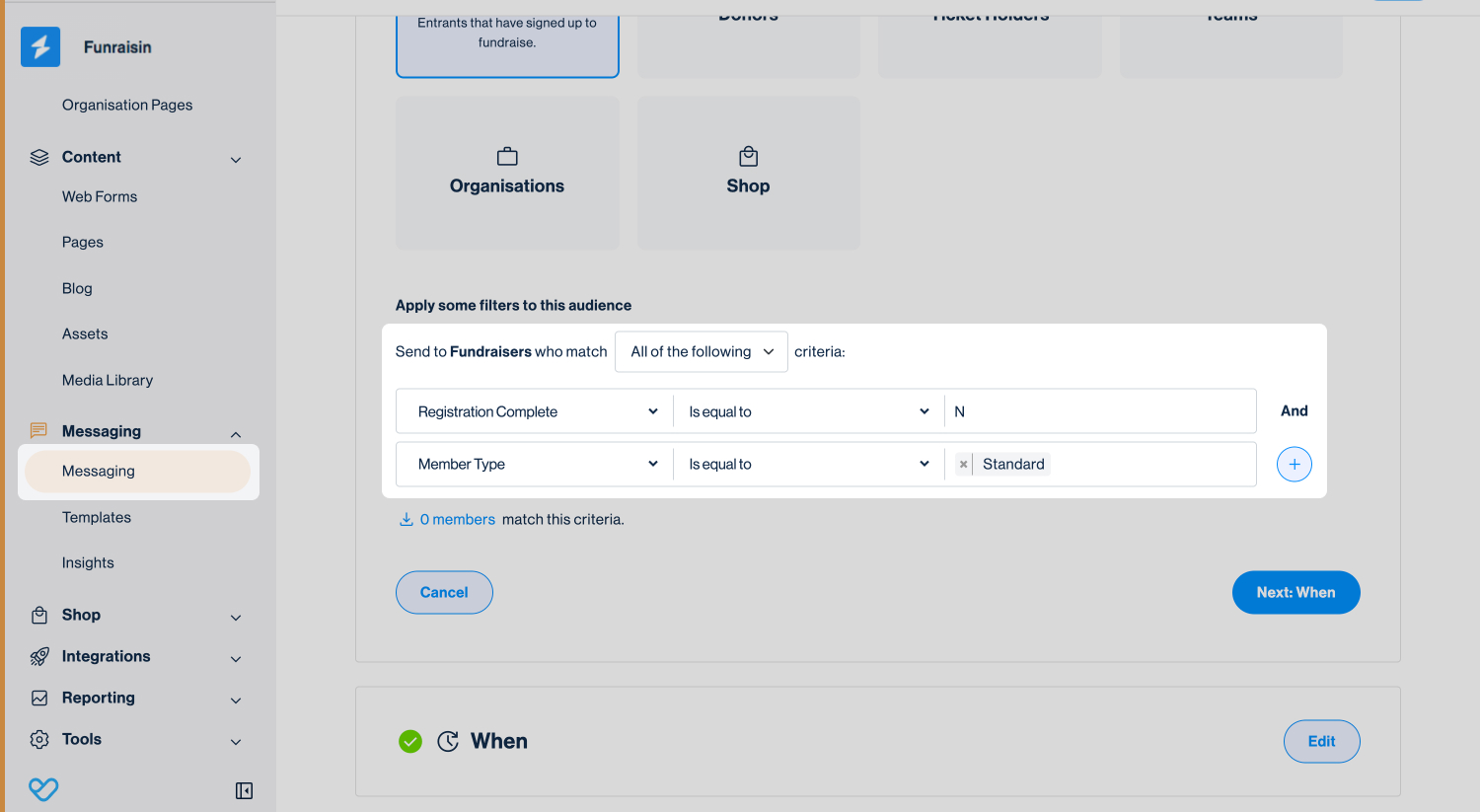
- Use filtering to make sure the message only sends to people who haven’t completed registration - Set your audience to Fundraisers where Registration Complete = N. This ensures your reminder only reaches supporters who began registering but did not complete the process.
- 5
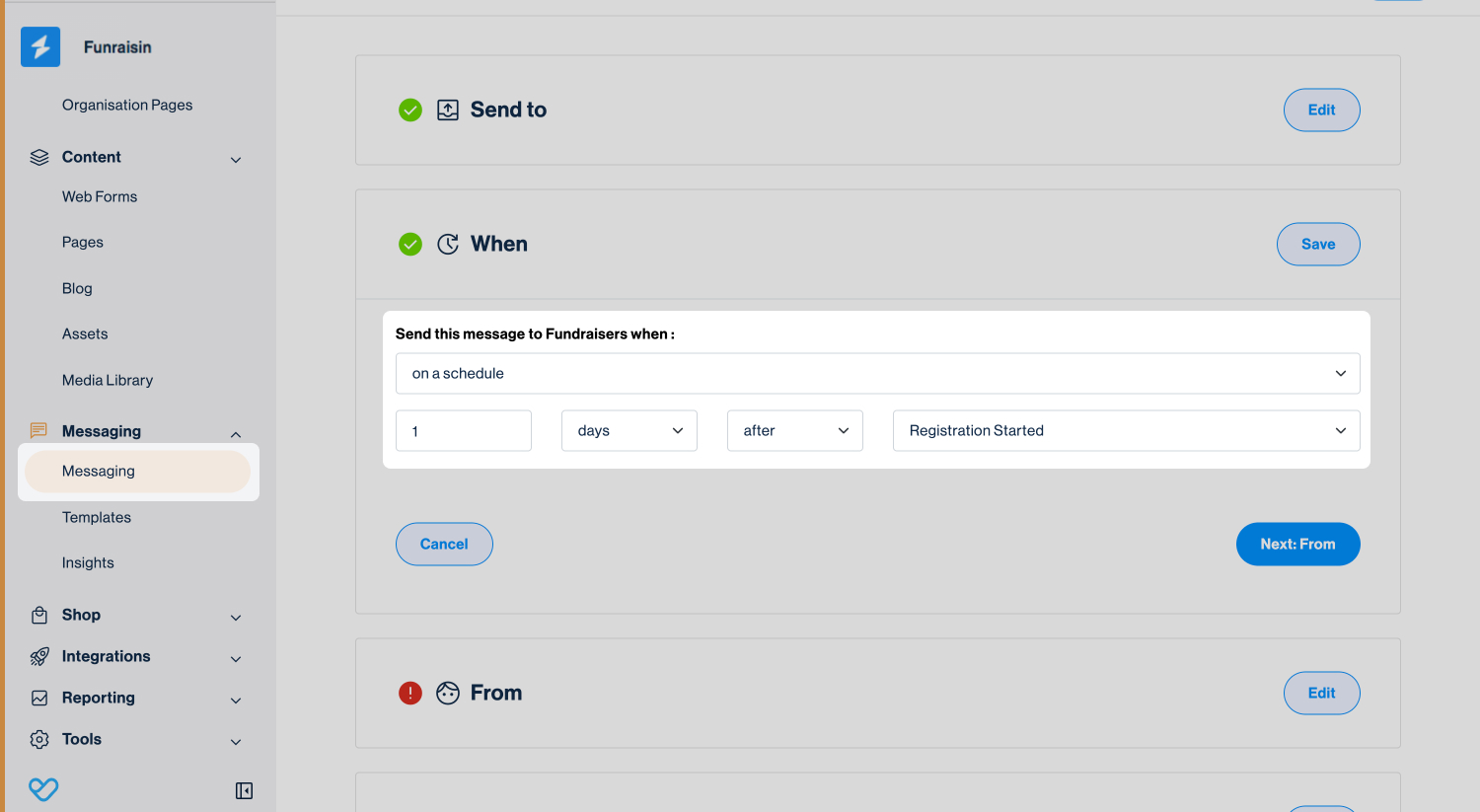
- Set the send time to choose when you want to re-target entrants. This could be hours, days or weeks after they began their registration.
Timing can depend on your event, your audience, and how quickly you want to re-engage supporters.
- 6
- Add your From Name, From Address, and email content as normal.
- 7
- Then insert your personalised Registration PURL using the supporter’s member hash:
https://youreventurl.com/register/yourflow/?incid={member_hash}The
{member_hash}tag will populate automatically when the message is sent, ensuring each supporter receives their own personalised link. - 8
- Always send yourself a test email first to confirm the look and feel of your email–however please note that personalization tags on test emails from Messages will not be populated as they are not connected to a specific member record. To see a populated preview, consider submitting your own test registration to the event.
- 9
- Once you’re happy, set the message to live.
Using mulitple registration flows
If your event uses more than one registration flow (e.g., Corporate, Schools, Family, or different distance-based flows), you’ll need separate incomplete-entrant messages to ensure supporters are dropped back into the correct flow.
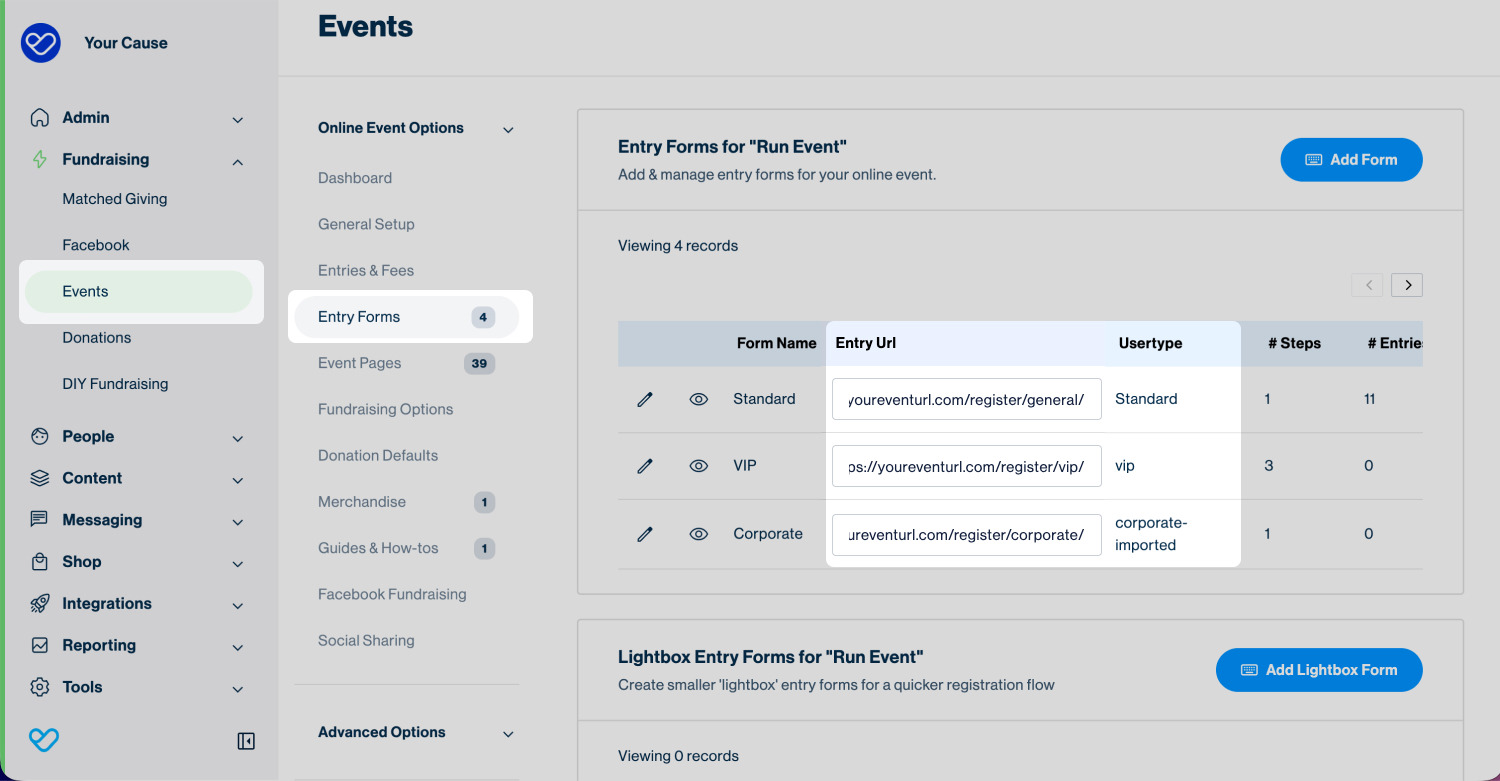
Each registration form has its own member type, which indicates which flow the supporter started on.
When building your PURL for each message, use the registration URL that matches that member type:
https://youreventurl.com/register/general/?incid={member_hash}https://youreventurl.com/register/vip/?incid={member_hash}https://youreventurl.com/register/corporate/?incid={member_hash}
This ensures each supporter lands in the same registration journey they originally began—reducing confusion and improving completion rates.
Importing Entrants and Sending PURLs
If you need to manually import entrants into your event and then invite them to complete their registration, Registration PURLs make this process seamless. This is especially useful when participants haven’t registered themselves or when you already know who should take part.
A common example is corporate team entries. A company might purchase 100 spots via invoice, but you still need each employee to:
- accept the event terms and conditions
- provide their personal details
- create their fundraising page
- finish any required steps in the registration flow
By importing the entrants and sending each person a personalized PURL, you can guide them to complete their sign-up with all their prefilled data ready to go.
Start by creating a dedicated registration flow via the steps below:
- 1
- Create a separate registration form specifically for the group you’re importing (e.g. Corporate, School, Partner Organisation).
- 2
- Keep the form simple—ideally a single-step flow—to maximise completion.
- 3
- Clearly name the flow (e.g. Corporate Registration).
- 4
- Update the Member Type in the registration form to match the group (e.g. “Corporate”). This ensures correct filtering, reporting, and message targeting later.
Once your new registration flow has been created, you will need to set up the automated email that uses the PURL.
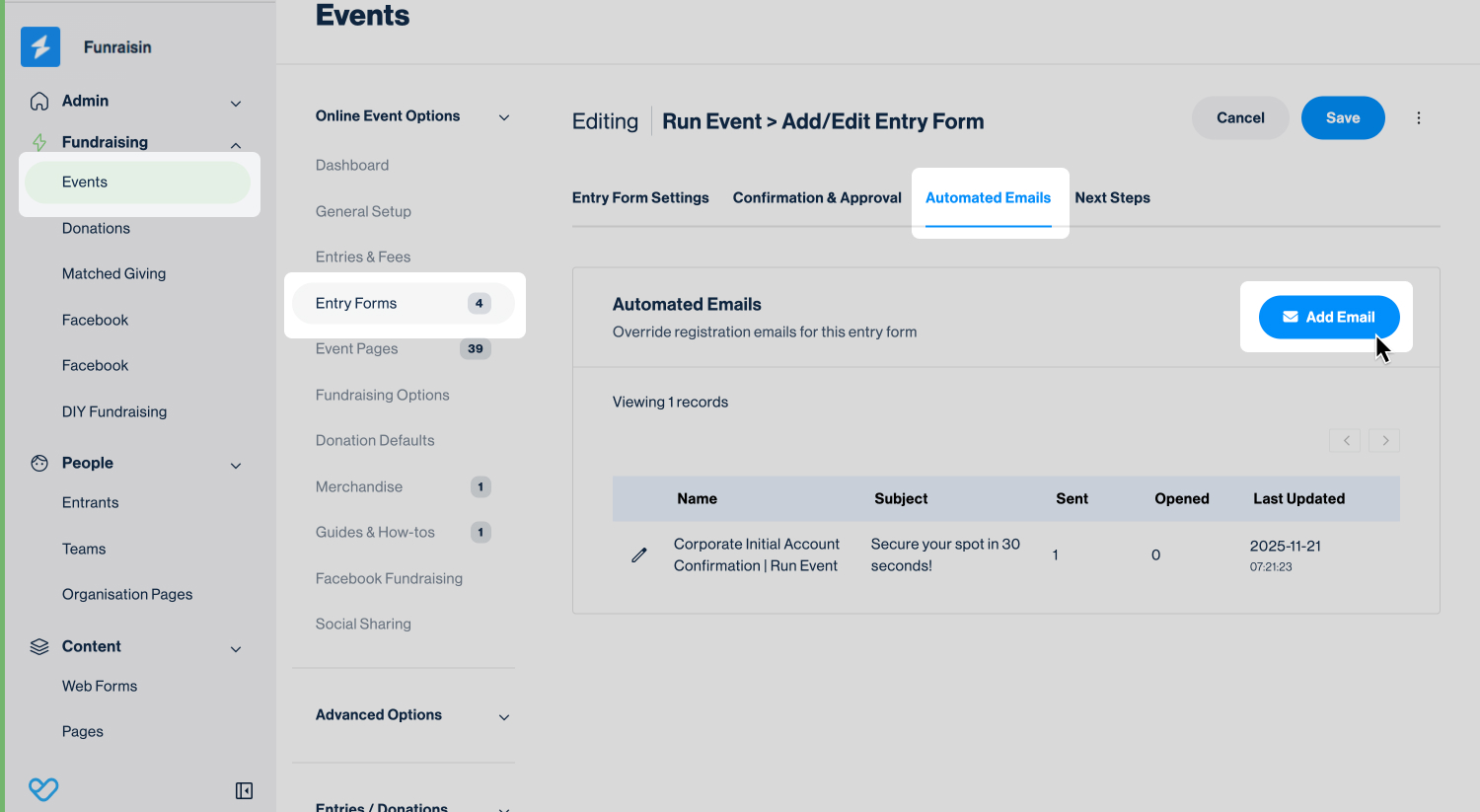
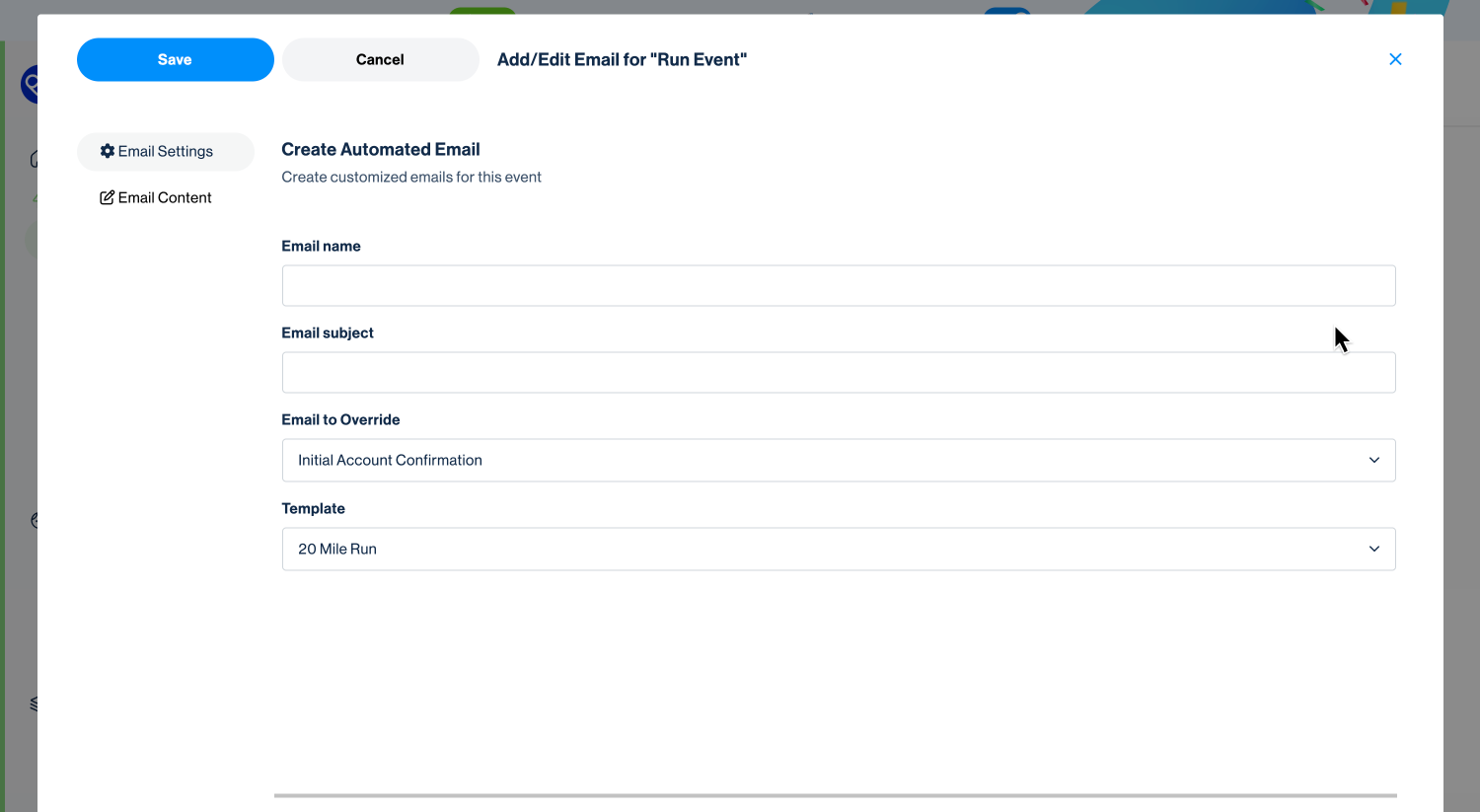
You can do that directly in your Entry Forms view within your event via the steps below:
- 1
- Navigate to the Automated Emails tab along the top.
- 2
- Create a new email to override the Initial Account Confirmation message.
- 3
- Clearly name the email (e.g. “Corporate Registration Invitation” or “Complete Your Registration”).
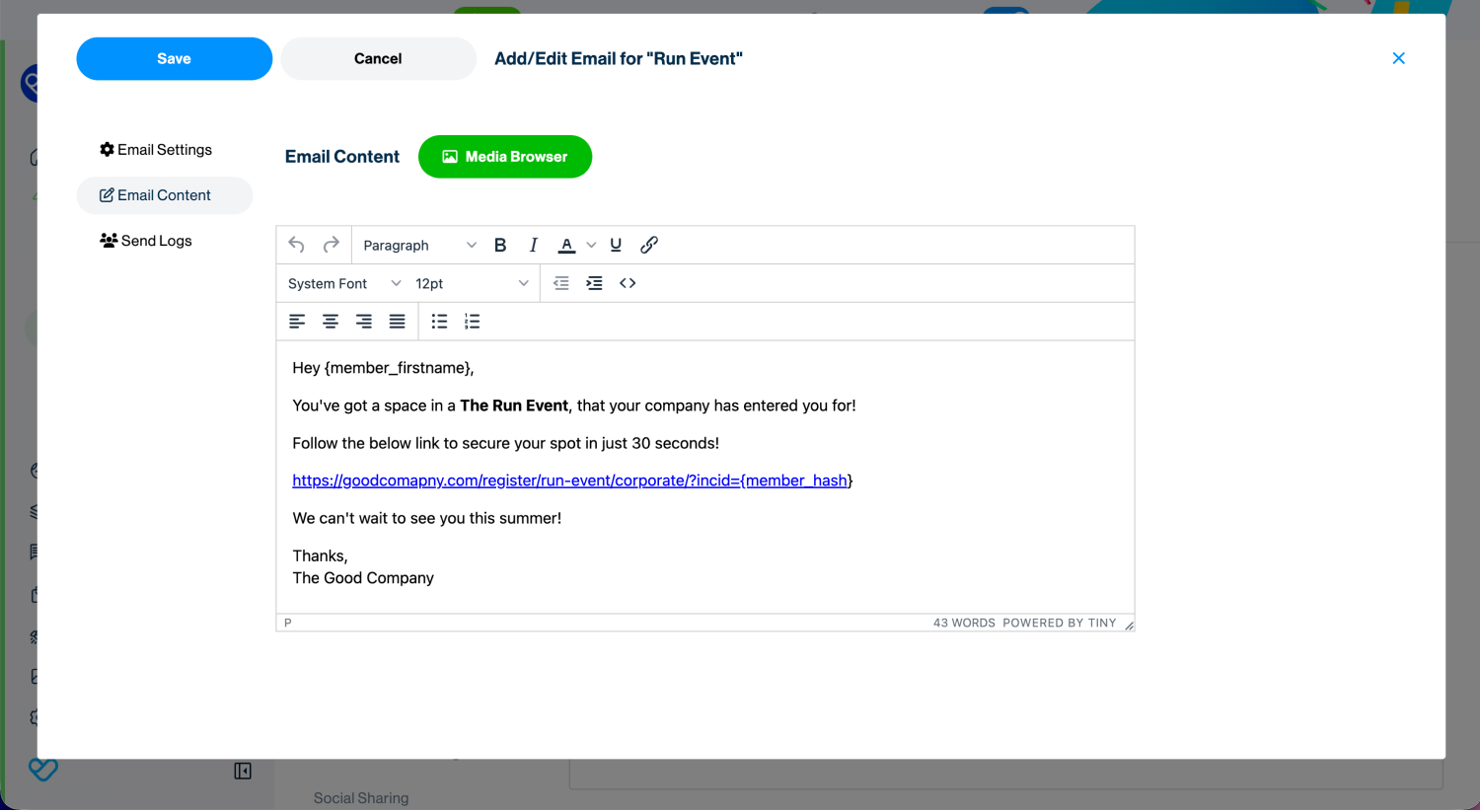
- 4
- This is the email that will be triggered immediately when each imported entrant is created—so it’s the perfect place to include their personalised PURL.
- 5
- When building the content, include the PURL as your call to action link using:
https://youreventurl.com/register/yourflow/?incid={member_hash} - 6
- This will drop the entrant directly into the correct flow with their prefilled details.
The next step is to prepare your import file. Within your Entrants module, download the CSV import template.
Populate it with your entrants’ details, ensuring each row contains the minimum required fields for your event. You do not need to include the hash—Funraisin generates this automatically.
Tip! For more details on importing entrants, see our support article: Importing Entrants.
Once your CSV is ready, the final step is to import your entrants and trigger their PURLs:
- 1
- Go to Entrants > Import Entrants.
- 2
- Upload your CSV and select the relevant event.
- 3
- Set the entrants to Inactive. This ensures they are treated as incomplete registrants.
- 4
- At the bottom of the page, select the email to trigger. Choose the Initial Account Confirmation email you created in Step 2.
- 5
- Click Save
- 6
- Your entrants will now be imported as inactive and will automatically receive the PURL email you set up.
After Import:
- Entrants will appear under Incomplete Registrations in your event.
- Their interactions log will show the triggered email, including their personalised PURL.
- When they click the link, they’ll be dropped straight into the registration flow with their details already prefilled.
Tip! Before importing hundreds of entrants, always run a small test:
- Add yourself and a colleague to the CSV.
- Upload the file.
- Confirm the email triggers correctly.
- Click the PURL to ensure:
- it drops you into the correct registration flow
- your details are prefilled
- the experience matches what you expect supporters to see
Testing saves time and helps avoid confusion later—especially for large corporate or group imports.
Still need help? Check out our other support articles or reach out to the Funraisin Support team by logging a ticket through the Support Module in your platform.
Last updated: 18 Sep 2026
