

Donations: Migrating Stripe Recurring Donations to Funraisin
When moving platforms, protecting your regular givers is critical. Recurring donors provide consistent, reliable income, and any disruption to their payment schedule can impact both supporter trust and cash flow.
If your recurring donations are already processed through Stripe, they can be migrated to Funraisin without asking donors to re-enter their card details. With the correct data and Stripe customer tokens, recurring schedules can continue seamlessly while giving you full visibility and control within your new platform.
This guide outlines the steps required to migrate Stripe-based recurring donations safely and accurately.
Note: If your recurring donations are not currently processed through Stripe, or if you are changing Stripe accounts as part of your migration, please contact our Support team for further information.
What does it mean to migrate recurring donations?
Migrating recurring donations refers to transferring existing regular donors into Funraisin while maintaining their ongoing payment schedules.
Rather than recreating subscriptions in Stripe, Funraisin manages recurring schedules directly within the platform. During migration, each donor’s record is imported along with their Stripe customer token. This allows Funraisin to securely request future charges using the existing payment details stored in Stripe.
When completed correctly, migration allows recurring donations to continue without requiring donors to re-enter their card details.
The process involves importing donor data, setting up recurring schedules within Funraisin, and confirming that future payments are processed according to the existing frequency and charge dates.
Before you begin
This migration process applies when existing recurring donations are already processed through Stripe.
Before starting, confirm the following:
- The same Stripe account will be connected to Funraisin
- Stripe customer tokens are available for each recurring donor
- Donor frequency, amount, and next charge date are known
Stripe customer tokens are required so Funraisin can securely request future charges without requiring donors to re-enter their payment details.
Tip! If recurring donations are currently processed through a different payment gateway, additional migration steps will be required before recurring schedules can be imported into Funraisin. Contact your current payment provider or platform to discuss obtaining Stripe-compatible customer tokens and the available migration options.
How the migration process works
Migrating recurring donations to Funraisin follows a structured process:
- 1
- Export existing recurring donor data from your current platform.
- 2
- Confirm that Stripe customer tokens are available for each donor.
- 3
- Prepare the data using the Funraisin CSV import template.
- 4
- Import the donor records into Funraisin.
- 5
- Create recurring schedules linked to each donor’s Stripe customer token.
- 6
- Confirm that future charges are scheduled correctly.
Once imported, Funraisin manages the recurring schedule and securely requests future charges from Stripe based on the configured frequency and charge date.
Tip! It is recommended to test the import process with a small number of records before migrating your full recurring donor base.
Exporting recurring donor data
Before recurring donations can be migrated to Funraisin, existing recurring donor data must be exported from your current platform or database.
The exact export steps will vary depending on the system you are migrating from. However, the exported data must include the information required to set up each recurring schedule accurately within Funraisin.
At a minimum, your export should include:
- Donor first and last name
- Email address
- Recurring donation amount
- Frequency (weekly, fortnightly, monthly, or yearly)
- Next scheduled charge date
- Stripe customer token
It is important that the next scheduled charge date reflects when the donor is due to be charged next. This ensures continuity and prevents duplicate or missed payments after migration.
Once exported, this data can be reviewed and prepared for import into Funraisin.
Stripe customer tokens
Stripe customer tokens are required to migrate recurring donations into Funraisin without asking donors to re-enter their payment details.
A Stripe customer token uniquely identifies a customer within your Stripe account. It allows Funraisin to securely request future charges using the payment method already stored in Stripe.
Stripe customer tokens typically begin with: cus_
For example: cus_Mx123abc456def
When preparing your export, ensure you are collecting the Customer Token, not:
- A charge ID
- A payment intent ID
- A subscription ID
Only the Stripe customer token can be used to link a donor to their stored payment method.
The Stripe account connected to Funraisin must contain these customer records. If a different Stripe account is connected, the existing tokens will not be valid.
If Stripe customer tokens are not visible in your current system, contact your previous platform provider or review your Stripe dashboard before proceeding.
Tip! If migrating from another platform that already uses the same Stripe account connected to Funraisin, existing Stripe customer tokens can typically be reused. No additional action is required within Stripe.
Preparing your data for import
Once your recurring donor data has been exported and Stripe customer tokens have been confirmed, the data must be formatted for import into Funraisin.
Funraisin provides a CSV import template that includes the required fields and formatting structure.
Download the recurring donation import template:
- 1
- In the side navigation, go to Fundraising, then select Donations.
- 2
- Under Advanced Options, select Import Donations.
- 3
- Then, click the Download Template.
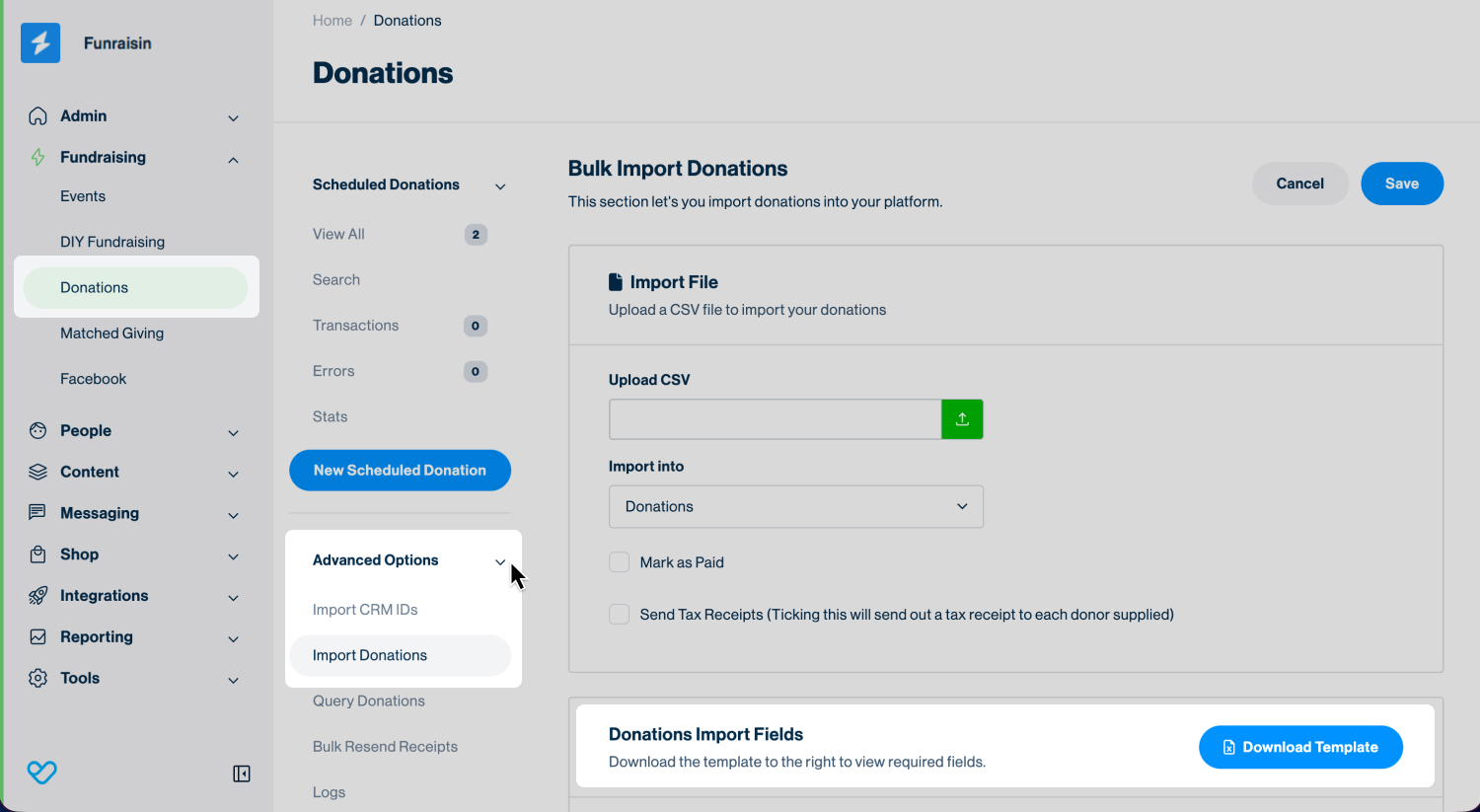
To prepare your file:
- 1
- Copy your exported donor data into the template.
- 2
- Ensure all required fields are completed and formatted correctly.
The import file must include:
- Donor first and last name
- Email address
- Recurring donation amount
- Frequency (weekly, fortnightly, monthly, yearly)
- Scheduled charge date
- Stripe customer token
Important
- Do not remove, rename, or reorder columns in the template.
- Ensure frequency values match the supported formats exactly.
- Confirm that scheduled charge dates are accurate and reflect the next expected charge.
It is recommended to test the import using one or two donor records before uploading your full recurring donor list.
Important recurring import fields and values
When importing recurring donations, the following fields must be completed exactly as required in the template.
Donation Type: For recurring donations, this field must contain (all lowercase): recurring
Gateway Customer Token: Enter the Stripe customer token for each donor.
Example: cus_xxxxxxxxxxx
This is mandatory and must be a Stripe customer token, not a charge ID or subscription ID.
Donation Frequency: Accepted values:
- weekly
- fortnightly
- fourweekly
- monthly
- yearly
Important: Values must be lowercase and match exactly.
Donation Day: The format depends on the selected frequency:
- Monthly: Enter the day of the month as a number between 1 and 28.
Example: 27
Important: Do not include a leading zero. For example, enter 2, not 02. - Yearly: Enter month and day (MM-DD).
Example: 08-21 - Fortnightly: Enter the day name.
Example: Mon, Tues, Wed, Thurs, Fri - Four Weekly: Enter the day name.
Example: Mon, Tues, Wed, Thurs, Fri - Weekly: Enter the number representing the day of the week:
- 1 = Monday
- 2 = Tuesday
- 3 = Wednesday
- 4 = Thursday
- 5 = Friday
- 6 = Saturday
- 7 = Sunday
Card Expiry: Format: YYYY-MM
Example: 2029-08
Once your file is correctly formatted, you are ready to proceed with the import.
Importing recurring donations
Once your data has been prepared using the CSV template, recurring donors can be imported into Funraisin.
To import recurring donations:
- 1
- In the side navigation, go to Fundraising, then select Donations.
- 2
- Under Advanced Options, select Import Donations.
- 3
- Upload your completed CSV file.
- 4
- In the Import Into dropdown, select Donations.
- 5
- Tick Mark as paid.
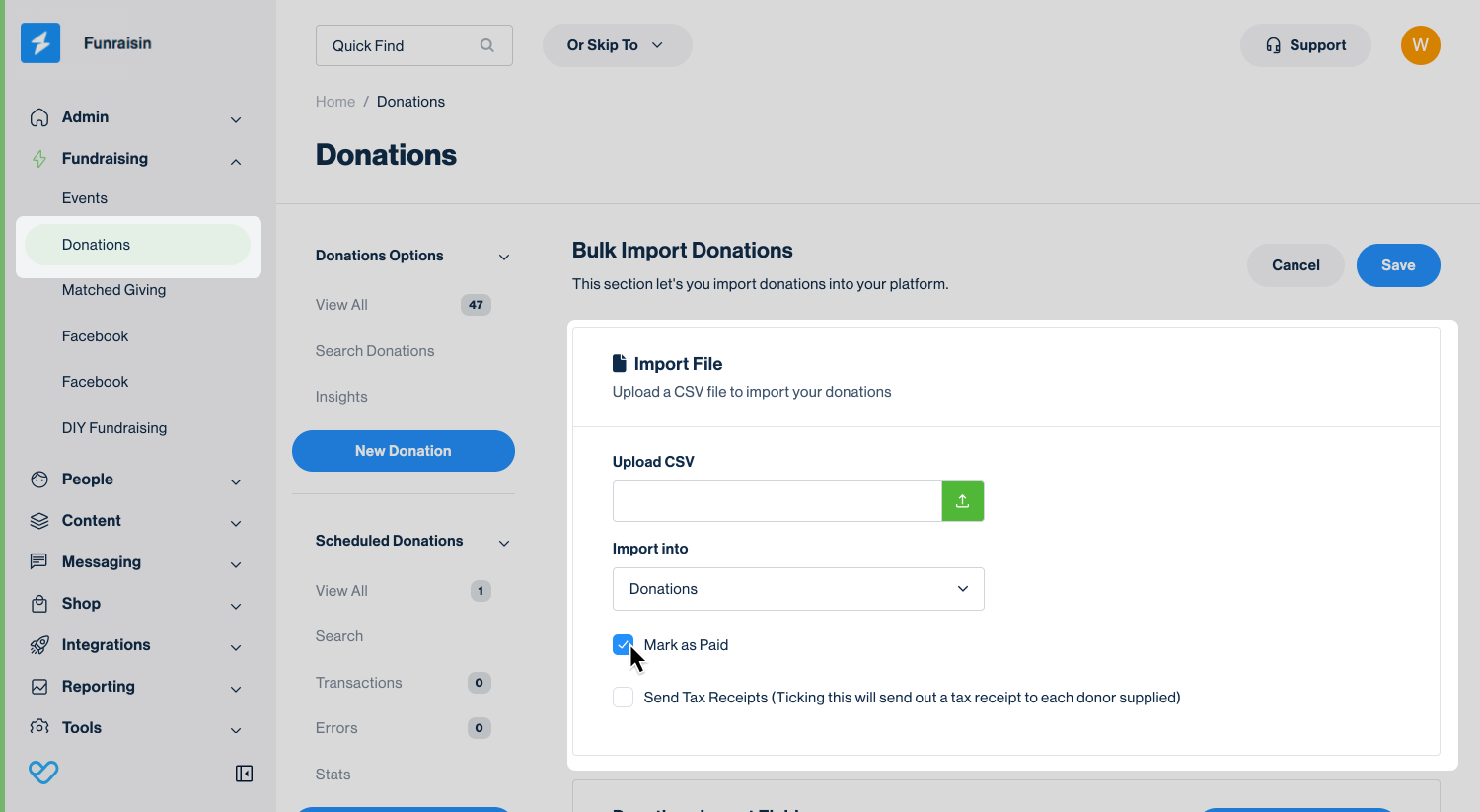
Important: Don’t tick Send Tax Receipts, as doing so will send a tax receipt to each donor in the upload after you click Save.
- 6
- Click Save to finalize the import.
Selecting Mark as paid ensures the initial imported donation is recorded as completed. This establishes the recurring schedule without attempting to process an immediate charge.
Important: The initial imported donation will not have a transaction record, as it was not processed through the platform. All future scheduled payments will generate transaction records once processed.
After the import is complete, recurring schedules will be created for each donor based on the frequency and charge date provided in your file.
If you would like assistance with your import, submit a support ticket and include your CSV file for review before uploading your full donor list.
What happens after import
Once the import is finalized:
- An offline donation record is created for each donor.
- A recurring schedule is established using the Stripe customer token provided.
- Future charges are processed automatically according to the configured frequency and scheduled charge date.
Reviewing imported recurring schedules
After importing recurring donors, it is recommended to review the newly created schedules to confirm they have been set up correctly.
To review a recurring schedule against a donor from your import list:
Option 1: Using Quick Find
Use the Quick Find bar at the top of the platform admin to search for the donor by name or email address.
Option 2: From the Donations Module
In the side navigation, go to Fundraising, then select Donations. Use the search function or navigate to the Scheduled Donations section to locate the recurring schedule.
To review a recurring schedule:
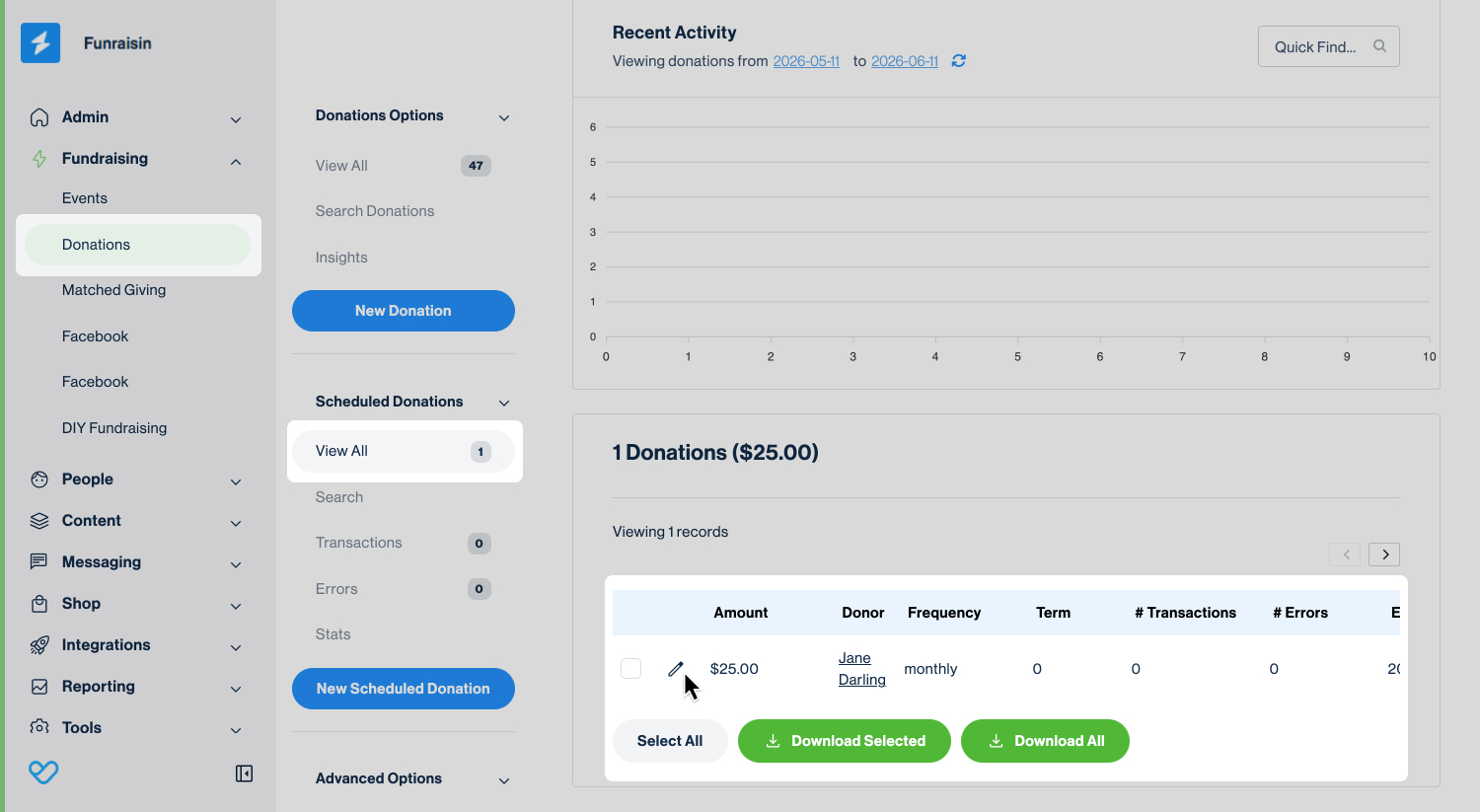
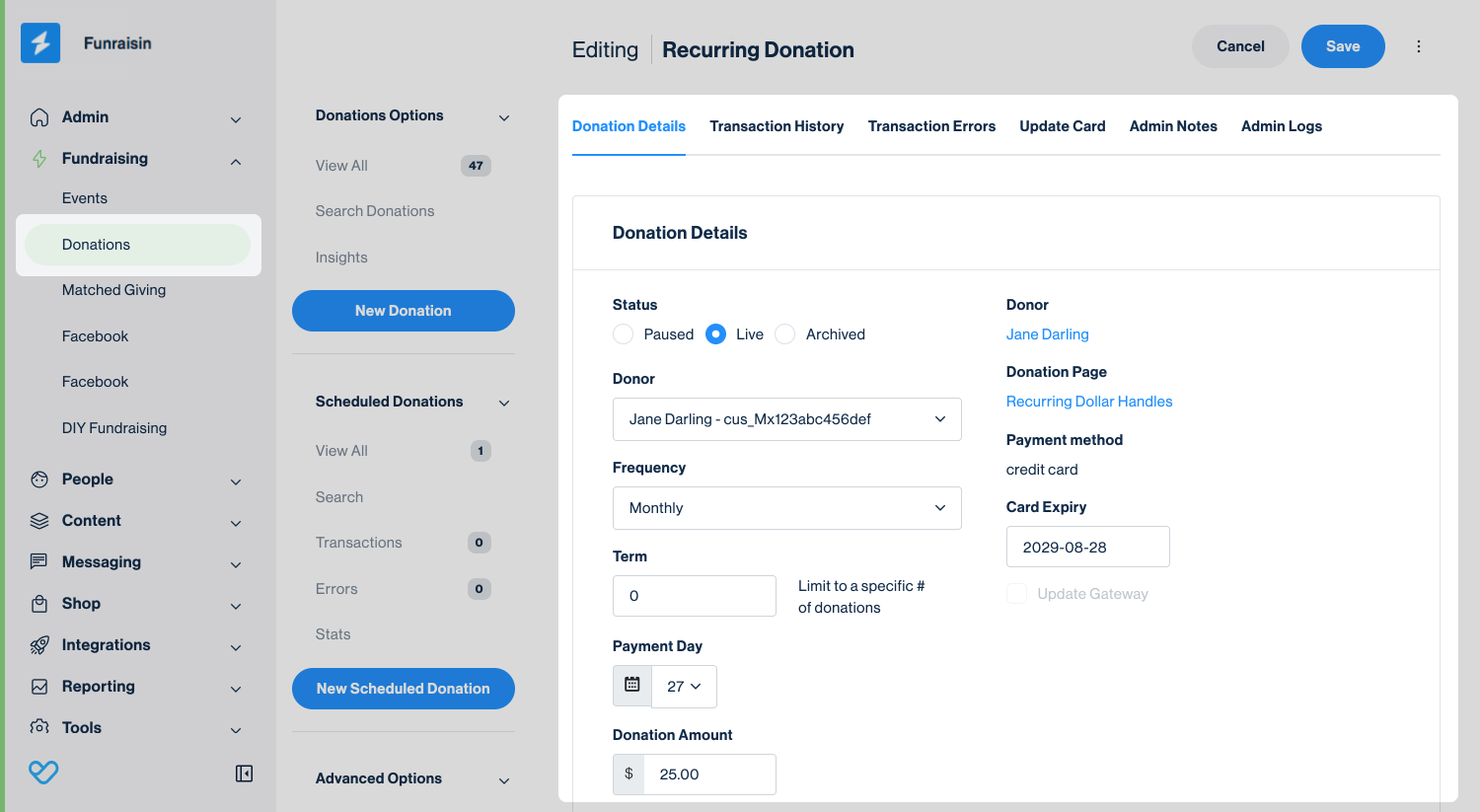
Click the Edit icon to open the donation record. Then confirm the following:
- The schedule status is set to Live.
- The recurring amount matches the expected donation amount.
- The frequency is correct (weekly, fortnightly, monthly, or yearly).
- The payment day is correct and matches the donor's expected charge schedule.
Verifying these details ensures that future charges will process as expected and prevents duplicate or missed payments.
After migration: Ongoing management
Once recurring schedules have been successfully imported and reviewed, they will continue to process automatically based on the defined frequency and charge date.
Future payments will:
- Process through Stripe on the scheduled date.
- Create a transaction record for each successful charge.
- Send receipts in line with your platform’s receipt settings.
Recurring schedules can be edited, paused, or archived at any time from within the donor record.
Common migration scenarios
Recurring donation migrations can vary depending on your previous platform and payment gateway setup. Below are some common scenarios to consider before beginning your import.
- Migrating from Payway (Westpac): Stripe customer tokens are required. Requesting tokens from Westpac may take time, so plan accordingly.
- Migrating from Raisely using the same Stripe account: Stripe customer tokens can usually be imported directly. No Stripe intervention is required.
- Migrating from multiple platforms: Consolidate all recurring donor records into a single CSV file before importing to ensure schedules are created correctly.
Still need help? Check out our other Donations support articles or reach out to the Funraisin Support team by logging a ticket through the Support Module in your platform.
Last updated: 28 Jul 2026
