

Settings: Cookie Consent
Cookies play an important role in how websites function and how organizations understand the way supporters engage with them. As privacy expectations continue to grow, giving supporters clear choices about how their data is used helps build trust while aligning with your organization’s privacy obligations.
Funraisin’s cookie consent Interactive Modal provides a simple way for visitors to accept, reject, or manage cookies on your website.
This article explains how cookie consent works in Funraisin, how to configure it, and what to consider when enabling it on your website.
Understanding cookie consent
Cookies are small files stored on a visitor's device when they access a website. They help websites function, remember preferences, and collect information about how visitors interact with the site.
Some cookies are essential for a website to operate, while others are used for purposes such as analytics and marketing. For example, analytics cookies can help organizations understand how visitors engage with their website, while marketing cookies can support advertising and campaign measurement.
Privacy regulations, including those in the UK and EU, require organizations to obtain visitors' consent before using certain types of cookies. This means giving visitors clear information about how cookies are used and allowing them to make informed choices about which cookies they accept.
Funraisin cookie consent
A built-in Interactive Modal is available for managing cookie consent on Funraisin platforms, with the option to use a third-party consent management platform (CMP) instead.
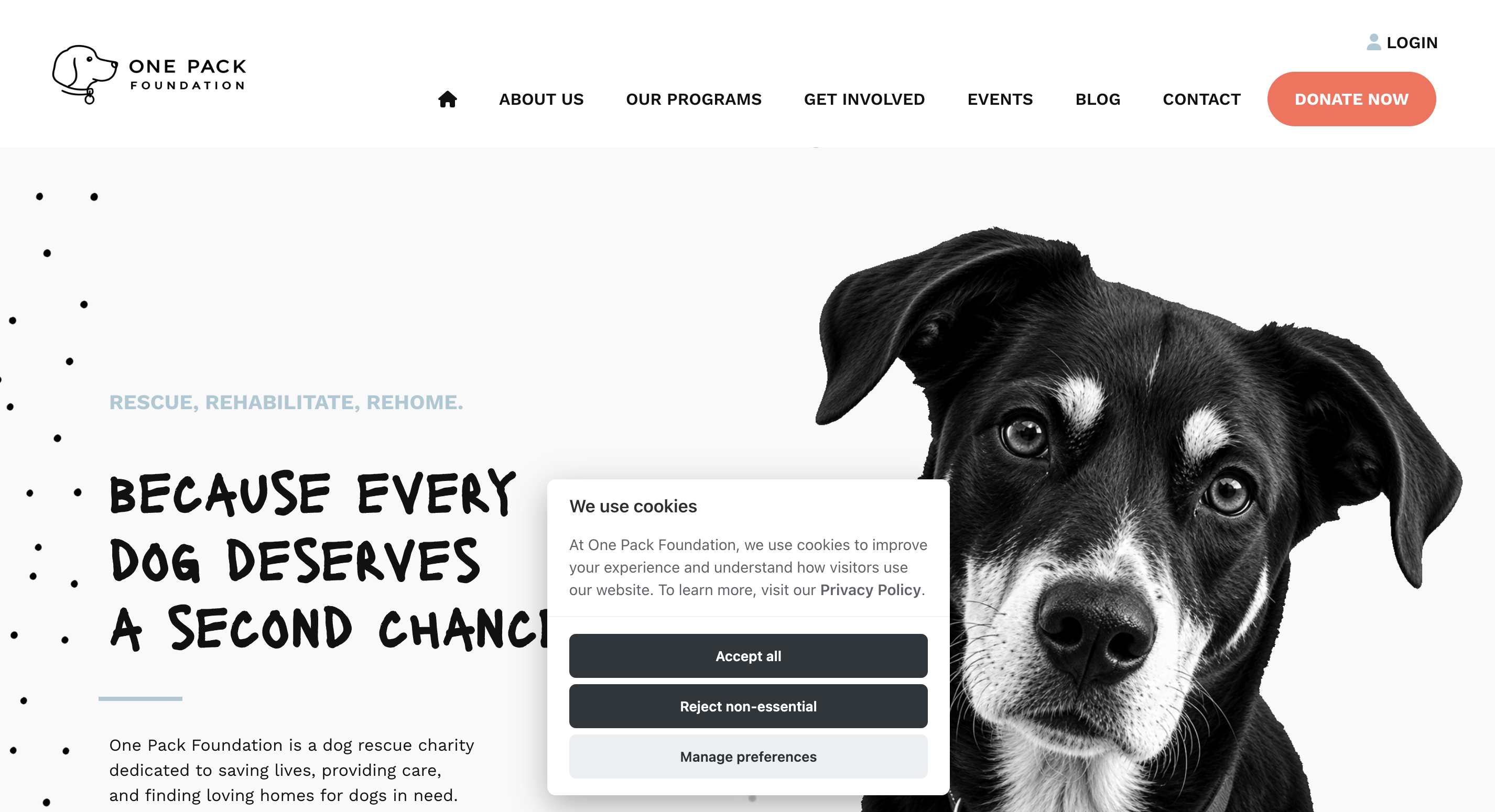
Interactive Modal: Allows visitors to make informed choices about how cookies are used on the website.
When enabled, visitors are presented with three options:
- Accept all: Accept all cookies, including those used for analytics and marketing.
- Reject non-essential: Reject non-essential cookies while allowing essential cookies required for the website to function.
- Manage preferences: Choose which categories of cookies to accept or reject, including analytics and marketing cookies.
Third-party consent management platforms: Organizations can also use an external CMP to manage cookie consent on their platform's website.
Third-party CMPs can be implemented through Google Tag Manager, allowing organizations to continue using their preferred consent management solution.
The consent controls and functionality available will depend on the third-party platform and how it has been configured.
How cookie consent affects tracking
When the Interactive Modal is enabled, visitors' cookie consent choices determine which tracking scripts can load on the website.
Tracking managed through supported Funraisin integrations is prevented from loading unless the visitor provides consent for the relevant cookie category.
Visitors can manage their consent preferences across two categories:
- Analytics cookies: Used to understand how visitors interact with the website and measure performance, such as through Google Analytics.
- Marketing cookies: Used for advertising and campaign measurement, such as through Facebook tracking.
For example, a visitor may choose to accept analytics cookies while rejecting marketing cookies. In this case, supported Google Analytics tracking can load, while Facebook marketing tracking remains disabled.
If a visitor rejects all non-essential cookies, tracking associated with these categories will not load.
Configuring cookie consent
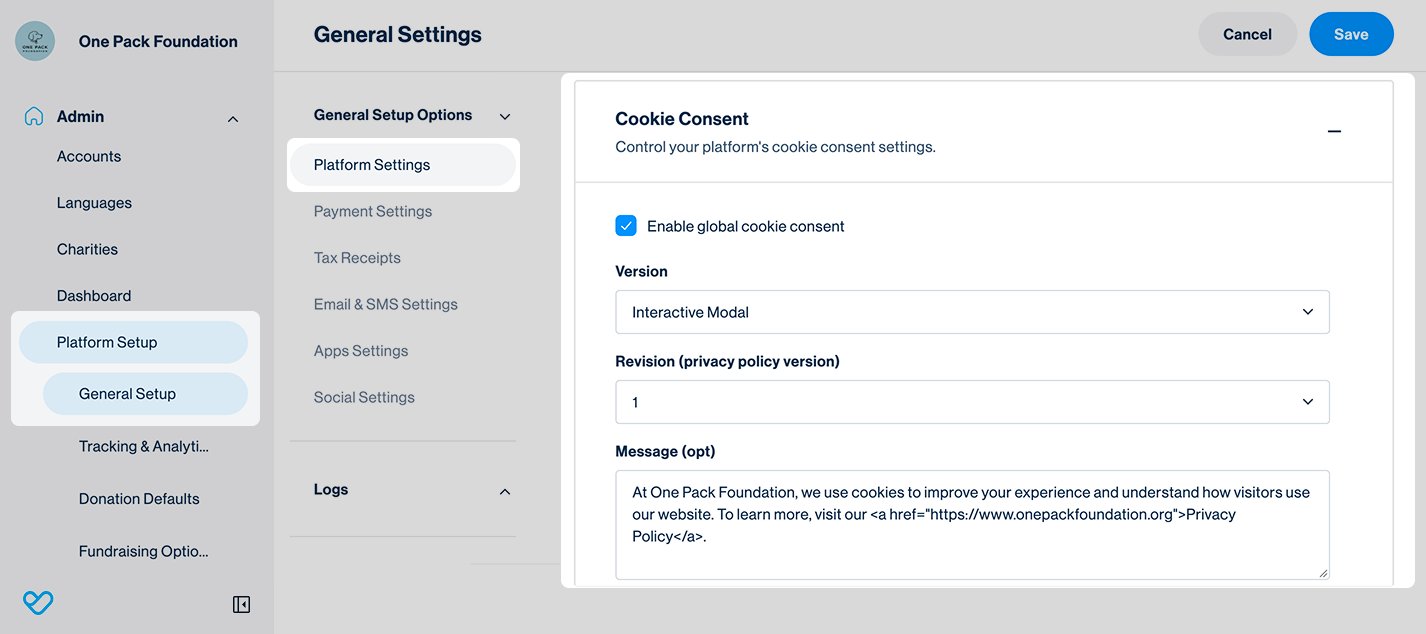
Cookie consent settings can be enabled and customized at the Platform level, including the option to add a custom message for visitors.
To configure cookie consent:
- 1
- From the side navigation, go to Platform Setup > General Setup.
- 2
- In the middle navigation, under General Setup Options, select Platform Settings.
- 3
- Scroll to the Cookie Consent section and tick Enable global cookie consent.
- 4
- Complete the following settings:
- Version: Interactive Modal.
- Revision (privacy policy version): Update the revision number to prompt returning visitors to review and provide their cookie consent again.
- Message (opt): Enter an optional message to display to visitors. You can include a link to your organization's privacy policy using HTML. For example:
<a href="https://yourcause.org/privacypolicy">
Privacy Policy</a>
Replacehttps://yourcause.org/privacypolicywith the URL of your organization's privacy policy page.
- 5
- Click Save to apply your settings.
Managing cookie consent preferences
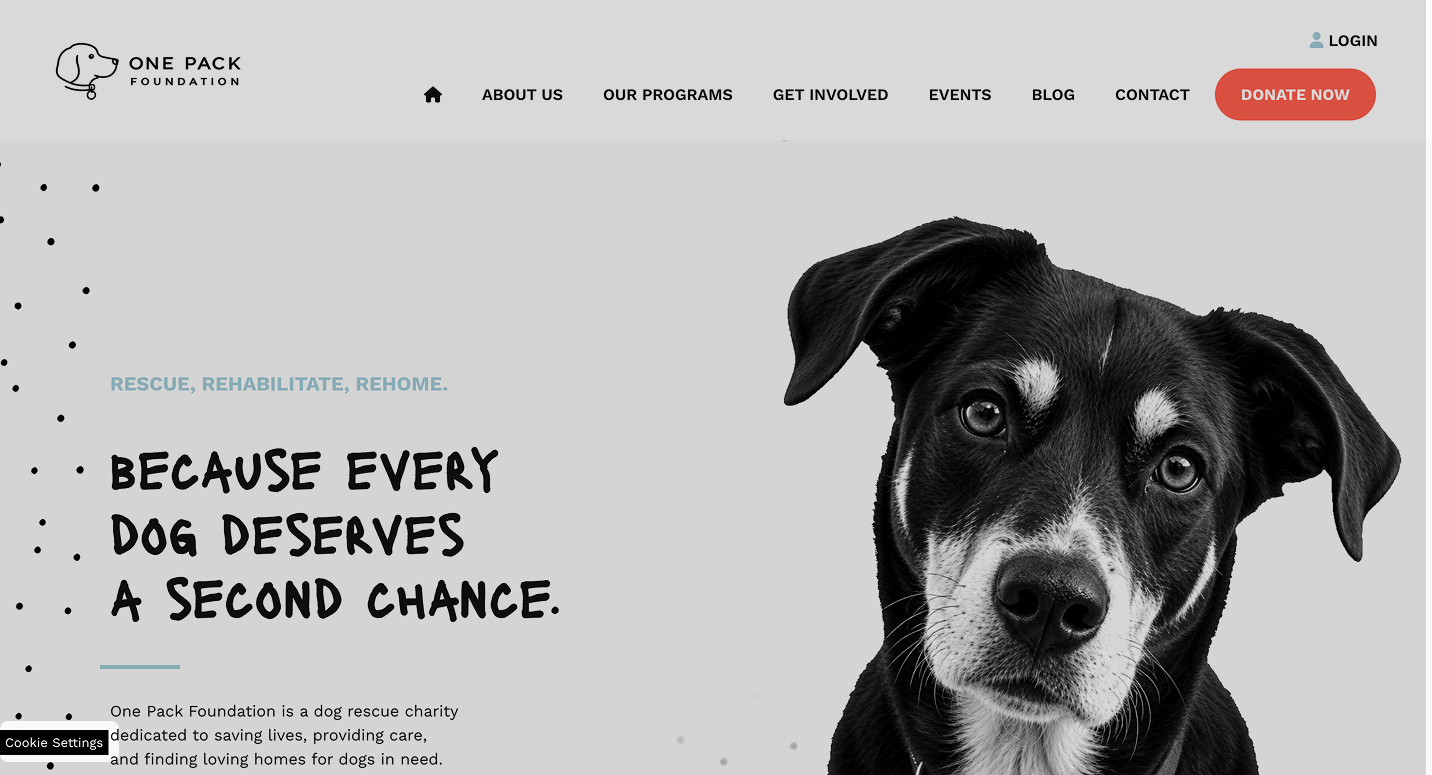
When the Interactive Modal is enabled, visitors can revisit and update their cookie consent preferences at any time using the Manage preferences link in the bottom-left corner of the website.
To update their preferences:
- 1
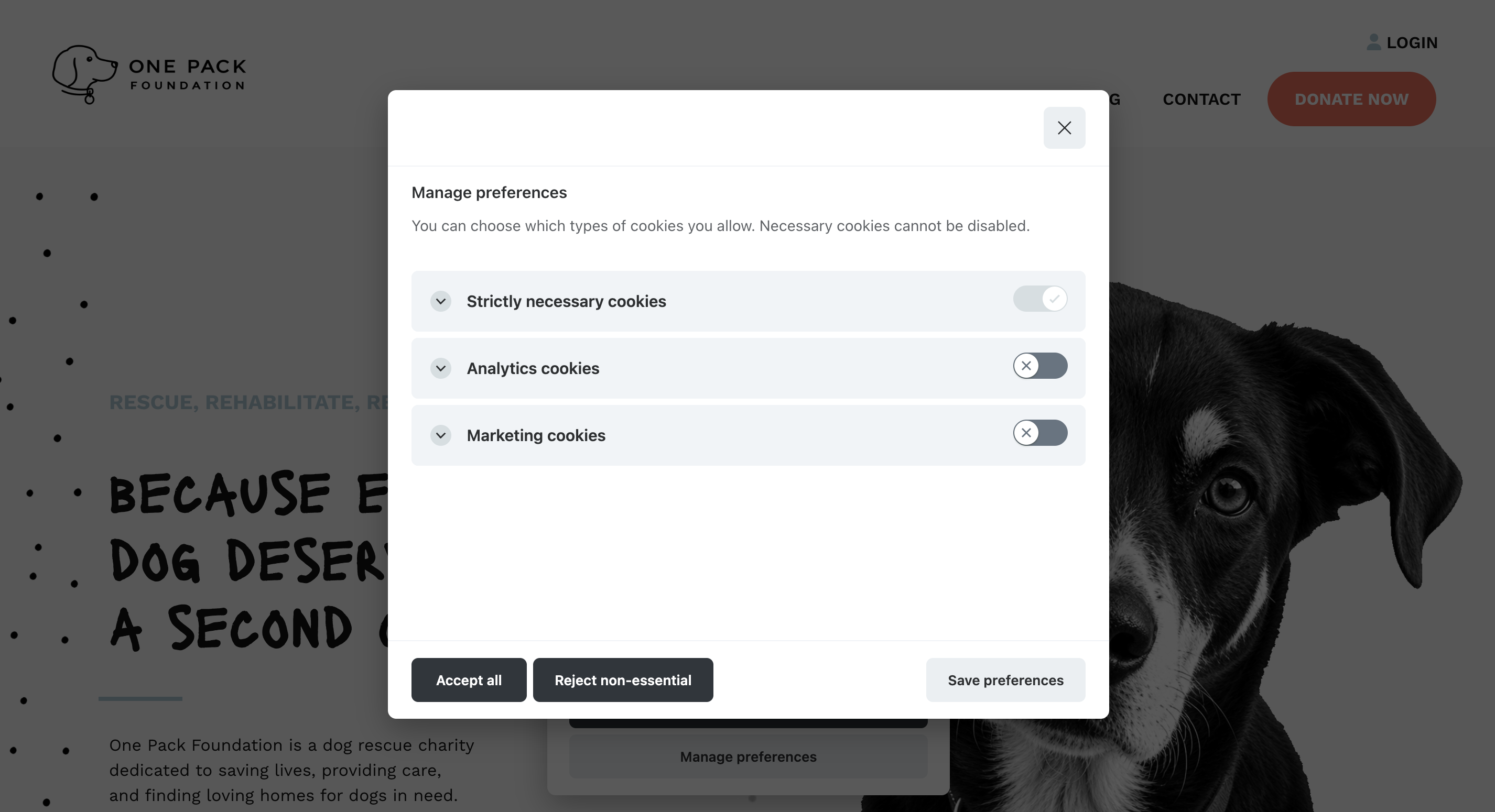
- Click Manage preferences to reopen the cookie consent modal.
- 2
- Enable or disable Analytics cookies and Marketing cookies individually using the toggles.
- 3
- Click Save preferences to apply the changes.
Visitors can also select Accept all or Reject non-essential to update their preferences. Visitors can also select Accept all or Reject non-essential to update their preferences. Strictly necessary cookies remain enabled to support essential website functionality.
Viewing cookie consent logs
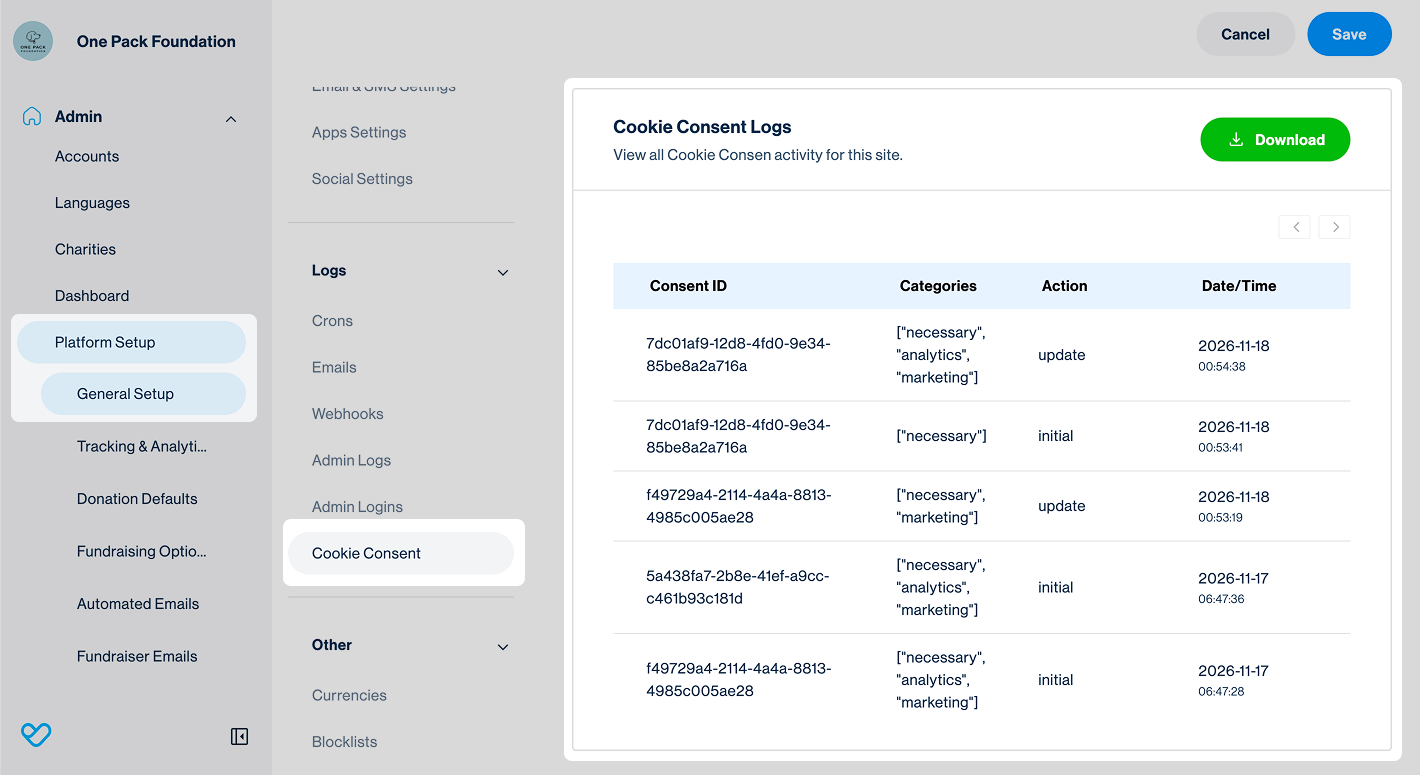
A cookie consent log is created when a visitor makes their initial cookie consent selection or updates their preferences. These logs can be viewed and downloaded to review recorded consent activity.
Each log entry includes the following information:
- Consent ID: A unique identifier associated with a consent record.
- Categories: The cookie categories selected, such as necessary (essential website functionality), analytics (website usage and performance), and marketing (advertising and campaign measurement).
- Action: The type of consent activity recorded, either initial for the first selection or update for subsequent changes.
- Date: The date and time of the recorded activity.
- Message (download only): The cookie consent message associated with the recorded activity.
To view or download cookie consent logs:
- 1
- From the side navigation, go to Platform Setup > General Setup.
- 2
- In the middle navigation, under Logs, select Cookie Consent.
- 3
- Review the recorded cookie consent activity or click Download to download a copy of the log.
Important considerations
Before enabling the Interactive Modal, there are a few important considerations to help ensure cookie consent works as expected on your website.
Customized or disconnected templates: Websites using customized or disconnected template files may require updates before enabling the Interactive Modal to ensure tracking integrations respect visitors' consent preferences.
If your website uses customized templates, we recommend confirming compatibility before enabling the Interactive Modal by submitting a support ticket through your platform.
Privacy and compliance: While the Interactive Modal provides controls that allow visitors to manage their cookie consent preferences, enabling this option does not automatically guarantee compliance with all applicable privacy regulations.
Organizations remain responsible for ensuring their website's cookie consent practices meet the privacy requirements relevant to their location and visitors. This may include providing additional information about the cookies used on their website.
If your organization requires consent management functionality beyond what Funraisin's built-in option provides, consider using a third-party consent management platform (CMP).
Still need help? Check out our other support articles or reach out to the Funraisin Support team by logging a ticket through the Support Module in your platform.
Last updated: 18 Nov 2026
