

Payments: Enabling Venmo
Venmo is one of the most trusted and widely used mobile payment methods in the United States. As part of Funraisin’s PayPal integration, Venmo can now be offered as a native payment option across your donation forms, fundraising pages, and registration flows—providing supporters with a fast, familiar, and frictionless way to give.
This guide walks you through how Venmo works on the platform, where it can be used, and how to enable it for your fundraising experiences. You’ll also find considerations for multi-charity setups, reporting, and refund processes.
What is Venmo?
Venmo is a mobile payment method widely used in the United States, allowing supporters to make quick, secure donations using their Venmo account. Instead of entering card details, donors can complete their gift in just a few taps through the Venmo app.
Adding Venmo gives your supporters a familiar, low-friction way to give—especially on mobile—helping you reduce drop-off and increase conversion for one-off donations and registrations.
Where can Venmo be used?
Venmo is available anywhere you already accept PayPal one-off payments in Funraisin. That includes:
- Donation blocks
- Fundraising pages (individual, team, and organization)
- Registration flows (online and DIY)
- Legacy donation templates
This ensures your supporters see Venmo at key moments of giving—from peer-to-peer events to donation and appeal pages.
For now, Venmo is only available for one-off donations, with recurring payments planned for a future update.
Venmo is currently unavailable for offline events.
Supporter Experience
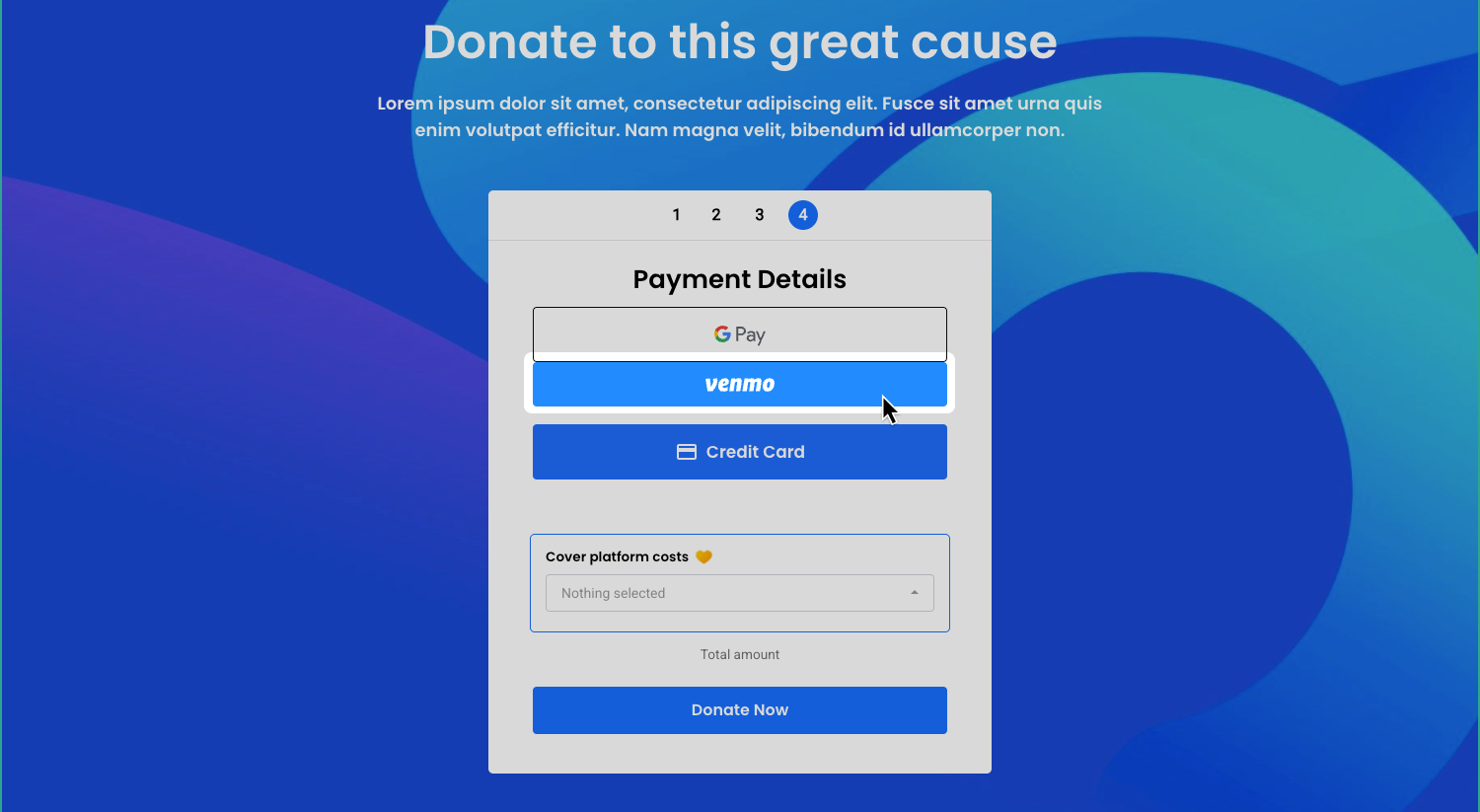
Once enabled, Venmo will appear alongside other payment options on your donation form.
Desktop:
When a supporter selects Venmo, a pop-up will display a unique QR code. They scan the code using the Venmo app on their phone to complete the donation.
Mobile:
On mobile, selecting Venmo opens the Venmo app automatically so the supporter can confirm and complete their gift in just a few taps.
This flow keeps the experience seamless and familiar, especially for supporters who regularly use Venmo in their day-to-day lives.
Alongside the receipt and confirmation email sent from Funraisin, supporters will also receive a separate email from Venmo confirming their payment. This gives donors an additional layer of assurance and aligns with the familiar Venmo experience.
Enabling Venmo
Venmo is powered through your existing PayPal integration, which means you’ll need PayPal enabled before you can activate Venmo. If you already accept PayPal donations in Funraisin, follow the steps below to enable Venmo.
Tip! Venmo is only supported when your PayPal integration uses REST API credentials. If your platform is connected using PayPal’s NVP/SOAP API, Venmo will not appear as a payment option. To enable Venmo, you’ll need to request REST API access from PayPal and update your PayPal settings in Funraisin.
If you do not have PayPal enabled, please see our support article: Payments: Connecting to PayPal.
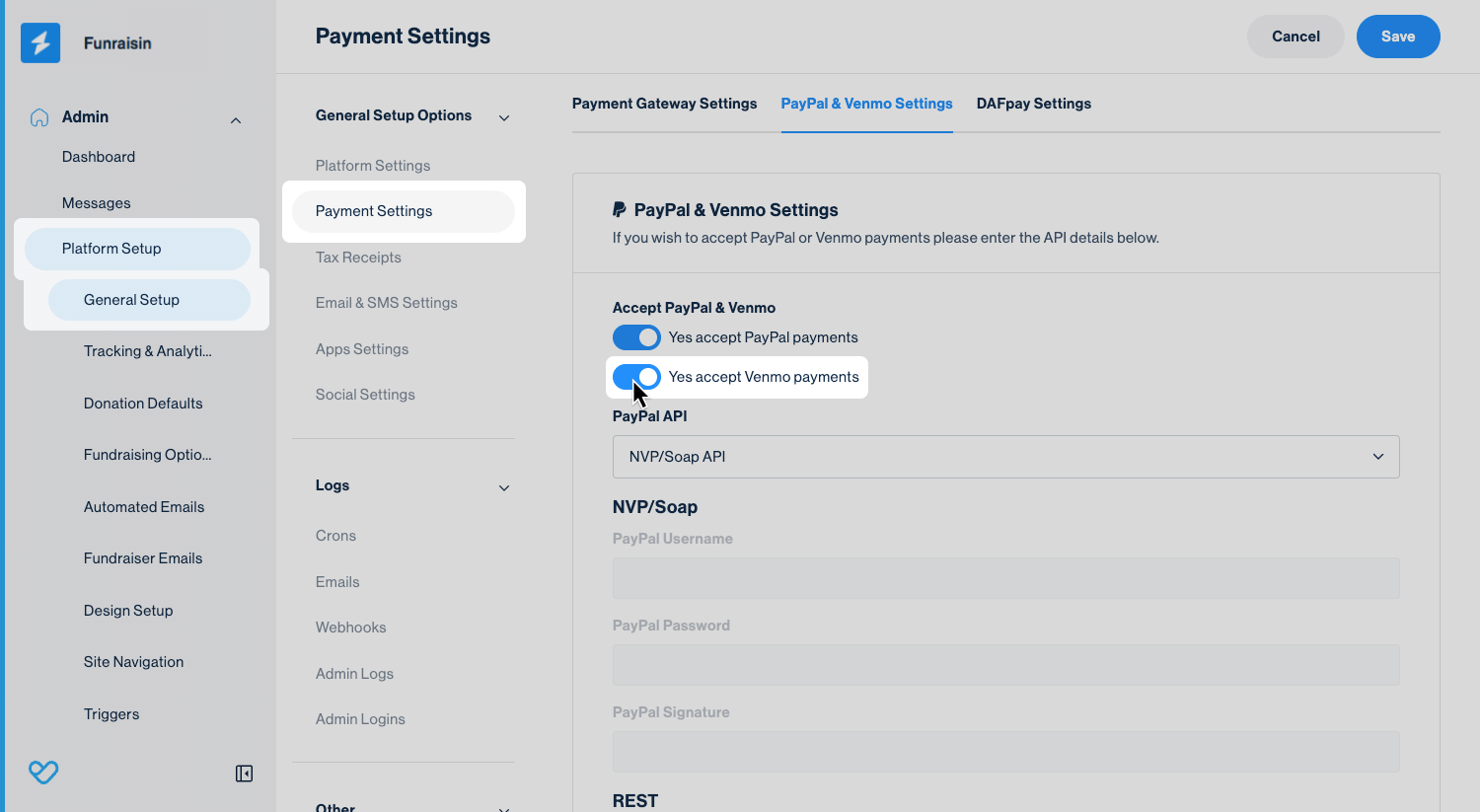
To enable Venmo:
- 1
- Go to Platform Setup in your Funraisin admin
- 2
- Open Payment settings and scroll to Payment Gateway Settings
- 3
- Click the PayPal & Venmo Settings tab
- 4
- Toggle Yes, accept Venmo payments to on
Enabling Venmo on a donation block
Venmo can be added as a payment option to any donation block.
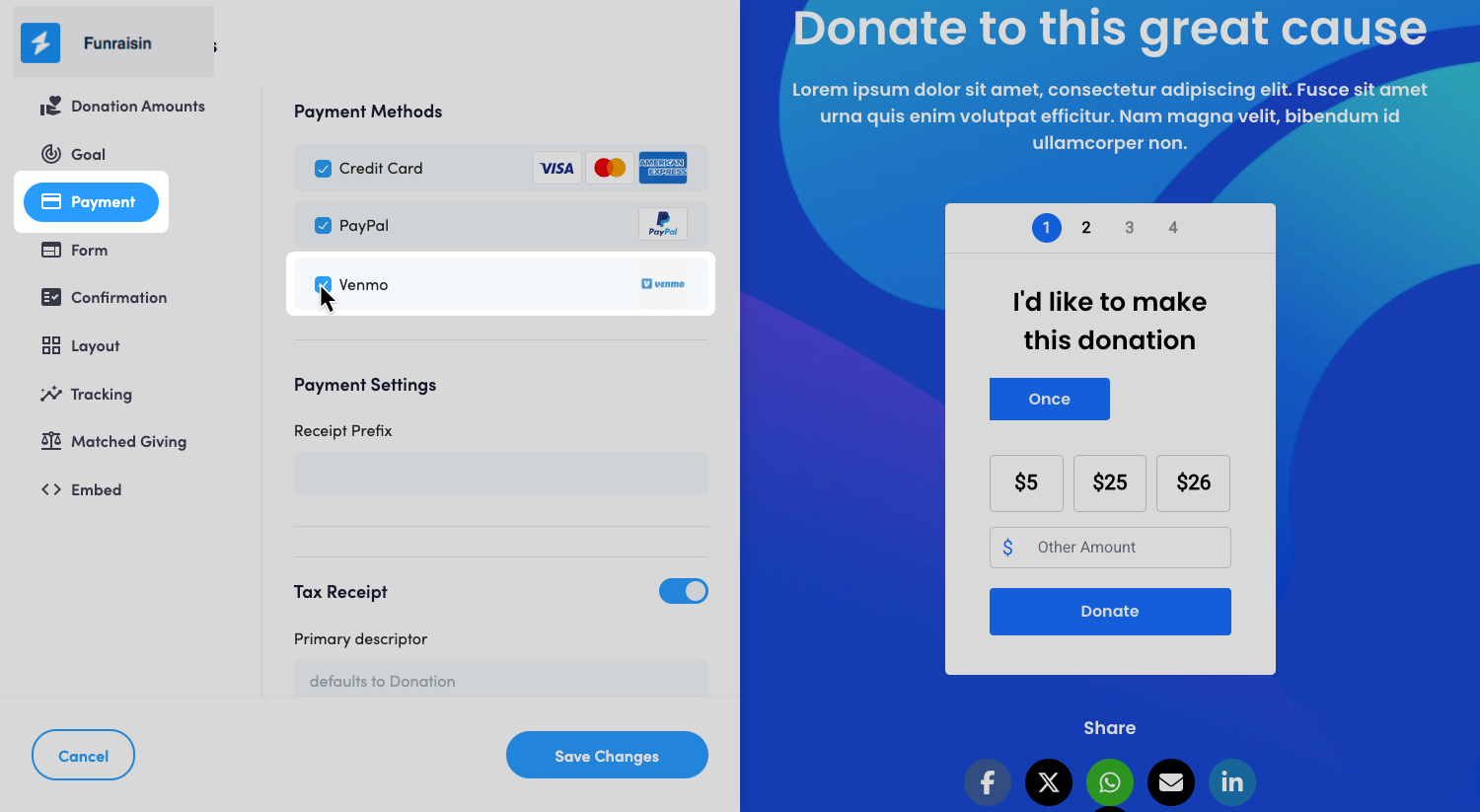
To enable via Visual Builder:
- 1
- Open Visual Builder on the donation or appeal page
- 2
- Hover over the donation block and click the heart icon to open donation settings
- 3
- Go to Payment tab and tick the Venmo option
- 4
- Save your changes
To enable via Classic Builder (Legacy donation pages)
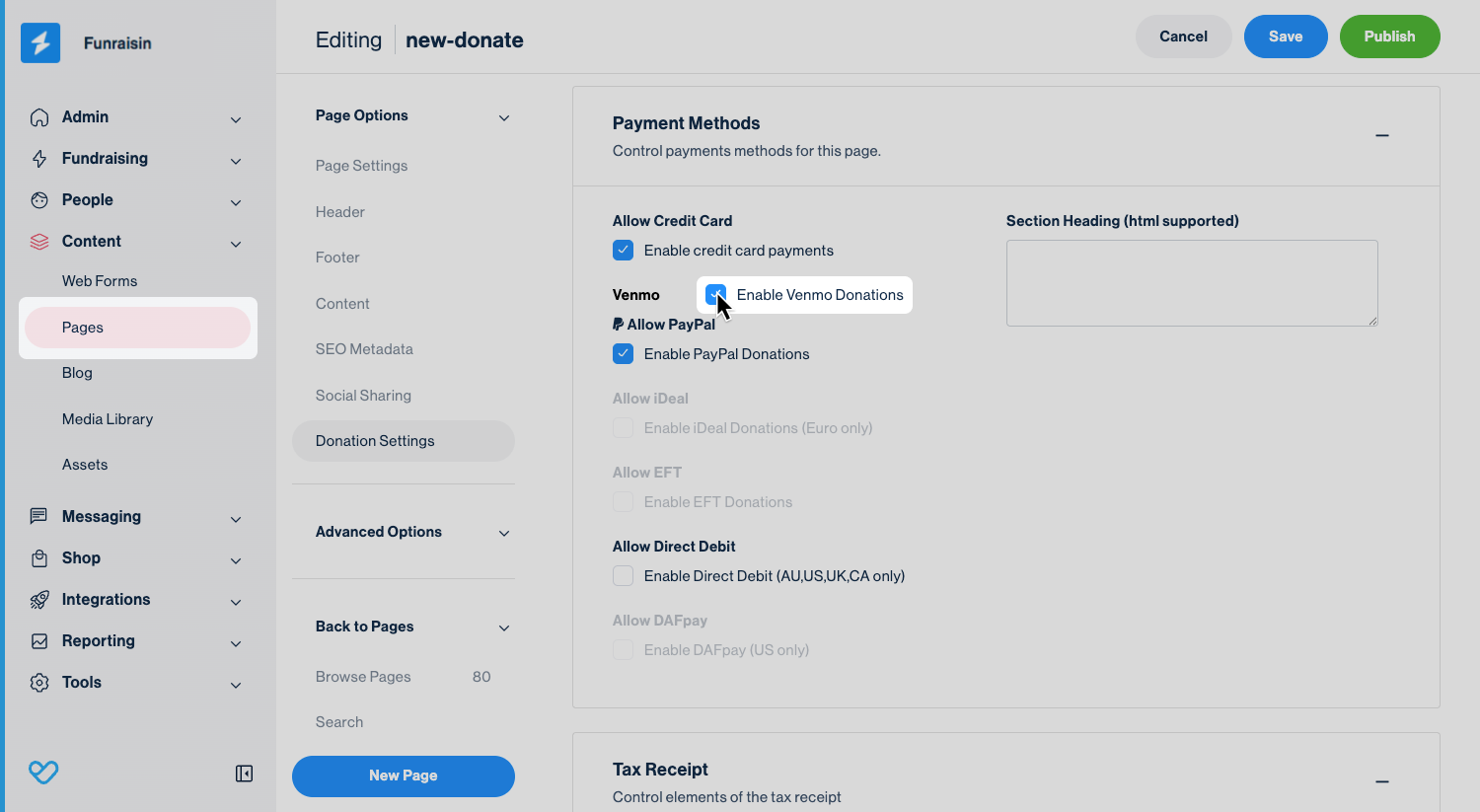
To enable Venmo on a legacy donation page:
- 1
- Locate the donation page in your admin and click Edit
- 2
- Go to Donation Settings, then open the Payment Settings tab
- 3
- Scroll to Payment Methods and tick Enable Venmo Donations
- 4
- Save your changes
Once enabled, Venmo will appear as a payment method for eligible supporters in the United States, alongside PayPal and other active options.
Enabling Venmo for Events
Venmo can be enabled on individual, team, and organization fundraising pages, as well as registration flows.
To enable:
- 1
- Go to Events and find the event you want to update
- 2
- Click Edit
- 3
- Navigate to Entries and Fees
- 4
- Scroll down to the Tax Settings section and open the Payment Methods tab
- 5
- Toggle on Venmo and save your changes
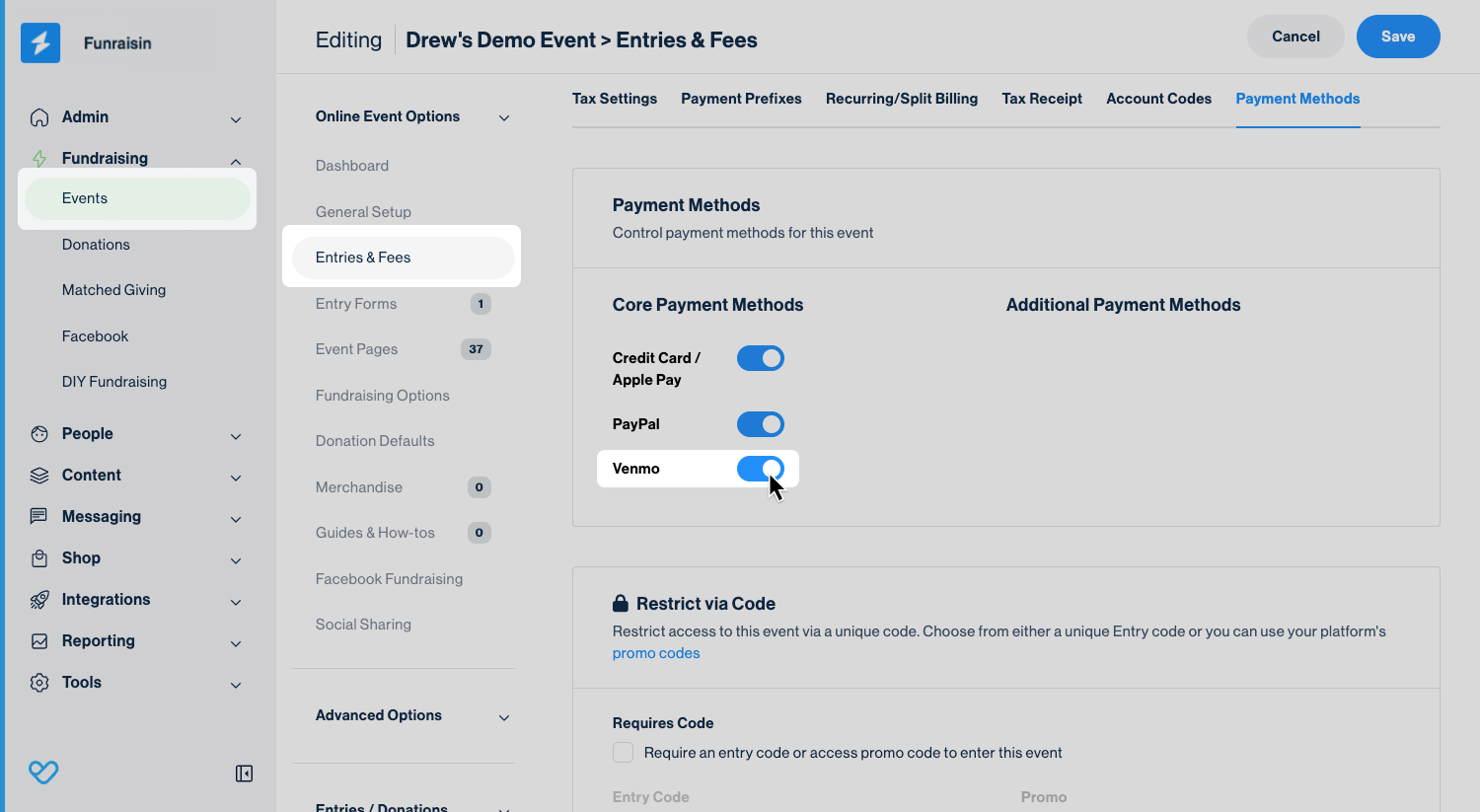
This will enable Venmo for both the donation form and the registration flow associated with your event.
Multi Charity
If your platform is using Multi Charity, each entity can connect its own PayPal and Venmo accounts.
Each charity must have its own PayPal account connected in order to accept Venmo payments. Venmo will only be available once PayPal is active for that specific entity.
Refunds
At this time, refunds for Venmo and PayPal payments aren’t supported directly within Funraisin. If you need to issue a refund, it must be processed through your PayPal account.
Once the refund has been completed in PayPal:
- 1
- Navigate to the donation record in Funraisin
- 2
- Click Edit, then go to Payment details
- 3
- Update the Paid status to Refunded
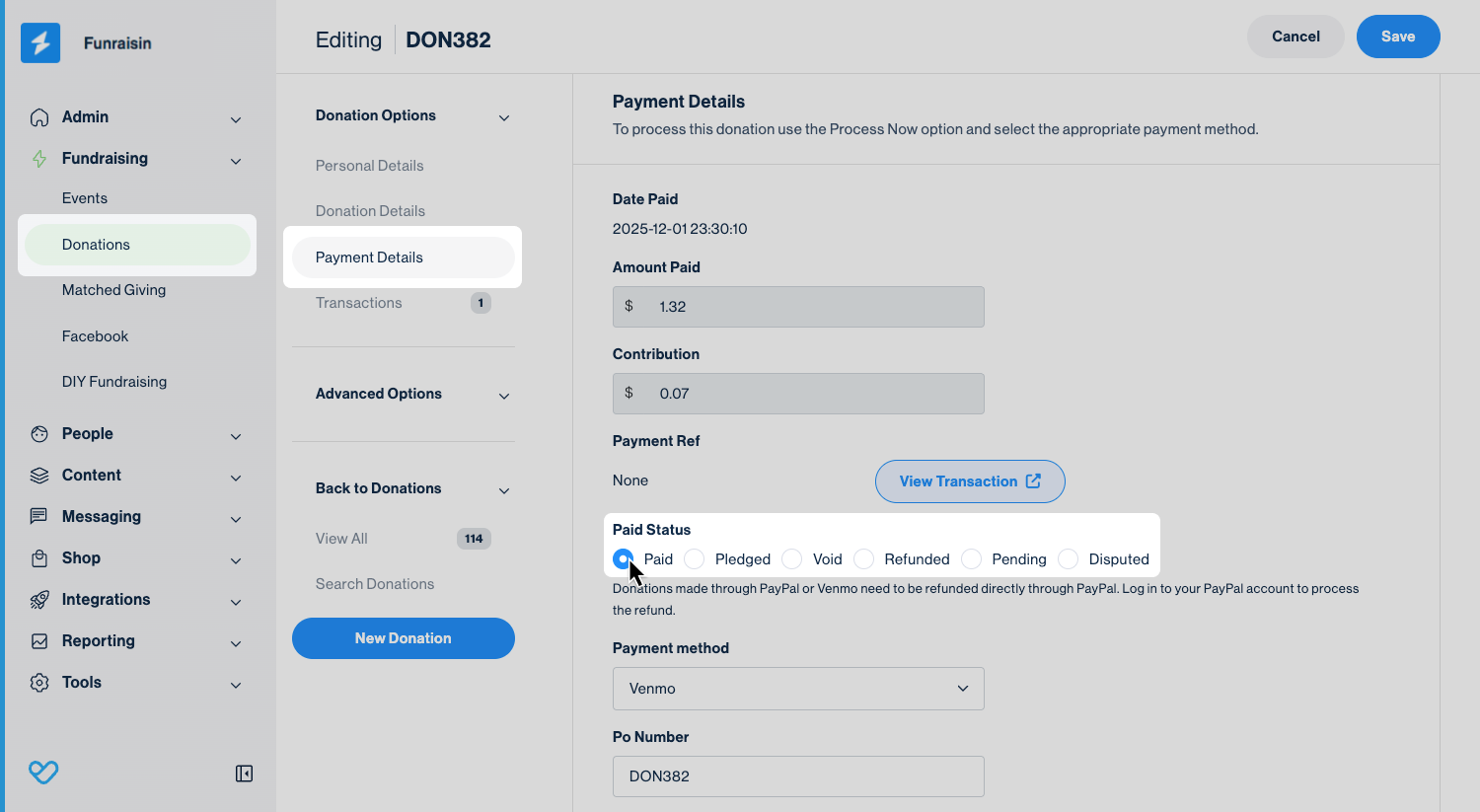
Tip! Updating the status ensures your reporting remains accurate and up to date.
Reporting
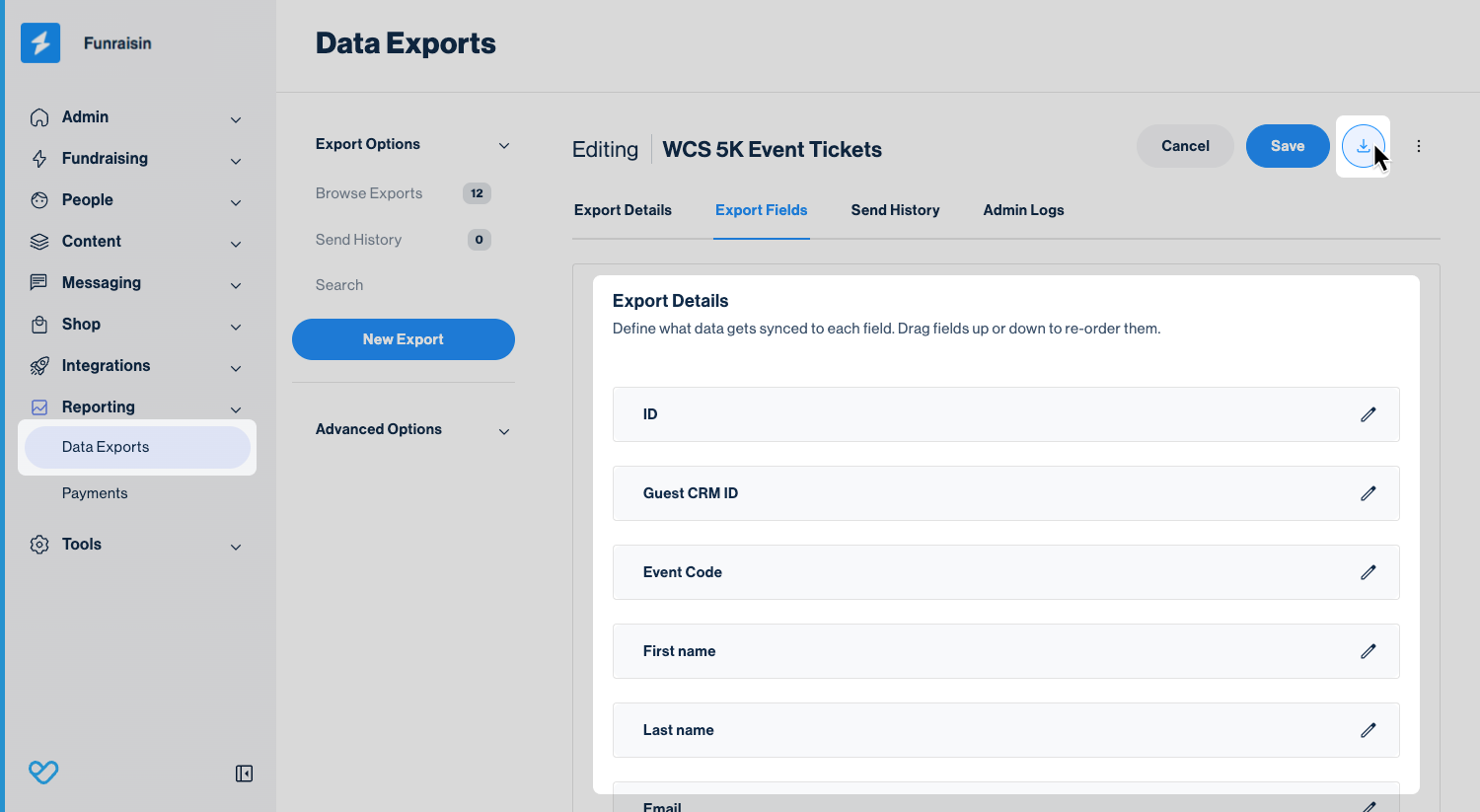
You can identify Venmo transactions in your Transactions or Donations data exports by adding the Payment Method field. If Venmo is used, this field will display Venmo as the payment method.
Still need help? Check out our other Payments support articles or reach out to the Funraisin Support team by logging a ticket through the Support Module in your platform.
Last updated: 14 Jul 2026
