

Fitness: Connecting MapMyFitness
Fitness activity can help create a stronger sense of momentum, achievement, and connection throughout a fundraising campaign. For supporters participating in fitness challenges, being able to automatically track and share progress can help make fundraising pages feel more active, engaging, and up-to-date over time.
Connecting MapMyFitness with Funraisin allows supporters to sync their fitness activity directly to their fundraising pages, helping reduce manual updates while keeping activity progress visible throughout the campaign journey.
This article walks through the full setup process, including requesting MapMyFitness API access, adding API keys to Funraisin, activating syncing, and testing the integration.
What is MapMyFitness?
MapMyFitness is a fitness tracking app that allows users to record activities such as walking, running, cycling, and gym workouts.
The app can track activity directly from a smartphone or sync with connected fitness devices and wearables. Users can view workout history, track progress over time, and monitor fitness activity across different types of exercise.
How MapMyFitness works with Funraisin
When connected, MapMyFitness automatically syncs activity data to a fundraiser’s profile within Funraisin.
This may include metrics such as:
- Distance
- Duration
- Steps
- Workout activity
This activity is displayed on the fundraiser’s page, allowing supporters to see progress throughout the campaign.
Activity also contributes to the fundraiser’s overall fitness stats and can be reflected across fitness features such as progress tracking and leaderboards.
Once connected, activity syncs automatically from MapMyFitness without requiring manual updates, helping fundraising pages stay current and accurately reflect supporter progress.
Requesting MapMyFitness API access
Before MapMyFitness can be connected with Funraisin, API access must be requested from MapMyFitness. This provides the API keys needed to set up the integration within the platform.
To request API access:
- 1
- Navigate to the MapMyFitness API request form: https://developer.mapmyfitness.com/requestkey/
- 2
- Complete the form using the details below:
- Email: Enter the email address where the API details should be sent.
- Organization Name: Enter your charity name.
- App Name: Enter the name fundraisers will see when connecting their MapMyFitness account. We recommend using your charity or platform name rather than an event-specific name.
- Primary Contact Name: Enter the name of your main charity contact.
- Primary Contact Email: Enter the same email address used above.
- What specific features or data endpoints of the MapMyFitness API are you planning to use?: Enter “Display fitness logged by MapMyFitness”.
- How will you ensure the security and privacy of user data accessed through the API?: Enter “Authentication, encrypting data in transit and at rest, and restricting API access to authorized users only.”
- What is the expected volume of API requests per day?: Select 1,000–10,000.
- What is the size of your current user base?: Select Less than 1,000.
- Will your app or integration generate revenue? If so, how?: Select My app or integration won't generate revenue.
- Are you integrating the API with other services or systems? If yes, please provide details.: Enter “No”.
- What are your primary objectives for using the MapMyFitness API? Please describe how you intend to use it: Enter “Display fitness logged by MapMyFitness”.
- Are you interested in exploring potential partnership opportunities with MapMyFitness and/or Outside Inc.?: Enter “No”.
- App URL: Enter your full Funraisin platform URL, including https:// and the trailing forward slash. For example:
https://www.yourcause.org/ - Callback URL: Enter your full Funraisin platform URL followed by /login/mapmyfitness. For example:
https://www.yourcause.org/login/mapmyfitness - T&Cs: Review and accept the terms and conditions.
- 3
- Submit the form.
A confirmation email should be sent to the email address entered in the application.
Tip! We recommend using a shared email address that is accessible to multiple team members, such as an info@ or shared support inbox. This can make it easier to manage the MapMyFitness application and access future API communications if team responsibilities change over time. You’ll need access to this inbox when creating your MapMyFitness account and completing the API application.
Activating MapMyFitness syncing
Once your MapMyFitness API application has been applied for, submit a support ticket with the subject line: Enable Cron for MapMyFitness Integration.
The Funraisin support team will work with Engineering to enable automated MapMyFitness syncing on your platform.
Adding MapMyFitness keys to Funraisin
Once your MapMyFitness API application has been approved, you’ll receive an email containing the API keys needed to connect MapMyFitness with Funraisin.
The email is typically sent from iwood@outsideinc.com with the subject line: “MapMyFitness Developer Program Keys for ____”
The API keys are provided within a downloadable TXT file, which will be password-protected. The password is the App URL entered during the API application process. This can be copied from the original form submission email.
To add the MapMyFitness keys to Funraisin:
- 1
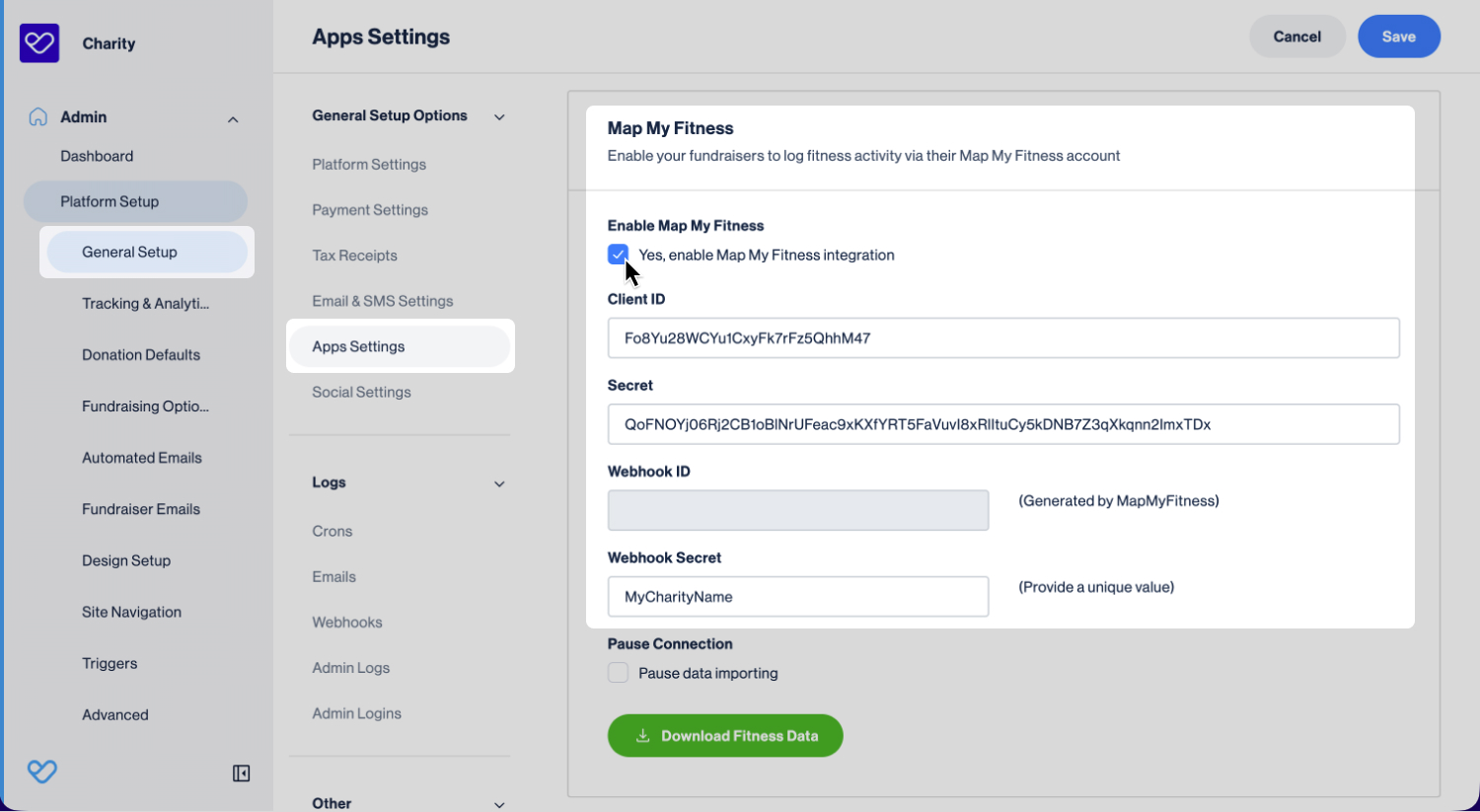
- Within Funraisin, navigate to: Platform Setup > General Setup > App Settings > Fitness > MapMyFitness
- 2
- Tick Enable MapMyFitness.
- 3
- Enter the following details:
- Client ID: Enter the consumer key from the TXT file.
- Secret: Enter the consumer secret from the TXT file.
- Webhook secret: Enter your charity name without spaces.
- 4
- Click Save.
Testing the MapMyFitness integration
Once your MapMyFitness API keys have been added and the Funraisin support team has confirmed that syncing has been activated, we recommend completing a test to ensure the integration is working successfully.
- 1
- Log in as a fundraiser in an event with Fitness Activity enabled. We recommend using a test fundraiser account where possible.
- 2
- Navigate to the My Fitness Activity tab.
- 3
- Click the MapMyFitness icon to begin connecting the account.
- 4
- Follow the MapMyFitness connection flow to authorize the integration.
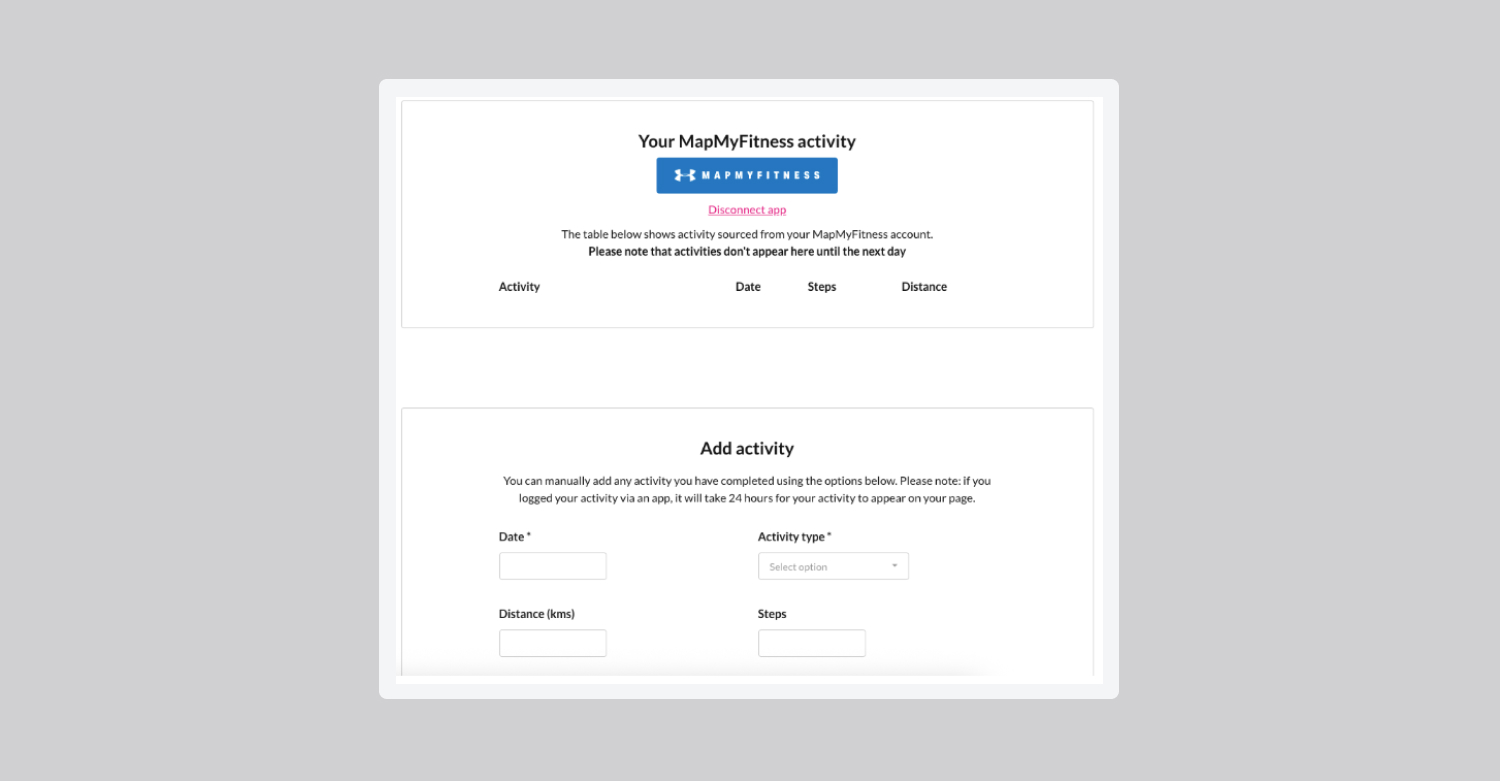
If the connection is successful, the fundraiser dashboard will display the connected MapMyFitness account and synced fitness activity.
Still need help? Check out our other Integrations support articles or reach out to the Funraisin Support team by logging a ticket through the Support Module in your platform.
Last updated: 9 Sep 2026
