

Entrants: Adding or Reassigning Between Events
Every entrant record stays connected to a supporter’s activity across your platform, including the events they take part in. While most supporters register themselves through your event entry forms, there are times when admins need to step in.
You might need to:
- Manually add a fundraiser to an event (e.g. if they registered offline or missed the form), or
- Reassign an entrant from one event to another (e.g. when someone signs up for the wrong event or switches activities).
Both tasks can be managed quickly from within the entrant record—ensuring your supporters are linked to the right events and their fundraising history remains accurate.
Adding an entrant to an event
For existing entrants, adding them to an event is straightforward:
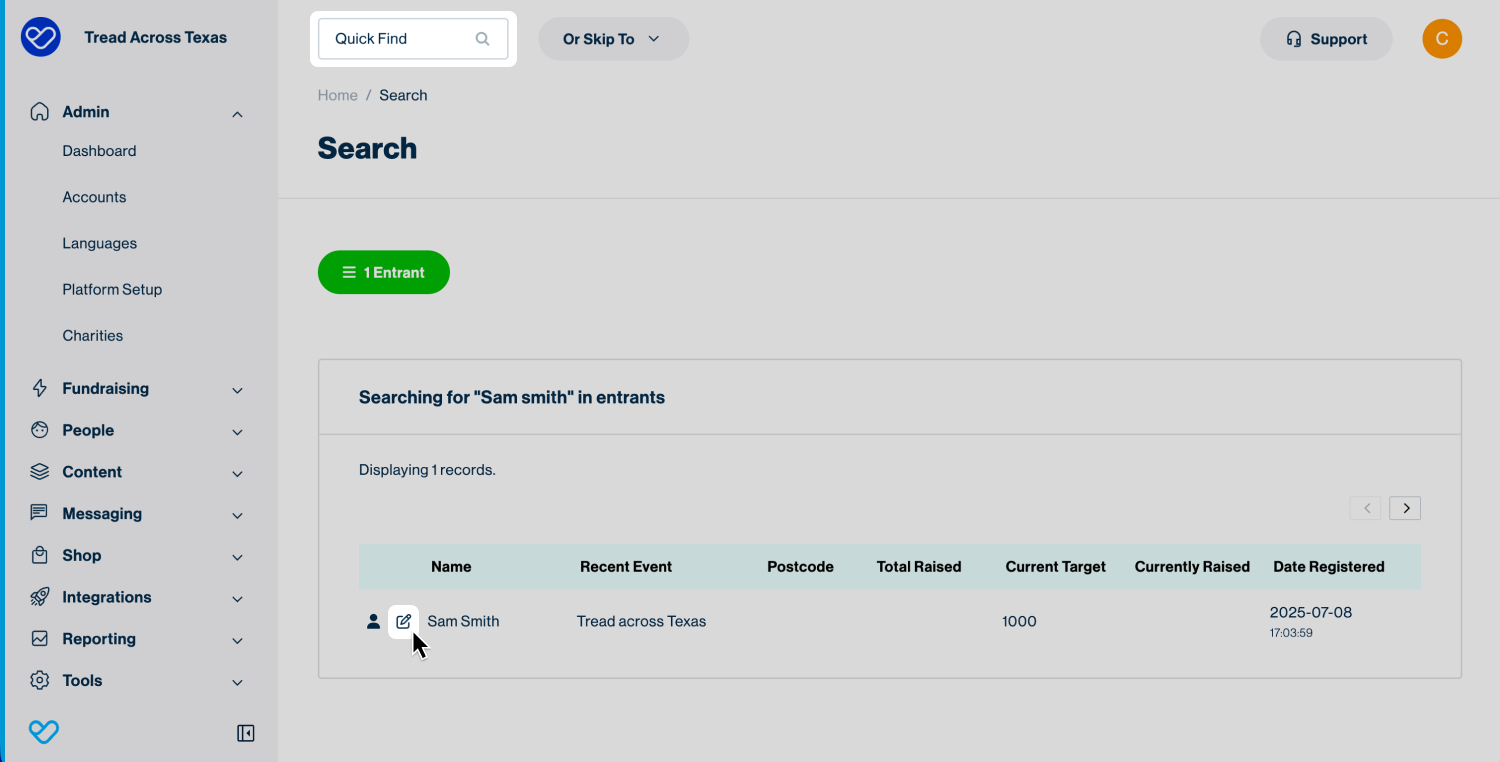
- Use the Quick Find search at the top of your platform to locate the entrant by name or, most reliably, by email address.
- Click the edit icon to open and edit their member record.
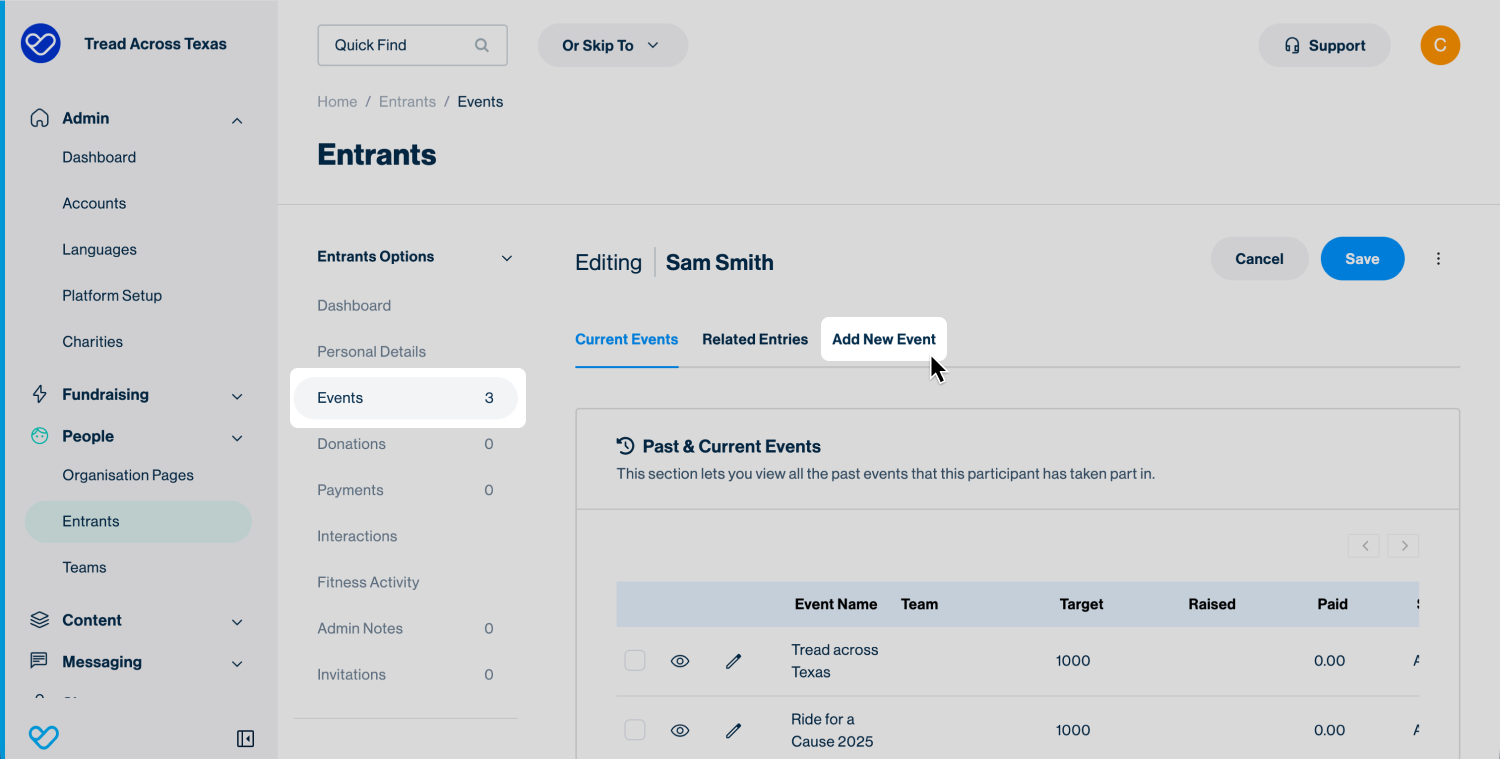
Click into Events in the middle navigation menu to view a list of the entrant’s past and current events.
Click the Add New Event tab along the top. A dropdown will display your live online events—select the correct event and click Save.
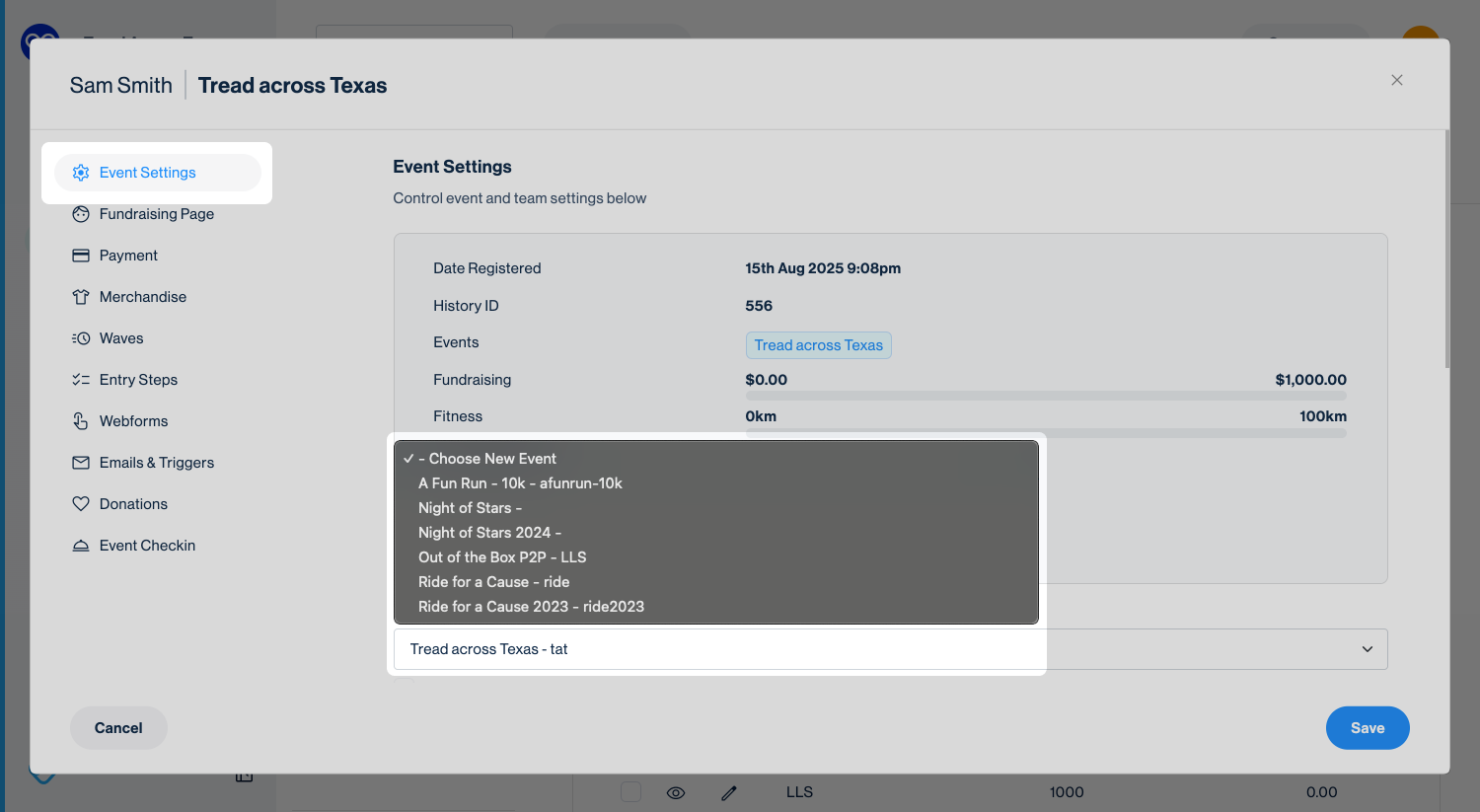
Tip! Only live online events display in the dropdown. Archived and draft events will not appear.
Once saved, the new event will appear in the entrant’s Past & Current Events list. The entrant will be inactive (they will not have a live fundraising page), indicated by the missing preview icon (eye) and a Status of ‘Inactive.’
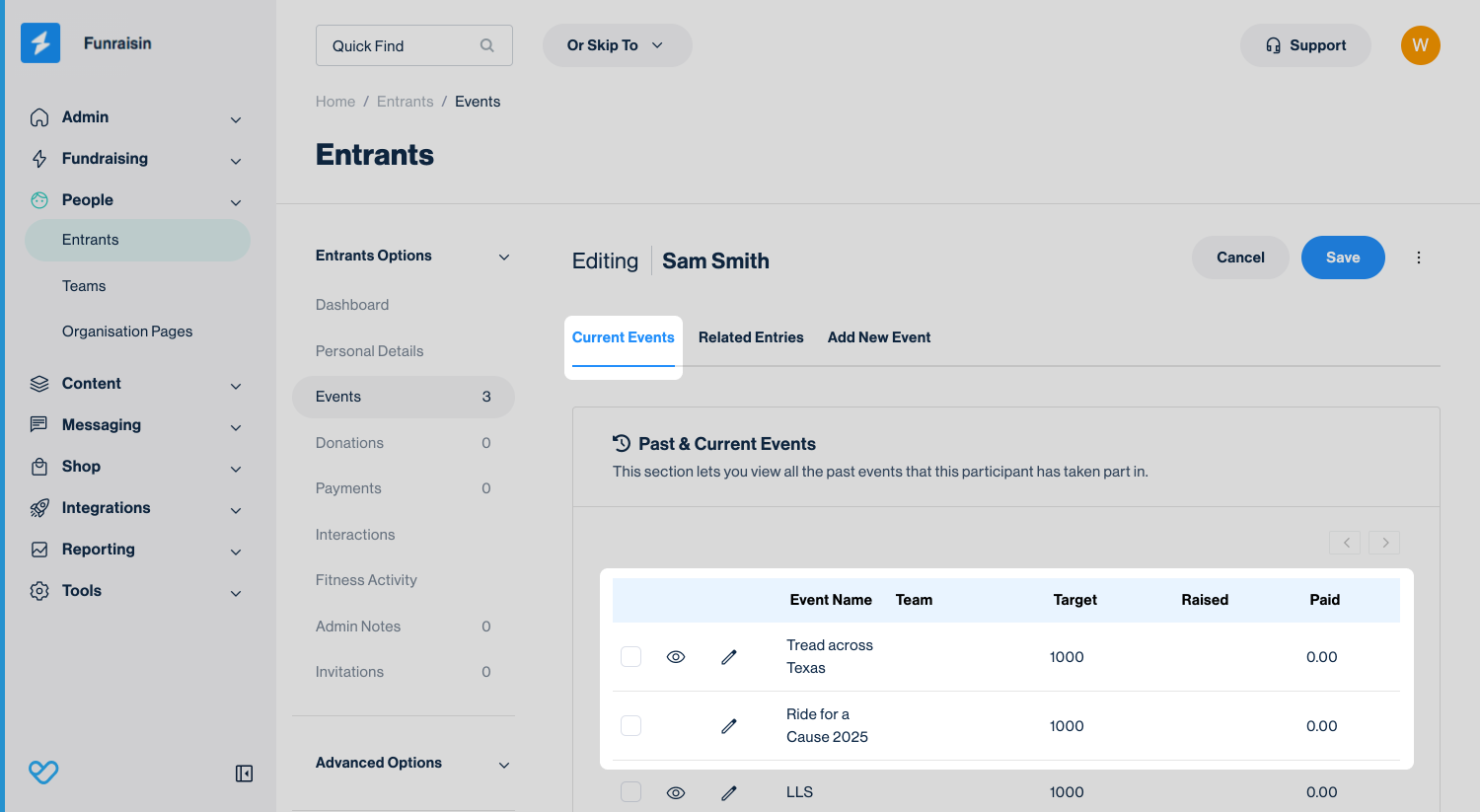
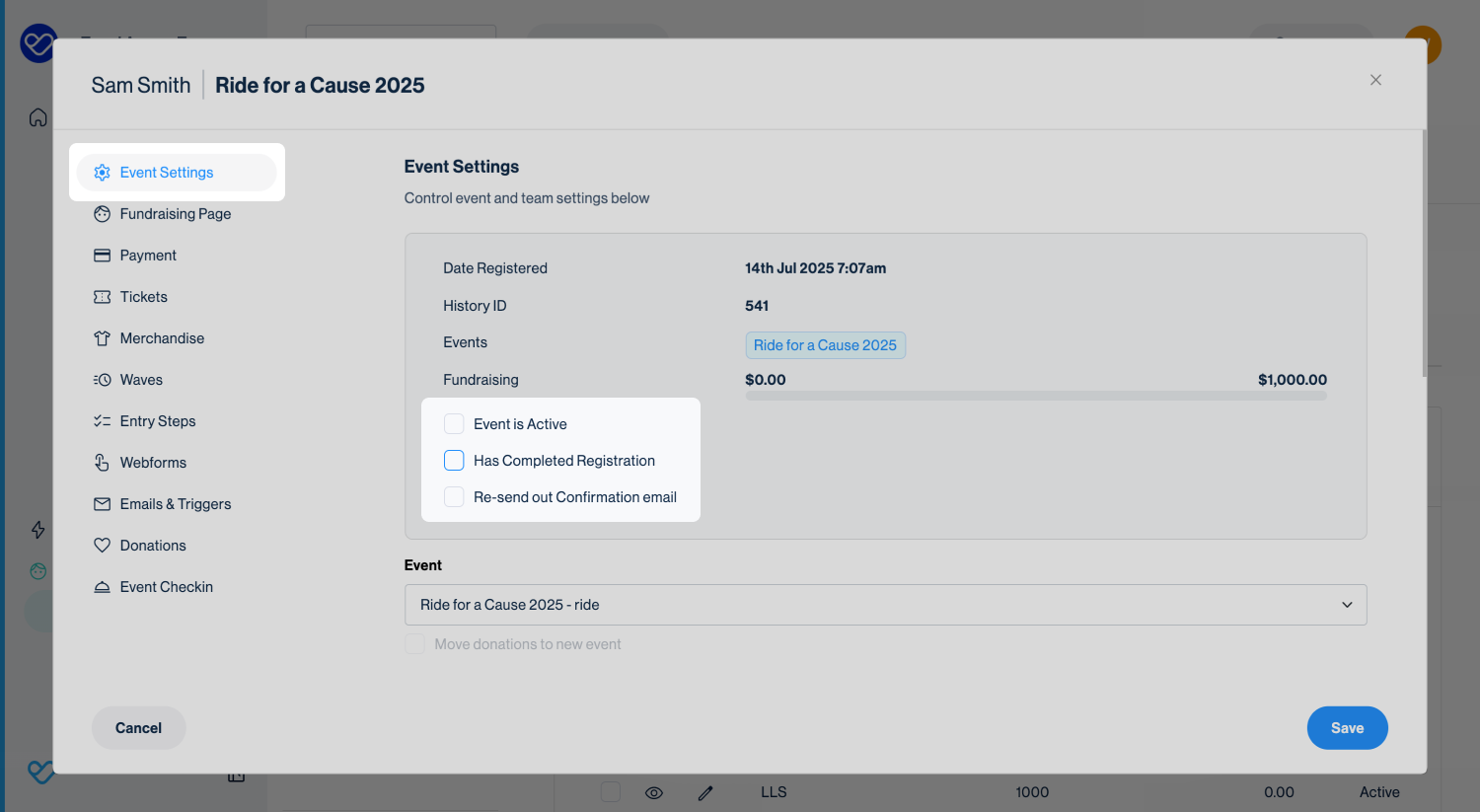
Click the edit icon next to the new event. In the pop-up, tick Event is Active and click Save to make their fundraising page live.
From the same pop-up, you can also add the entrant to a Team or Organisation, and update their fundraising or fitness targets.
Tip! Because the entrant hasn’t completed registration, Has Completed Registration will not be ticked. If you use this filter for Messages (e.g. sending an email to everyone marked as complete in the event), you may also want to tick it here.
Tip! For instructions on how to manually add an entrant to your platform, check out our other support articles.
Re-assigning an entrant between events
Entrants can be reassigned between events—a common need when multiple events are running at the same time (e.g. Sydney Walk, Brisbane Walk).
Search for the entrant and click the edit icon to open their member record.
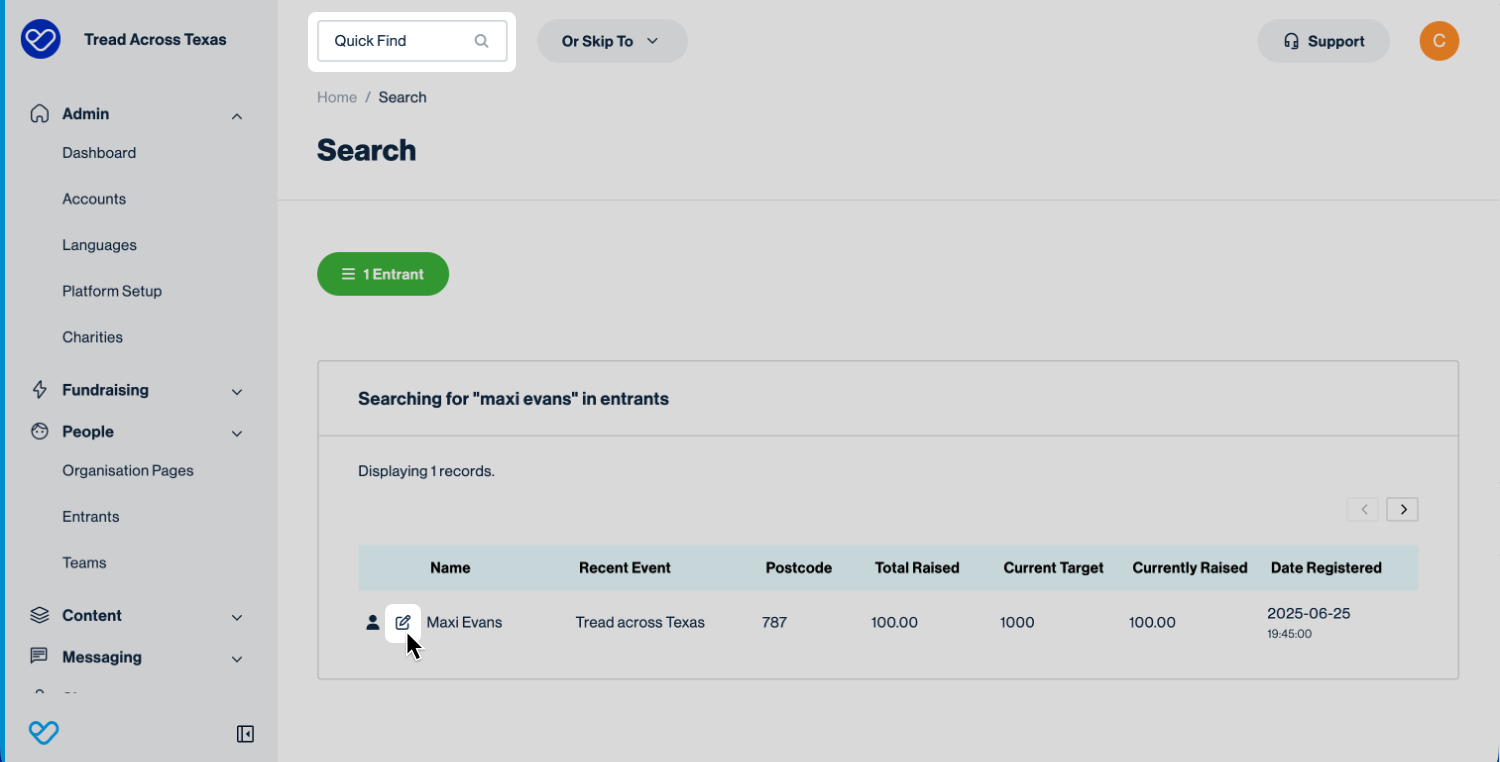
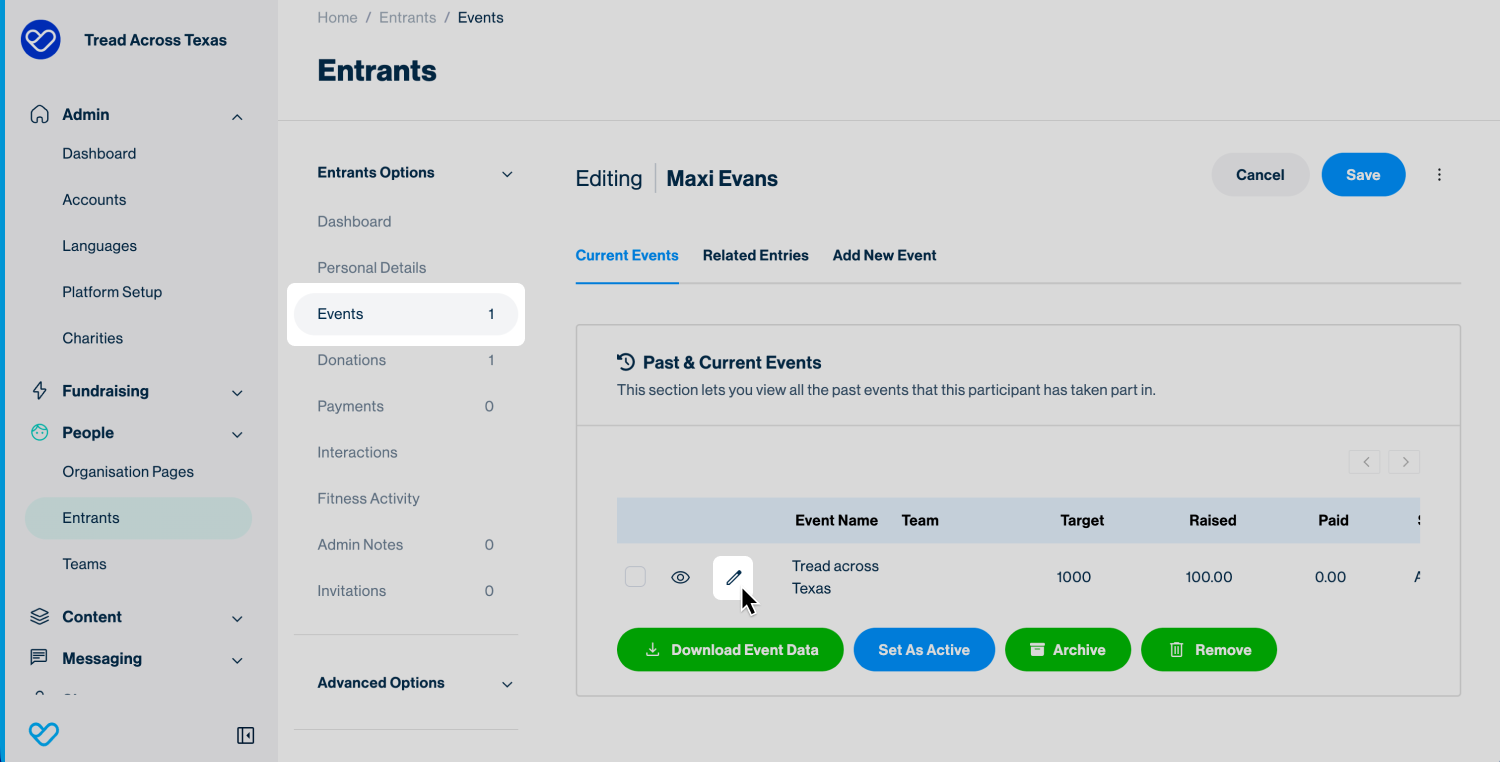
In the middle navigation menu, click Events to view the entrant’s past and current events. Then click the edit icon next to the event you want to move them from to open a pop-up.
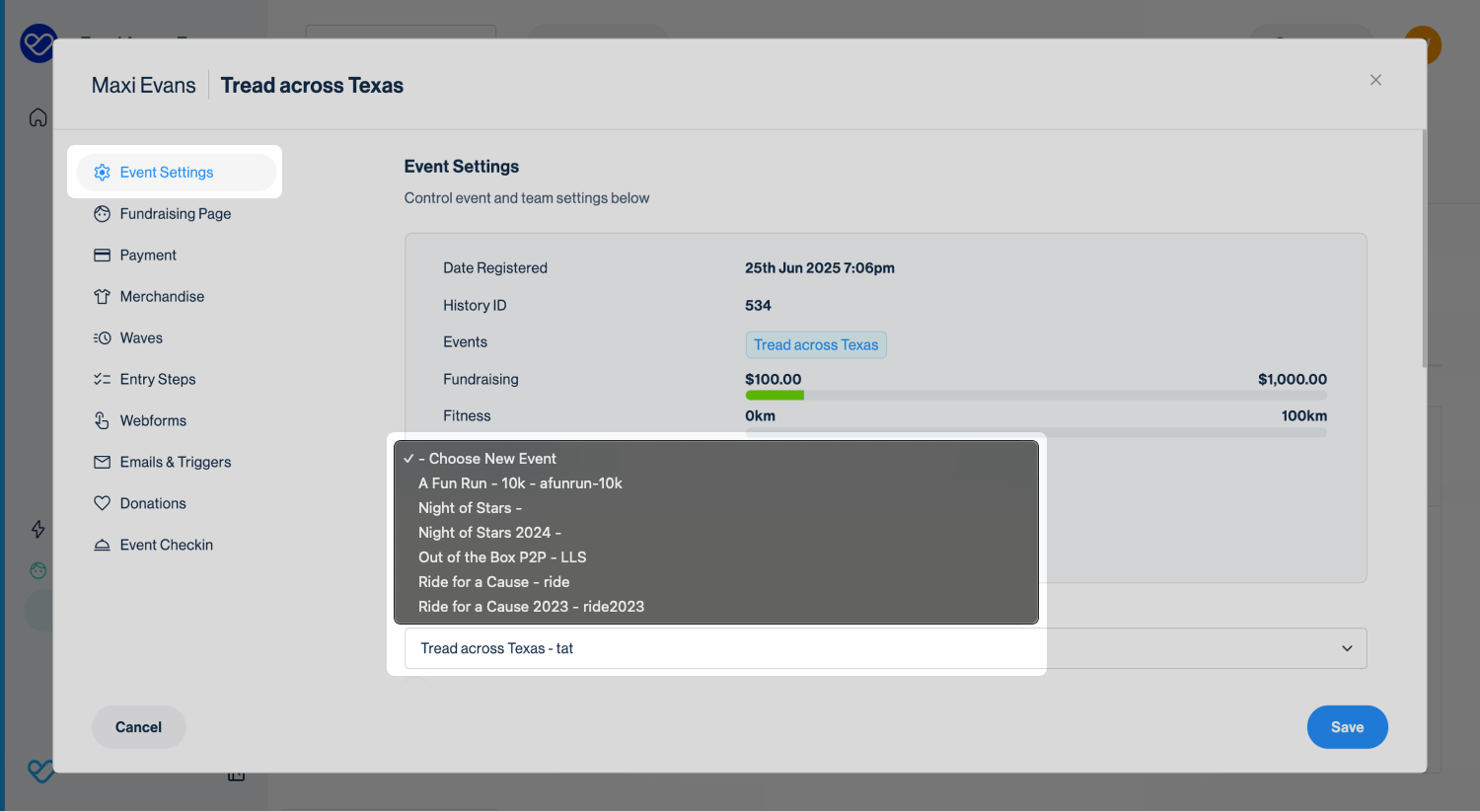
From the event dropdown list, select the event you want to move them to. Make sure to tick Move donations to new event so their donations carry across. When finished, click Save and the entrant will be reassigned.
Watch Out: When moving entrants between events, their fundraising page blog does not update automatically. If the default blog references Event A, you may need to edit the post so it reflects Event B instead.
Tip! While the donation record will be assigned to the new event, the transaction record remains linked to the original event. If you need support with this, submit a ticket via your platform.
Watch Out: If the event is ticketed, remember to update the ticket record to the new event. This process is explained further below.
Re-assigning an entrant for multi-charity events
If your platform has multiple charities, there are a couple of extra things to keep in mind when moving entrants between events.
When moving an entrant from one charity to another, one of the most important things to consider is any donations they have already received.
Those donations were processed through the Stripe or PayPal account connected to the original charity.
Reassigning them to a new charity will:
- Create reconciliation discrepancies
- Break the link between the transaction and the original payment gateway.
It’s also important to note that if donations are reassigned, the funds themselves will not move to the new charity’s Stripe or PayPal account.
If transactions need to be credited to the fundraiser under their new charity, we recommend discussing this internally with your finance and data teams to agree on the best approach. You can also reach out to our support team to talk through the best option for your setup.
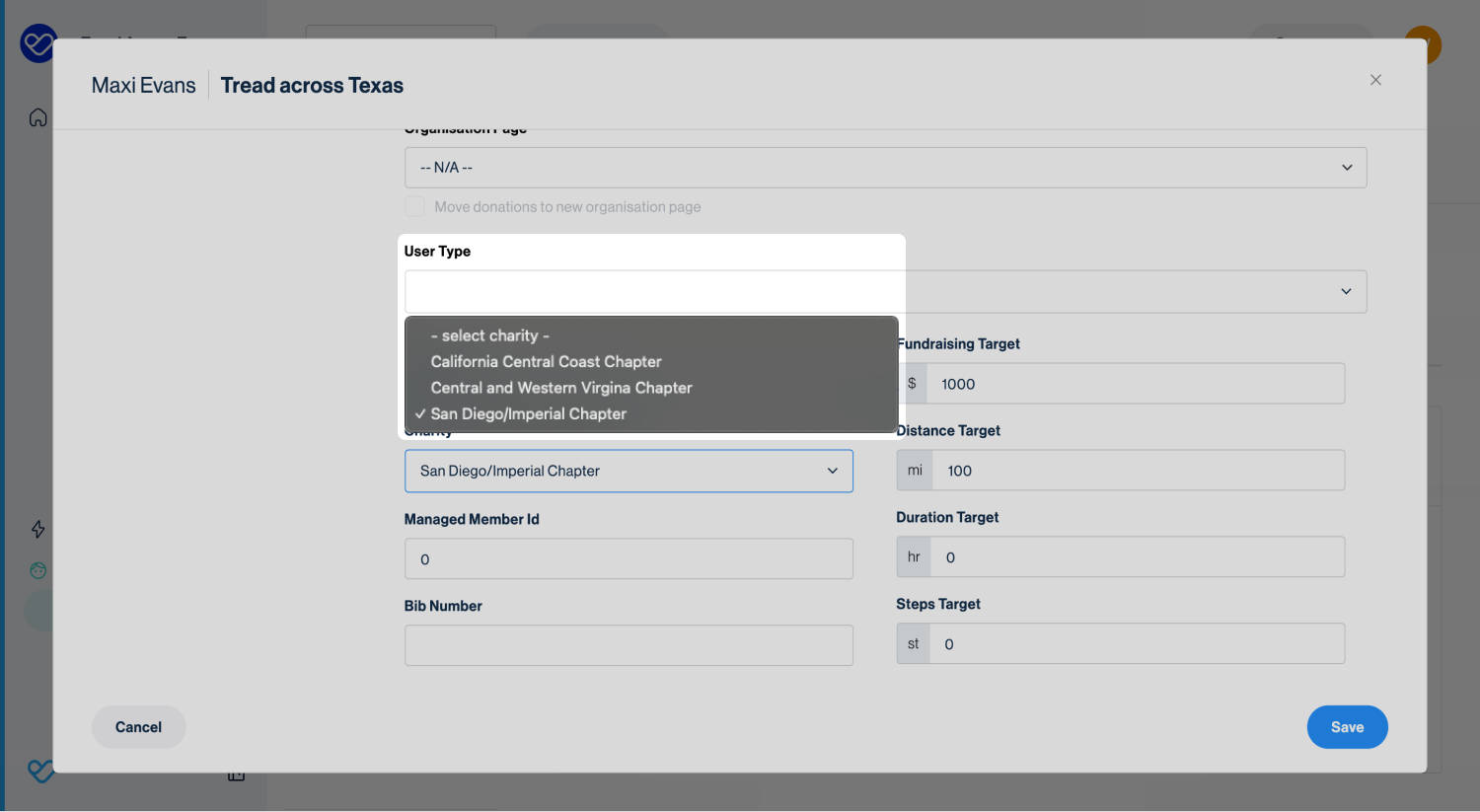
You’ll also need to update the entrant’s event record to the new charity so that future donations are assigned correctly. In the same pop-up, scroll down to the charity dropdown and select the new charity.
Re-assigning ticketholders between events
Just like entrants, ticket holders may also need to be moved between events so they appear in the correct data export.
Ticketed events can be set up in different ways. In some cases, all ticket holders have a fundraising page; in others (e.g. child or dog tickets), ticket holders do not.
To re-assign a ticket holder:
- Use Quick Find to search by name or email. This will return their ticket record and, if they have one, their member record.
- Click the Edit icon to edit the ticket record.
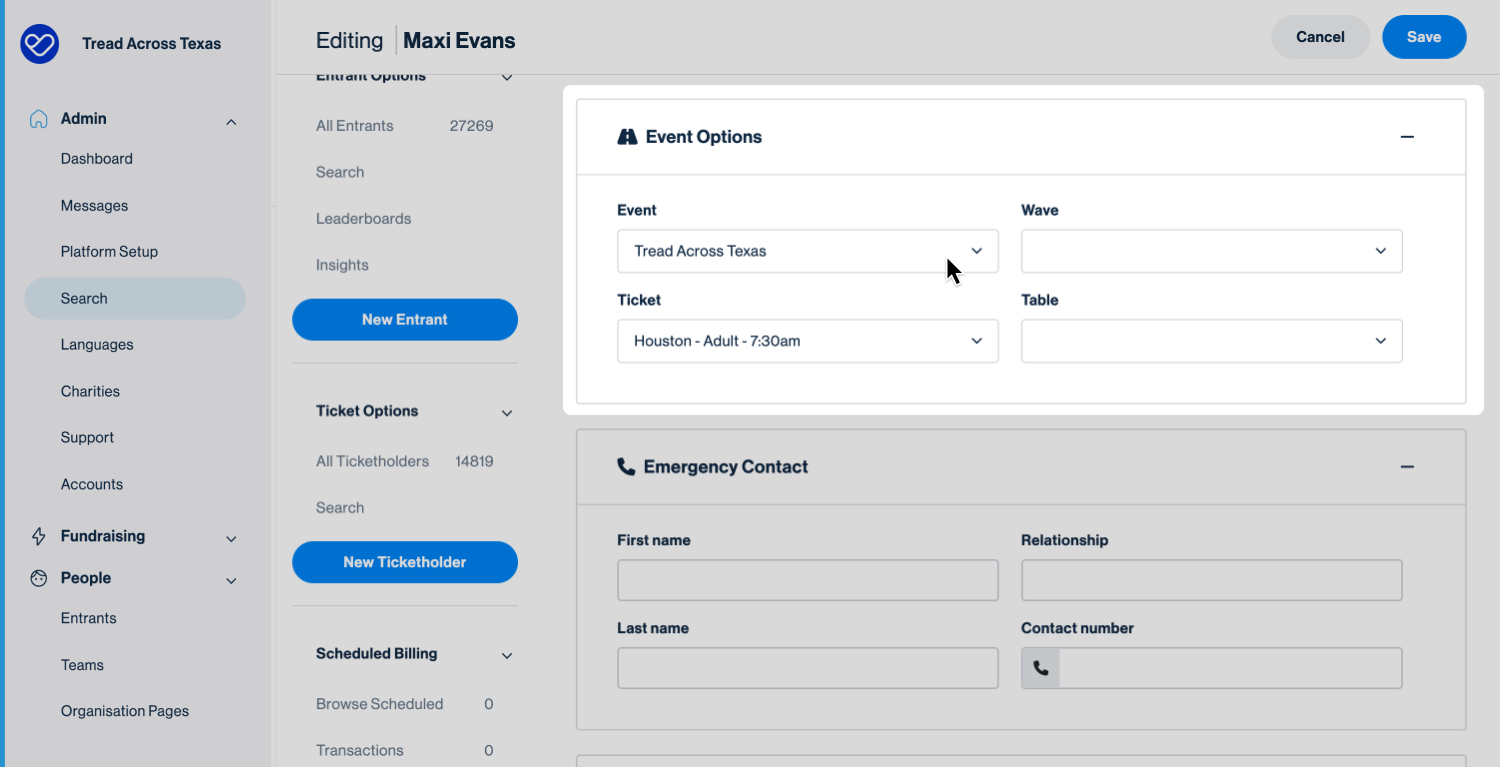
- Scroll to the Event Options section where the event and ticket name are listed.
- From the event dropdown, select the new event and click Save.
- Once saved, you can also update their ticket type to one of the options available in the new event, then save again.
Still need help? Still need help? Check out our other Supporter Care articles or reach out to the Funraisin Support team by logging a ticket through the Support Module in your platform.
Last updated: 25 Nov 2025
