

Messages: Insights
Understanding how emails are performing is essential for managing effective communication across your platform. Messages Insights provides a centralized view of email activity, allowing performance to be reviewed across different events, message types, and time periods.
By monitoring delivery, engagement, and link activity, it becomes easier to identify trends, evaluate communication effectiveness, and maintain visibility into supporter interactions.
This article explains what Messages Insights are, how to access them, how to use filters, and how to interpret the available metrics.
What are Messages Insights?
Messages Insights is the reporting view within the Messages module that displays email performance data.
It shows how emails sent through Messages are performing, including delivery and engagement activity. The data reflects activity across Transactional, Triggered, Engagement, and Fundraiser message types.
Insights reporting includes metrics such as the number of emails sent, delivered, and opened. Engagement emails also include additional metrics, such as clicks, bounces, unsubscribes, and URL tracking.
Data in the Insights view is updated hourly. A “Last updated” timestamp is displayed to show when the reporting data was most recently refreshed.
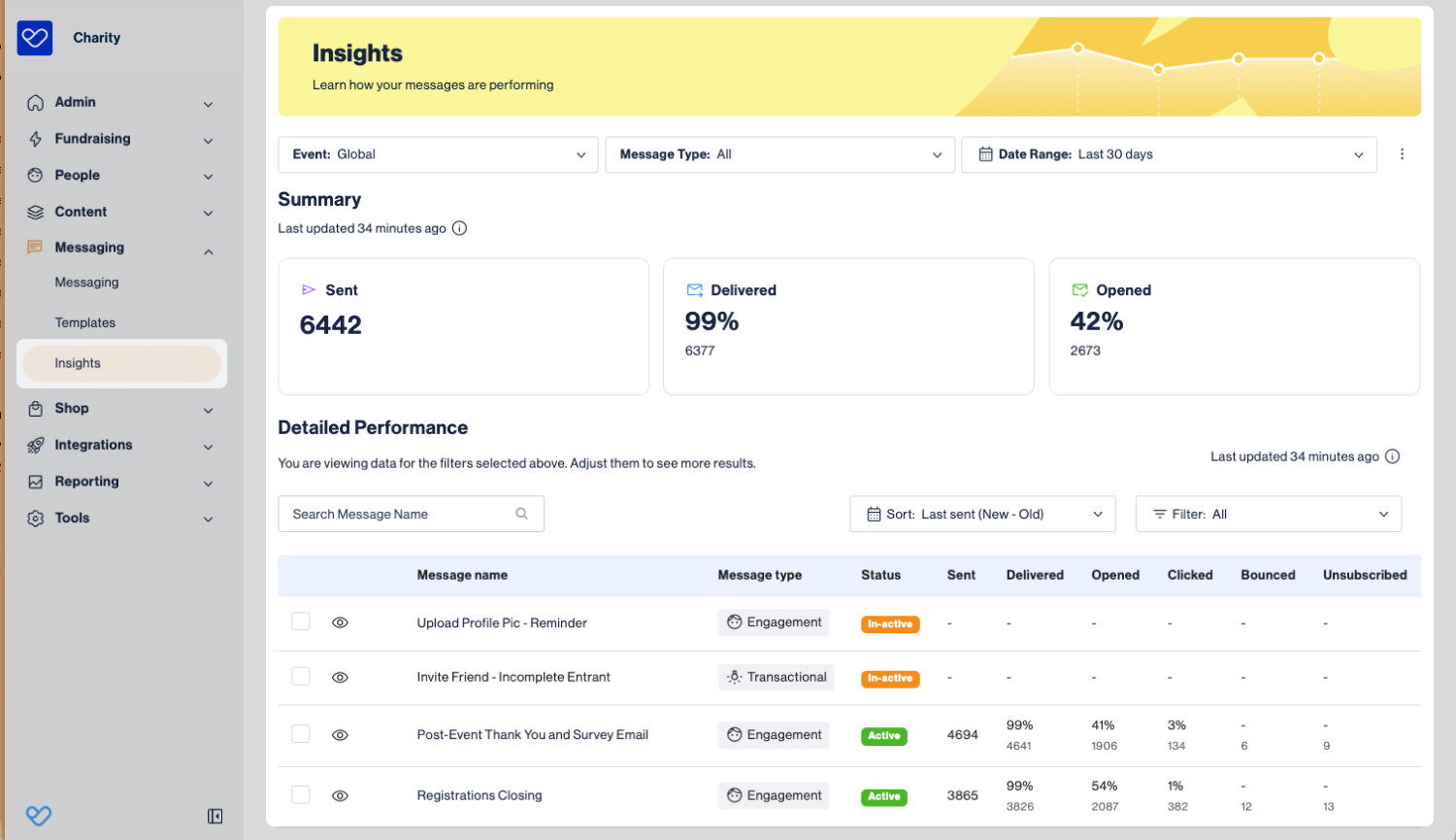
Note: Message Insights data is cached to help optimize reporting performance, so it may take up to 30 minutes for sent messages to appear. Delivery insights, such as delivered and other email statuses, may take up to an additional hour to update.
How to view Messages Insights
Messages Insights can be accessed in two ways.
Option 1: From the Insights Dashboard
- 1
- Navigate to Messaging, then Insights.
This opens the Insights dashboard, displaying performance data based on the selected filters.
Option 2: From an Individual message (Engagement Messages only)
- 1
- Navigate to Messaging, then Messaging.
- 2
- Use the dropdown to select Global, or a specific Event, or a DIY Theme.
- 3
- Select the Message Type: Engagement.
- 4
- Locate the message in the list.
- 5
- Click the three dots menu on the message.
- 6
- Select View Email Insights.
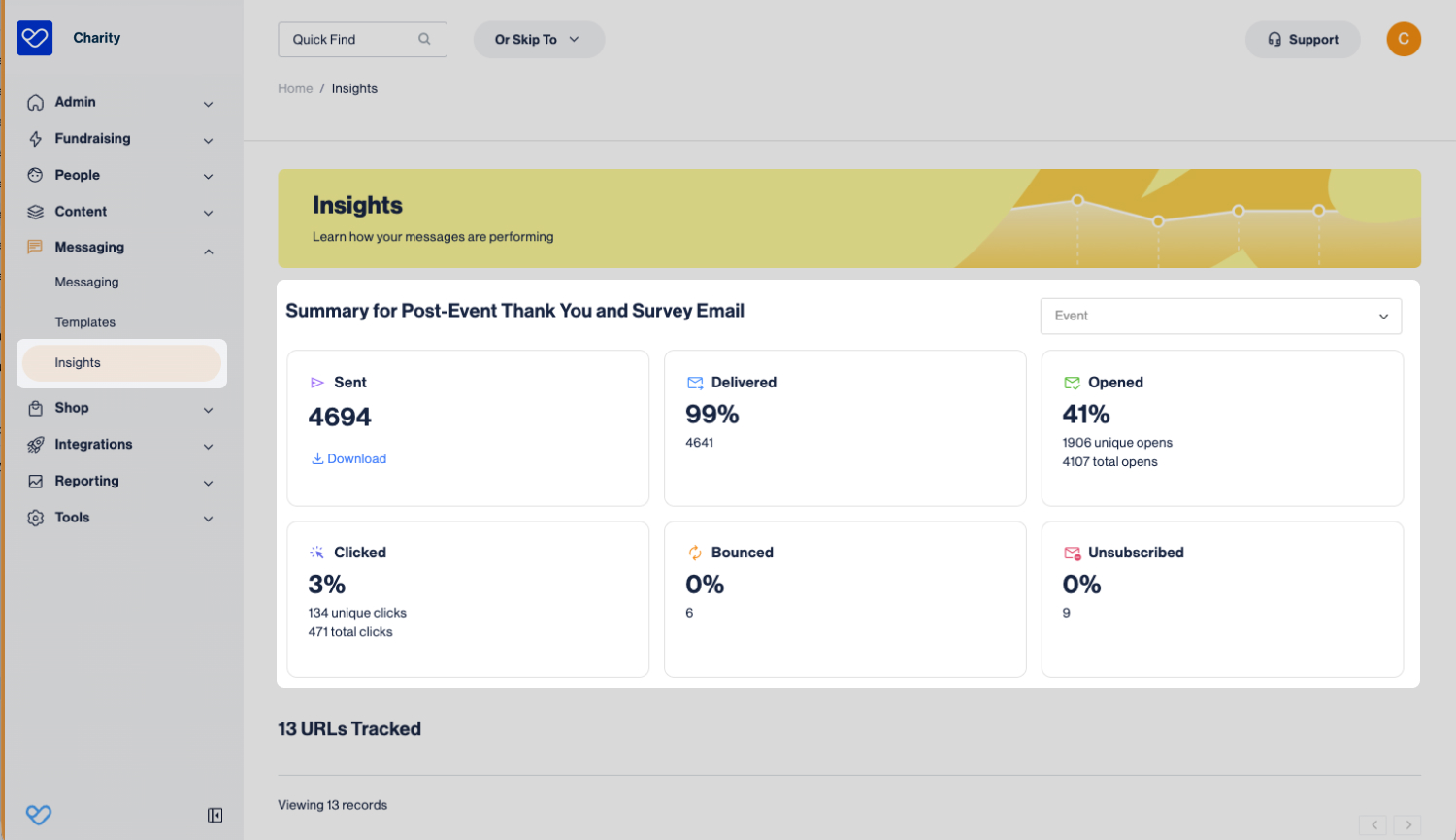
This opens a more granular Insights view, filtered to the selected message.
Using the filters
Messages Insights can be filtered to refine the data displayed. The selected filters determine which emails are included in the reporting summary. The Insights view updates automatically when a filter is changed.
Filters include:
- Event: Selecting a specific event or DIY theme narrows the data to activity within that selection. Options include:
- Global
- A specific Online Event
- A specific Offline Event
- A specific DIY Theme
- Message Type: Filtering by message type allows reporting to focus on a specific communication category. Options include:
- All (Includes all message types)
- Transactional
- Triggered
- Engagement
- Fundraiser
- Date Range: The selected date range determines the period of activity included in the summary and detailed performance section. Options include:
- Last 24 hours
- Last 7 days
- Last 30 days
- Last 12 months
- Custom date range
Additional filters are available in the Detailed Performance section, including:
- Search: Use the search field to find a specific message by name.
- Sort: Control the order in which messages are displayed in the list. Options include:
- Name (A – Z)
- Name (Z – A)
- Last Sent (New – Old)
- Last Sent (Old – New)
- Filter: Apply an additional filter based on message Status to further refine results. Options include:
- All: Shows all messages that match the selected filters.
- Active: Shows only active messages that match the selected filters.
- Inactive: Shows only inactive messages that match the selected filters.
Understanding the metrics
Messages Insights displays a summary and detailed performance metrics for emails sent through the Messages module. The metrics shown vary slightly depending on the message type.
All Message types
All message types display the following details and metrics:
- Eye Icon: Click to preview the message.
- Message Name: The name of the message.
- Message Type: The category of message (for example, Transactional, Triggered, Engagement, or Fundraiser).
- Message Status: Indicates whether the message is active (enabled, sending) or inactive (disabled, not sending).
- Sent: The total number of emails sent within the selected filters.
- Delivered: Delivered emails are emails that were successfully sent and did not bounce. Insights displayed:
- The number of emails successfully delivered.
- The delivery rate as a percentage of emails sent.
- Opened: Opened emails are counted when the recipient opens the email. Insights displayed:
- The number of emails opened by a unique email address.
- The open rate as a percentage of delivered emails.
Engagement Emails
Engagement emails include all of the above metrics, plus additional engagement reporting.
- Clicked: Clicked emails are counted when a recipient clicks a link within the email. Insights displayed:
- The number of link clicks.
- The click rate as a percentage of delivered emails.
- Bounced: Bounced emails are messages that could not be successfully delivered to the recipient’s email address. Insights displayed:
- The number of emails that could not be delivered.
- The bounce rate as a percentage of emails sent.
- Unsubscribed: Unsubscribes are recorded when a recipient chooses to opt out of future Engagement emails. Insights displayed:
- The number of recipients who unsubscribed.
- The unsubscribe rate as a percentage of delivered emails.
Clicking an individual Engagement message name in the Detailed Performance section displays additional insights:
- URL Tracking: URL tracking shows which links within the email were clicked and how many times they were clicked. Insights displayed:
- The total number of URLs tracked within the email.
- Each tracked URL.
- The number of clicks per URL.
Reporting
Three reports are available for all messages within Messages Insights: an overview download, an Opt-Out Report, and a Bounce Report. An additional sent report is also available for engagement messages.
Overview Download
A detailed performance report is available to download for all message types. The export includes:
- Sent to: Email address of the recipient.
- Subject: Message subject line.
- Date Sent: Date the message was sent.
- Delivered: Indicates whether the message was successfully delivered (Y = Yes, N = No).
- Date Opened: Date the message was opened.
- Clicked: Indicates whether any links in the message were clicked.
- Event ID: Associated event ID.
- Event Name: Associated event name.
- Message Type: The category of message. For example:
- Transactional
- Triggered
- Engagement
- Fundraiser
To download a detailed overivew:
- 1
- Navigate to Messaging, then Insights.
- 2
- Set your desired filters.
- 3
- In the Detailed Performance section, select (tick) the messages you want to include in the report.
- 4
- Click Download at the bottom of the page.
Overview Download
The Opt-Out Report provides a downloadable CSV file showing the current communication preference status for supporters in relation to Engagement messages. Engagement messages are the only message type supporters can opt out of, as they are not directly tied to an action or transaction.
The report reflects platform-wide opt-out status across available communication categories.
Categories include:
- Global: Indicates whether the supporter is opted in or out of global engagement emails.
- Event: Indicates whether the supporter is opted in or out of engagement messages for specific events they have registered for. This includes Online, Offline, and DIY events.
- Donation: Indicates whether the supporter has opted in or out of engagement messages sent after making a donation.
- Shop: Indicates whether the supporter has opted in or out of engagement messages sent after making a shop purchase.
The report includes:
- Supporter: The supporter’s email address.
- Categories: Lists all events created on the platform, as well as Shop and Donation preferences. For each category, the export displays:
- True: The supporter is opted in.
- False: The supporter opted out.
- Blank: The supporter does not have an account linked to that category. For example, if the Donation column is blank, the supporter has not made a donation.
This report reflects the current status of preferences.
Bounce Report
The Bounce Report provides a record of messages that could not be successfully delivered. It includes the bounce type (soft or hard) and the delivery response returned by Mailgun, the email delivery service used by the platform to send Messages. The Bounce Report includes all message types.
The report includes:
- Email Address: The supporter’s email address the message was sent to.
- Bounce Type: The classification of the delivery failure:
- Soft Bounce: A temporary delivery failure. This may occur due to a full inbox, a temporary server issue, or a message size limit. Delivery may succeed on a future attempt.
- Hard Bounce: A permanent delivery failure. This typically occurs when the email address is invalid, does not exist, or the receiving server has permanently rejected the message.
- Bounce Code: The numeric SMTP response code returned by the receiving mail server (for example, 550). These codes indicate the reason for the delivery failure.
- Bounce Message: The full delivery response returned by the receiving server. This includes additional detail explaining why the message was rejected and may include a URL linking to further information about the bounce reason.
Downloading Opt-Out and Bounce reporting
To download an Opt-Out or Bounce report:
- 1
- Navigate to Messaging, then Insights.
- 2
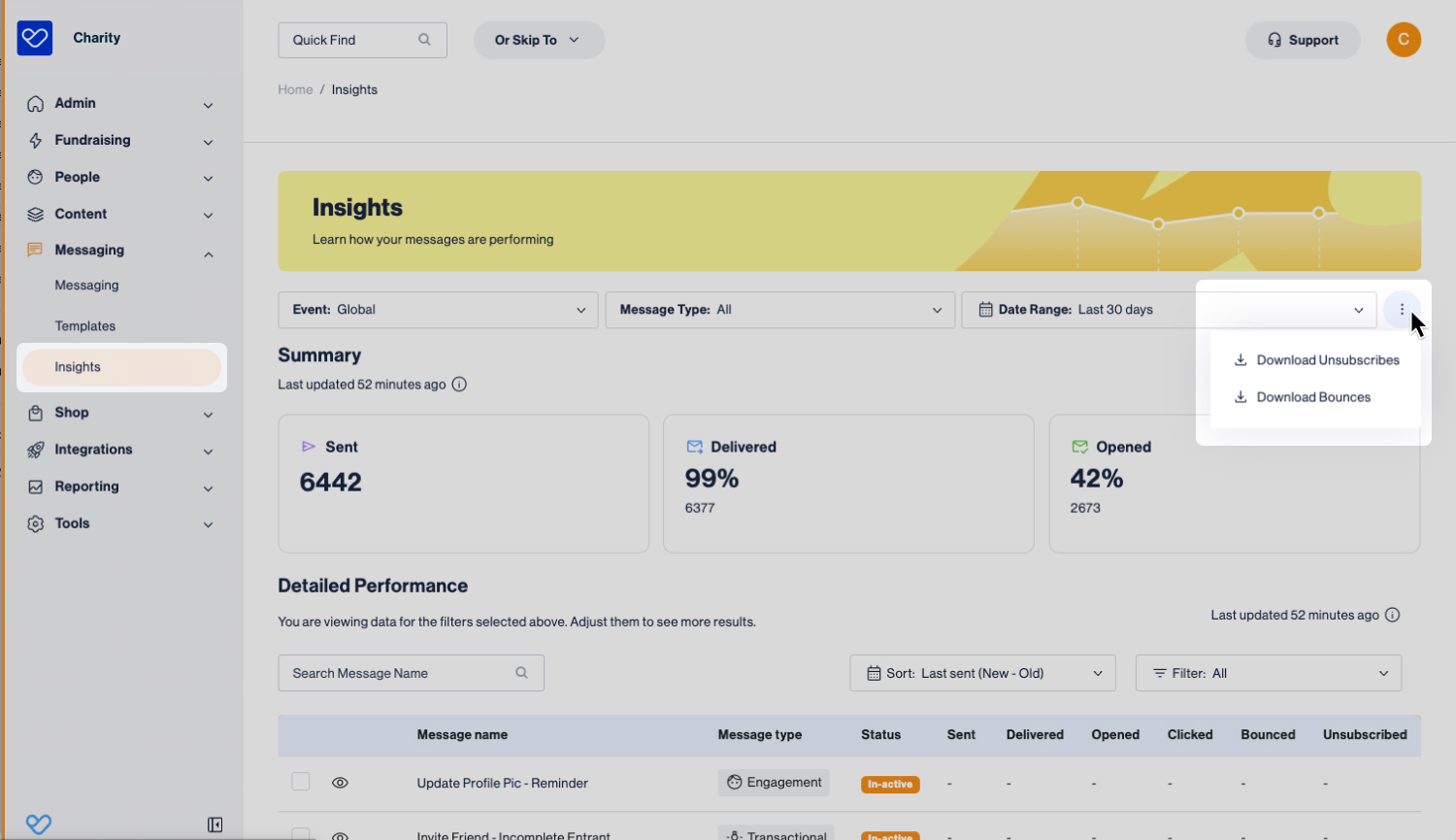
- Click the three dots (More Options) next to the Message Type dropdown.
- 3
- Select either Download Unsubscribes or Download Bounces.
Engagement Message Sent Report
The sent report is only available for engagement messages. It shows the date/time the email was sent, the email address, and whether it was delivered.
To download an engagement message sent report:
- 1
- Navigate to Messaging, then Insights.
- 2
- Set your desired filters, and select the Message Type: Engagement.
- 3
- In the Detailed Performance section, locate the engagement message and click on the Message Name to view further insights.
- 4
- Click Download located within the Sent stat block.
Still need help? Check out other Messages support articles, or reach out to the Funraisin Support team by logging a ticket through the Support Module in your platform.
Last updated: 7 Oct 2026
