

Payments: Trust Badges
Every online donation is built on trust. Supporters are about to share not just their generosity, but their personal and payment details too. In that moment of conversion, hovering over the “donate” button, visual cues make all the difference.
Displaying security badges transforms uncertainty into assurance. They signal that payments are safe and protected, reassure donors that your organization is credible, and mirror the best practices people already expect from reputable sites. The result? Higher completion rates, larger average gifts, and donors who feel confident they’ve given to the right place.
What are Trust and Security Badges?
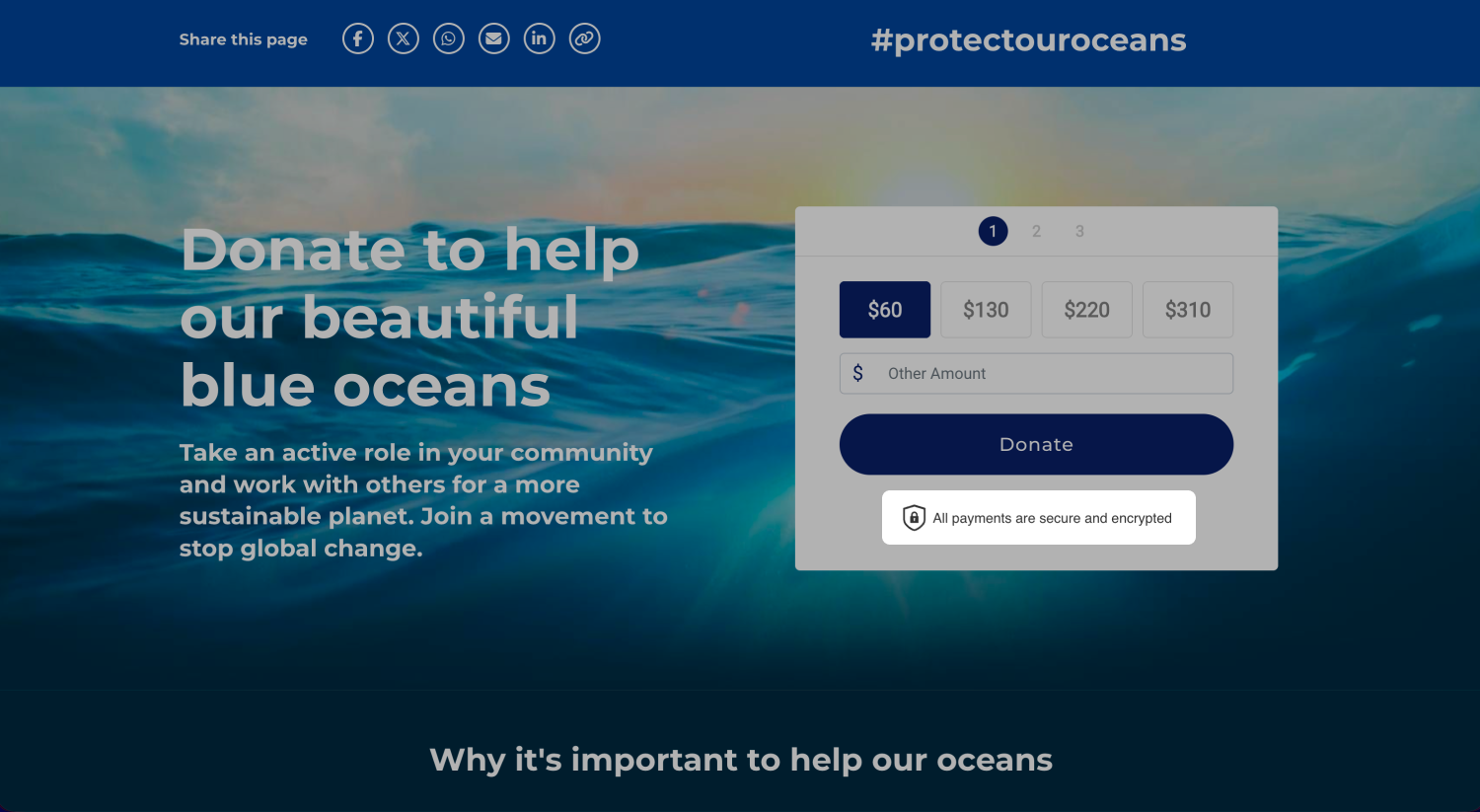
Trust and security badges are visual markers, such as logos, images or icons and supporting text, displayed on the donation form to help signal that the donation process is safe and secure.
Why they matter
For many donors, giving online feels different from shopping online. They might trust your mission, but still hesitate when it comes to entering credit card details. Trust and security badges help bridge that gap by:
- Reassuring donors: they signal that payment details are safe and secure
- Boosting completion rates: by reducing hesitation during the checkout process
- Building credibility: reinforcing your professionalism and legitimacy as an organization
- Aligning with best practice: mirroring what donors already expect from reputable sites
- Encouraging larger gifts: because when supporters feel confident, they’re more likely to give generously
Badges may be small, but their impact is measurable: less friction, more completed donations, and a stronger sense of trust in your cause.
Enabling and customizing Trust and Security Badges
Trust and Security Badge is enabled and customized at platform-level and applies to all donation blocks across your site.
When enabling the Trust and Security Badge, you can choose between two display options:
- Default: Use Funraisin’s default trust badge, designed to support donation completion. The default badge includes:
- Layout: Image left, text right, payment types below.
- Text and image: Displays a shield icon with the message All payments are secure and encrypted, along with Stripe and supported payment method logos.
- Preview: Click Preview to see how the default badge will appear on the donation form.
- Custom: Choose Custom to personalize the trust and security badge. You can customize:
- Layout: Choose from:
- Image left, text right
- Image above, text below
- Image left, text right, payment types below
- Image only
- Image: Upload a JPG or PNG directly, or select an image from the Media Library.
- Optional Text: Add your own message. If no text is entered, the message defaults to All payments are secure and encrypted.
- Preview: The Preview displays your customized trust badge layout. Click Save after making changes to update the preview.
- Display: By default, the trust badge displays at the bottom of each step of the donation form. To display it only on the payment step, select Payment step only.
- Layout: Choose from:
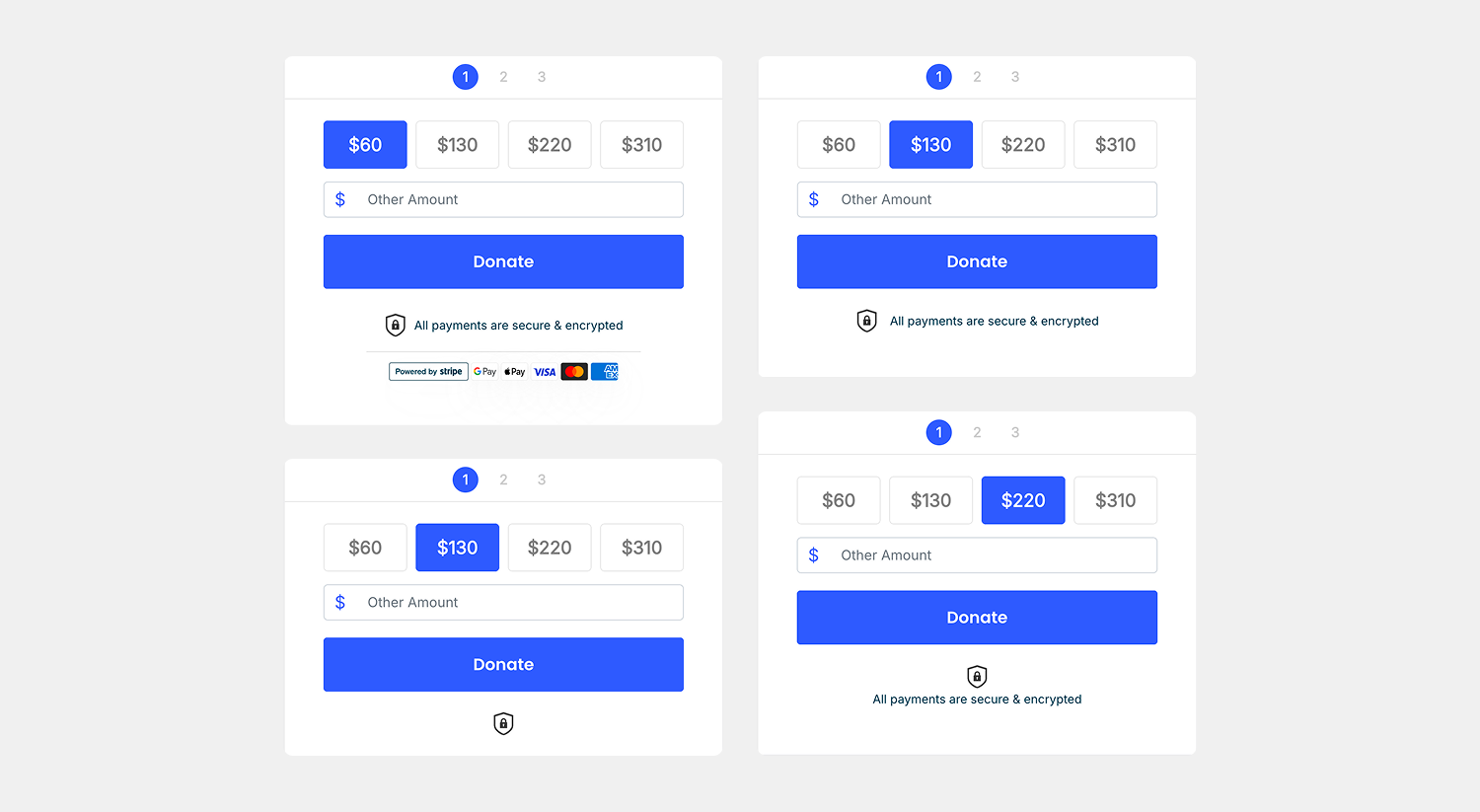
Note: Default and Custom trust badges only display logos for payment options enabled on your platform.
To enable and customize the Trust and Security Badge:
- 1
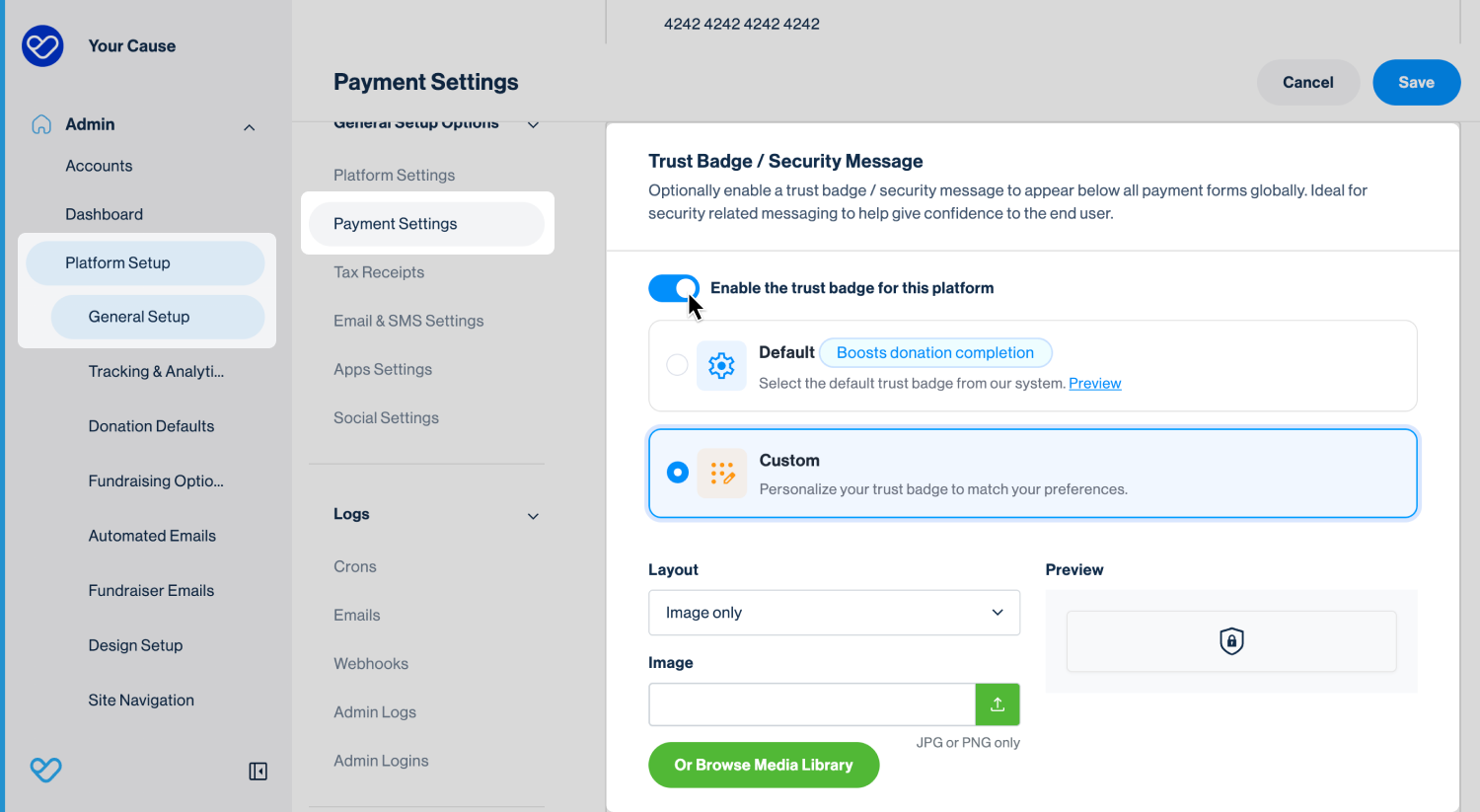
- From the side navigation, go to Platform Setup > General Setup.
- 2
- From the middle navigation under General Setup Options, select Payment Settings.
- 3
- Scroll to the Trust Badge/Security Message section and toggle on Enable the trust badge for this platform.
- 4
- Select Default or Custom.
- If you select Custom, configure the layout, image, text, and display settings as needed.
- 5
- Click Save.
Important: These settings apply to all donation blocks across your platform. The Trust and Security badge can be at the form level for platform-level donation and appeal pages. They cannot be disabled at event-level.
Controlling trust badge visibility at form level
When enabled, Trust and Security Badges display on all donation forms across your platform by default. Platform-level donation and appeal pages allow you to control the visibility of the trust badge on individual forms. Trust badges cannot be hidden on Event-level forms.
To control trust badge visibility on an individual form:
- 1
- Locate the platform-level donation or appeal page.
- 2
- Open the page in Visual Builder.
- 3
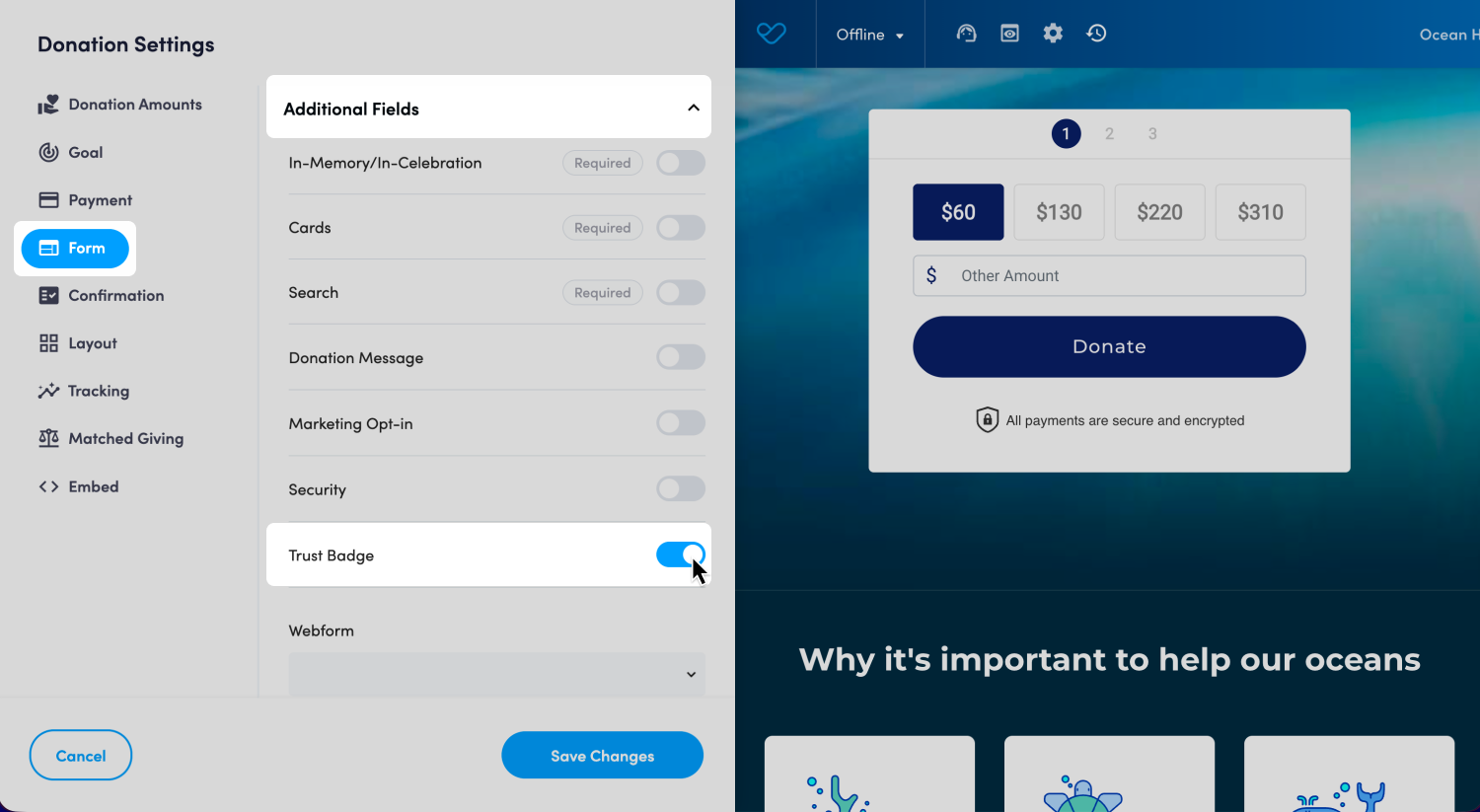
- Edit the donation form settings by clicking on the heart icon.
- 4
- Select the Form tab and expand the Additional Fields section.
- 5
- Toggle the Trust Badge on or off.
- 6
- Click Save Changes.
- 7
- Click Save to save the changes to the page.
- 8
- Click Publish when you are ready to publish.
Still need help? Check out other Payments articles or reach out to the Funraisin Support team by logging a ticket through the Support Module in your platform.
Last updated: 24 Sep 2026
