

VIP Club Members who have signed up for a Recurring Raffle on your platform can use the Member Login to securely download their raffle tickets and receipts and update their payment details.
In this article, learn about:
Allowing Members to Login
Unlike fundraisers, members or donors don’t set passwords. Instead, they securely access their dashboard using unique links or passcodes. Members follow the same login process as donors.
To allow members to log in, you’ll need to have the Login option in your navigation. To add this:
- Edit your navigation at the platform or event level.
- Add a new navigation item and select Use Platform Default.
When adding the navigation item, you’ll see the options for Login Options or Donor Login Options:
- Login Options: Allows both entrants and donors/members to log in.
- Donor Login Options: Best for sites exclusively using Recurring Raffles or donor management.
Select the appropriate option and save. The Login link will now appear in your navigation.
For more details on setting up navigation, refer to this support article.

Downloading Raffle Tickets and Receipts
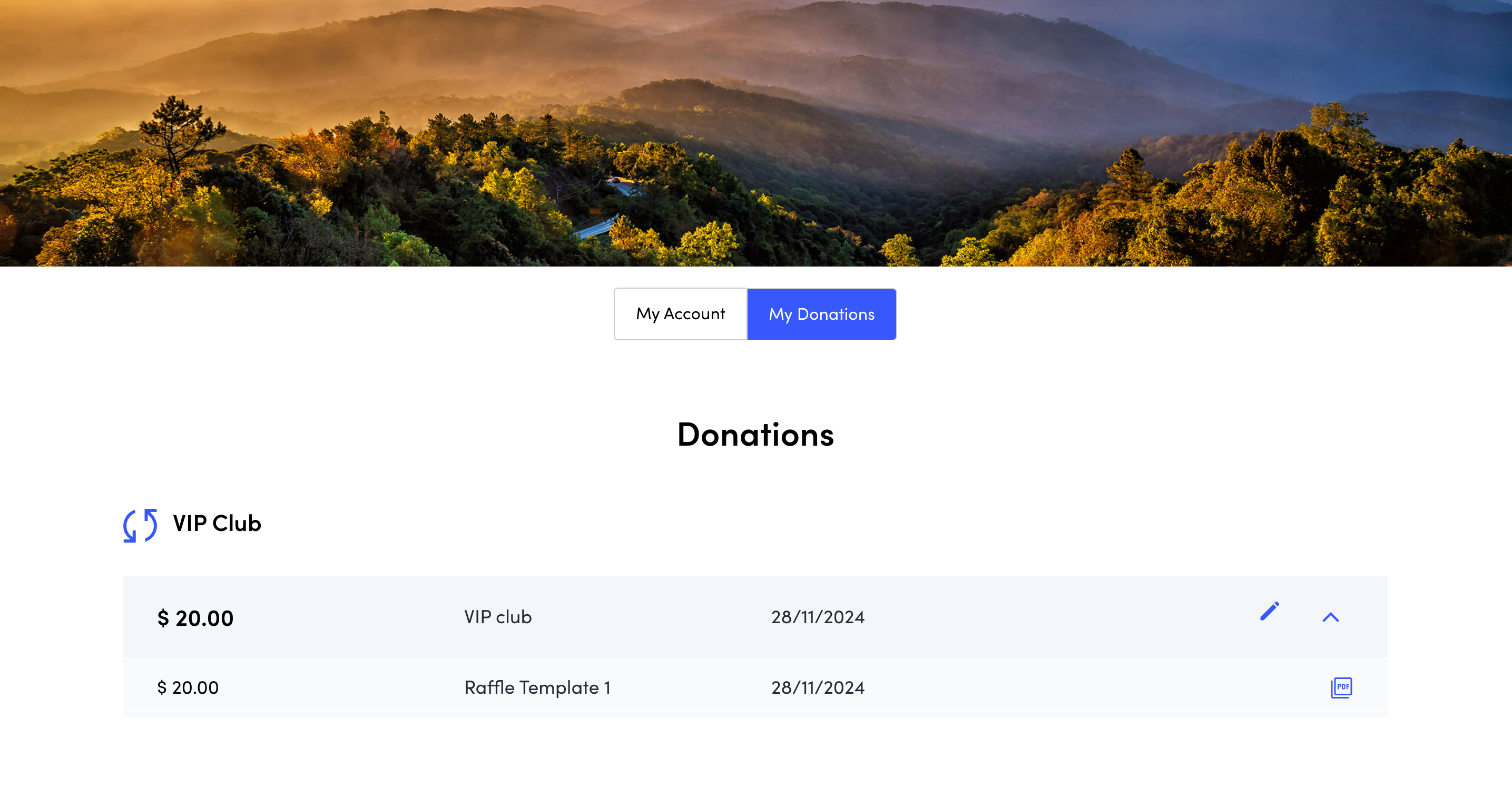
Once a Member is logged in they will land on this screen. If they have donated to your platform they will see their VIP Club Membership and their One-off or Regular Donations.
Under VIP Club, members can view their memberships, including:
- The amount they’ve signed up for.
- The name you’ve given your VIP Club.
- The date they joined.
- An Edit button and an expand icon for more details.
Below their membership details, members will see a list of raffles they’ve been entered into. Next to each raffle, a PDF icon allows them to:
- Download their raffle tickets.
- Download a receipt for their purchase.

Updating Payment Details
To update payment details:
-
Members click the Edit button on their VIP Club membership.
-
They’ll see the membership details, including:
- The amount they’ve signed up for.
- The date they joined.
- The number of tickets they receive.
-
Under Payment Details, members select the Edit icon.
-
Fields will appear for updating the card number, expiry date, and CVV.
-
Once they’ve entered the new details, they click Save.
The updated payment details will be ready to go for the next raffle.
Note: If your platform is set up with multiple charities and a donor requests an annual reciept they will receive a zip file with one pdf per charity.
Have further questions for Member Login?
Lodge a support ticket within the support section of your platform and our team will get back to you.
